
You are here:
Sort Data in Dashboard Widgets
Sort dashboard widgets by groups and measures. Sort ascending or descending. Dashboard widgets support two-level sorting. So you can sort by Stage and then by Sum of Amount, or by Average Age and then Record Count.
Required Editions
| Available in: Lightning Experience |
| Available in: Essentials, Professional, Enterprise, Performance, Unlimited, and Developer Editions |
| User Permissions Needed | |
|---|---|
| To create dashboards: | Run Reports AND Create and Customize Dashboards |
| To edit and delete dashboards that you created: | Run Reports AND Create and Customize Dashboards |
| To edit and delete dashboards that you created in public folders: | Edit My Dashboards |
| To edit and delete dashboards that you didn’t create in public folders: | Manage Dashboards in Public Folders |
| To create, edit, and delete dynamic dashboards: | Manage Dynamic Dashboards |
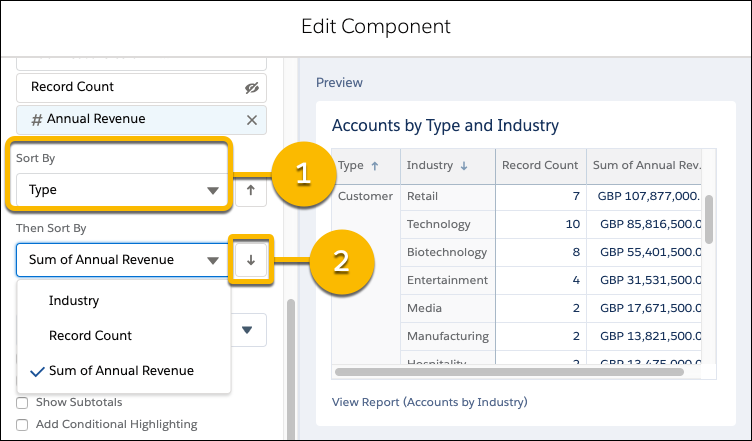
To sort data in a dashboard widget, edit the dashboard widget.
-
To set the first-level sorting behavior, choose an eligible group or measure from the
Sort By dropdown (1).
 Note If you don't see the group or measure that you want to sort by, make sure that it’s in the widget.
 -
To change sort direction (2) between ascending (
 ) and descending (
 ), click the arrow icon.
- If you’re working with a new widget, click Add. If you’re working with an existing widget, click Update.
- To save the dashboard, click Save.
The table sorts data as you specified.
As you get ready to sort dashboard data, review these notes and limitations:
- To apply two-level sorting in a dashboard, the source report must have groupings.
- Two-level sorting isn’t available in Salesforce Classic. When you view a dashboard with two-level sorting in Salesforce Classic, components with two-level sorting sort by label ascending. Existing components keep their original sort order.
- In table widgets with no groups, you can sort by any column added to the table.
- Charts with two grouping levels always default to sorting by the sum of values, not by the labels for the secondary grouping.
- You can sort only by groups and measures that are visible in the dashboard widget. For example, say that a source report is grouped by type, stage, and lead source and measured by record count and sum of amount. If the component only shows type, stage, and record count, then you can't sort by lead source and sum of amount.
- You can't sort on a numeric field if there are more than 11,000 grouped rows in the source report.
- In a chart legend, text and fiscal date fields are sorted alphabetically. Numeric fields are sorted in ascending order. Picklist values are sorted in the order defined for the picklist. If multiple currencies are enabled, currency fields aren’t sorted.
- These widgets don't support dashboard sorting:
- Metric
- Gauge
- Two-level sorting is available only for dashboard widgets that can show two groups or measures:
- Bar charts
- Line charts
- Scatter charts
- Tables
- You can sort by summary formulas, but keep these considerations in mind.
- If a summary formula is evaluated on a specified group in the source report, the
order of the groupings in the dashboard widget must match the order of groups in the
source report. Otherwise, the summary formula isn't sortable.
For example, say that there are two summary formulas in a dashboard widget’s source report. One is applied to Stage and one is applied to Type. The dashboard widget is grouped first by Stage and then by Type. The first level sorting can use the summary formula that applies to Stage but not the summary formula that applies to Type.
- If a source report is grouped by rows and columns (matrix report) and it has a summary formula that applies to a specific group, then sorting behavior in the widget editor preview is incorrect. A warning in the editor appears noting that the preview is incorrect. After you save and refresh the dashboard, sorting behaves as expected.
- If a dashboard table's source report is grouped by both rows and columns (matrix report), then only summary formulas applied at all summary levels are sortable. But, if you add a summary formula to the table, then no summary formulas are sortable and only groups appear as sort options.
- If a summary formula is evaluated on a specified group in the source report, the
order of the groupings in the dashboard widget must match the order of groups in the
source report. Otherwise, the summary formula isn't sortable.
- A Word about Sorting Behavior Past and Present
For dashboard widgets created before the Summer ’19 release, there’s an extra sort option: Report Grouping. The primary purpose of the Report Grouping option is to provide forwards compatibility for existing dashboards without disrupting how each widget is sorted. Choosing to sort by Report Grouping ascending (
) means "match the sort order
of the source report". Choosing to sort by Report Grouping
descending () means "invert the sort
order of the source report".Report Grouping isn't available for dashboard widgets created in Summer ’19 and later. If you change the sort order from Report Grouping to a named group or measure and save the dashboard, then the Report Grouping sort option disappears. If a source report has a row limit filter (only available in Salesforce Classic), then the Report Grouping option is always available.