You are here:
Get Started with Einstein Report Formula Generation
Create row-level and summary columns in Data 360 reports.
Required Editions
| Available in: Lightning Experience. |
| Available in: Enterprise, Performance, Unlimited, and Developer Editions with Einstein 1 Sales Edition and Einstein 1 Service Edition. |
| User Permissions Needed | |
|---|---|
| To use Einstein Report Formula Generation: | Prompt Template User permission set or Prompt Template Manager permission set |
If you haven’t enabled Einstein, follow these steps.
- Create a Data 360 report, or select Edit on a Data 360 report.
-
Open the formula builder window by selecting Create Formula in
the Fields panel, or selecting Add Summary Formula or
Add Row-Level Formula in the Columns menu.
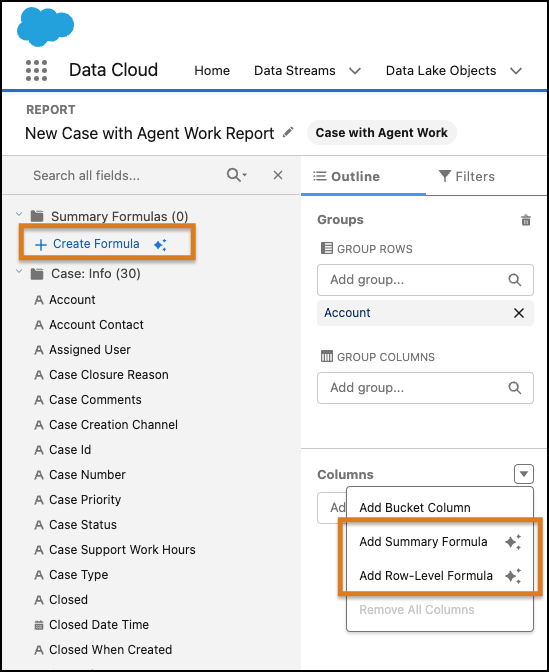
 Note A summary formula requires at least one group.
 - In the formula builder window, select the Einstein tab.
-
In the Einstein panel text field, describe the formula you want in simple terms in your
natural language. Be as specific as you can about the details of the formula. Name the
fields and functions, if possible, and define your concepts. See Guidelines for Requesting Row-Level Formulas or Guidelines for Requesting Summary Formulas.
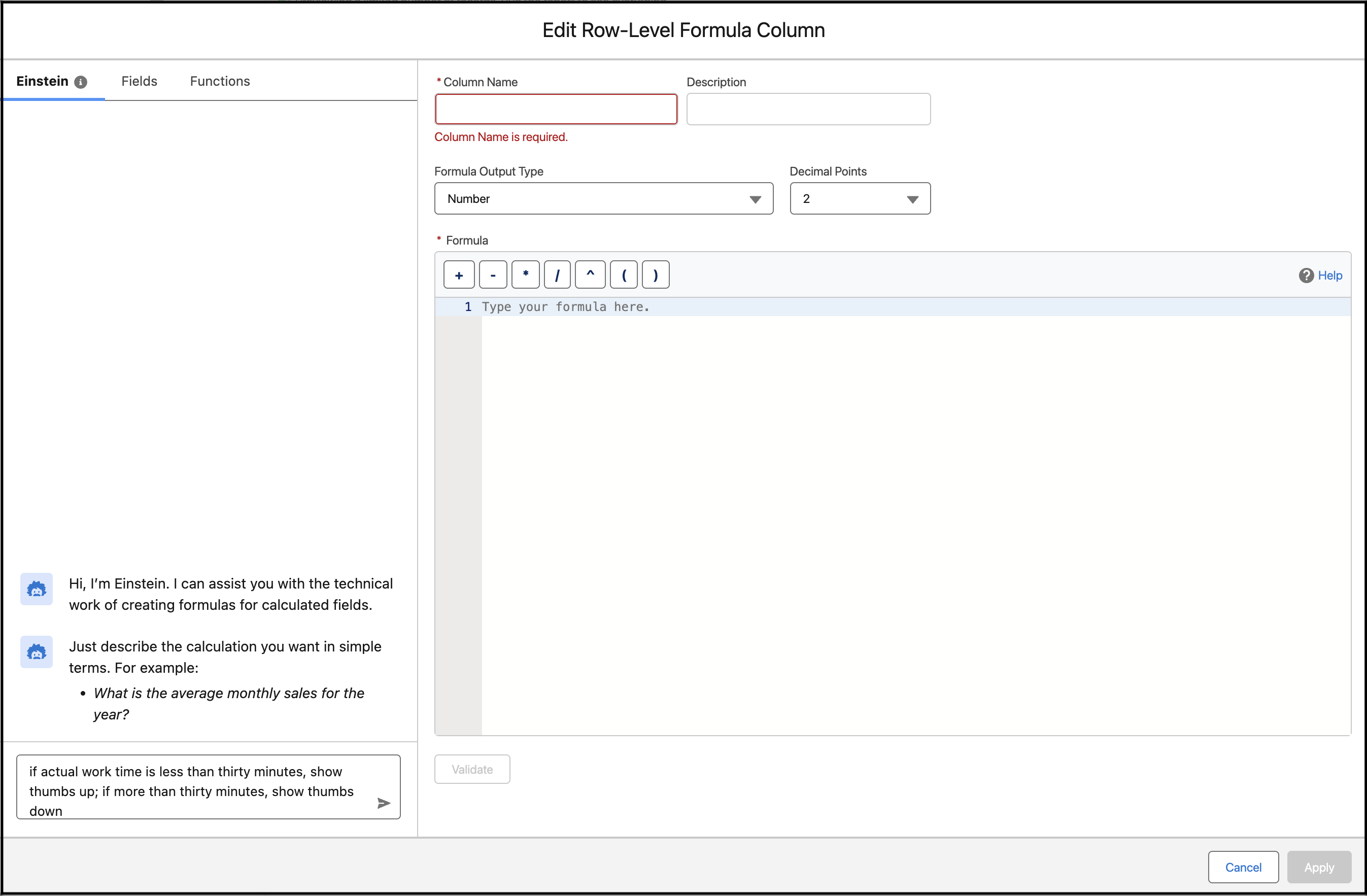
- Pass your request to Einstein by pressing Enter or clicking the send arrow.
- After Einstein responds with a formula, take a moment to evaluate it. Is Einstein’s description of the formula in line with your request? Does the formula call the fields you were expecting, and are the functions appropriate to achieve what you want? If the formula isn’t what you want, you can start over. Einstein isn’t conversational, and follow-up questions aren’t supported. You must enter a new request.
-
If the formula looks good, click Insert Formula. Einstein also
adds the Column Name, Description, and Formula Output Type into the builder fields.
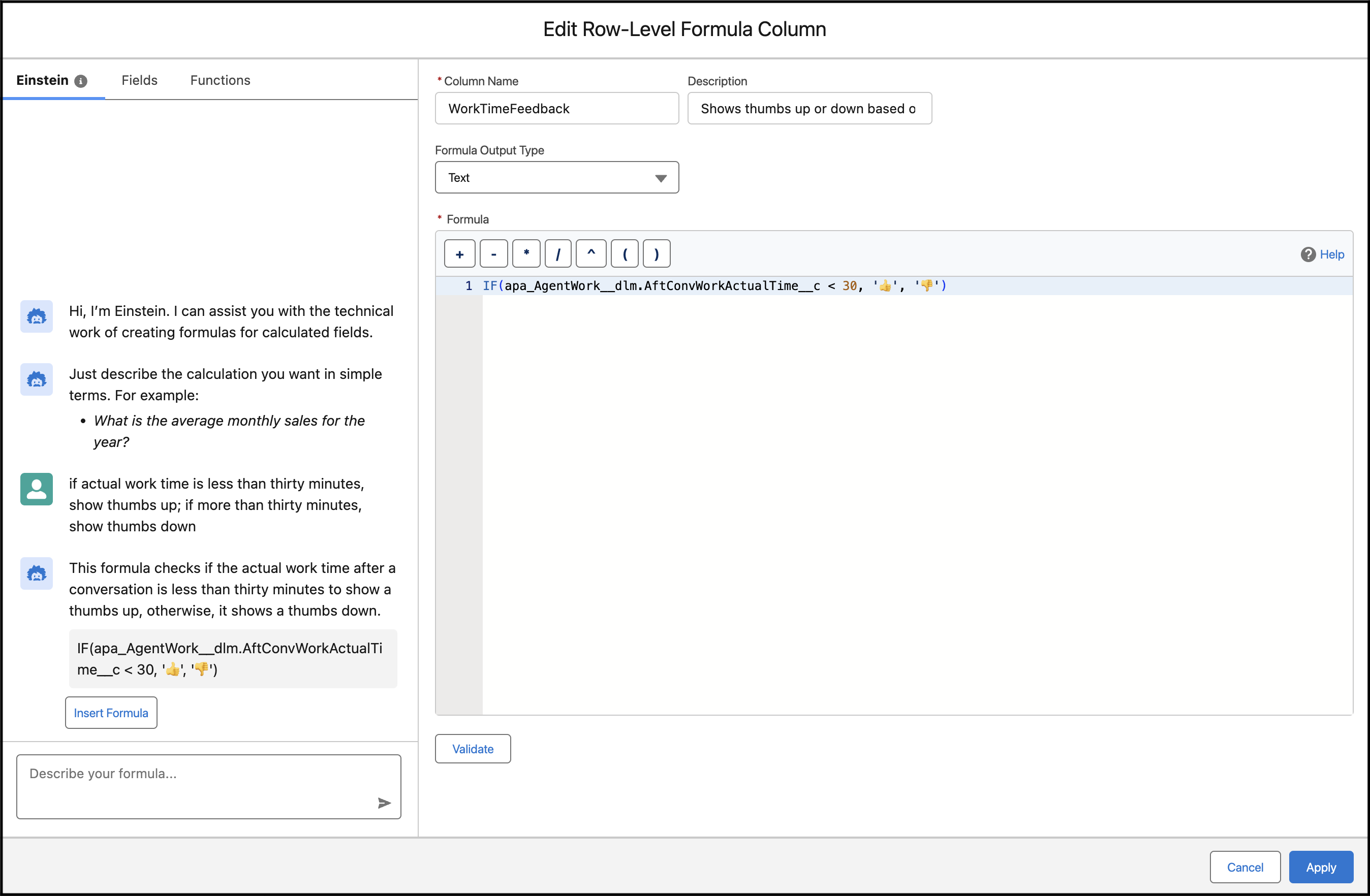
- Click Validate.
-
After checking the information that Einstein inserted, click
Apply.
 Important Generative AI can produce inaccurate or harmful responses. Review the output for accuracy and safety. You assume responsibility for how the outcomes of Einstein are applied to your organization.
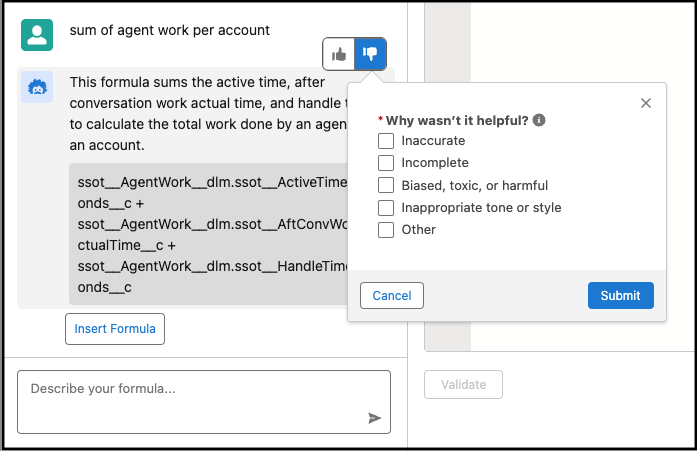
Feedback can help us improve and it’s greatly appreciated. Access the thumbs up and thumbs down icons by hovering on Einstein’s response.
Did this article solve your issue?
Let us know so we can improve!
