You are here:
Add a Block
Adding blocks to joined reports lets you create multiple views of the data included in a single report.
Required Editions
| Available in: both Lightning Experience and Salesforce Classic |
| Available in: Enterprise, Performance, Unlimited, and Developer Editions |
| Available in: Enhanced Folder Sharing |
| User Permissions Needed | |
|---|---|
| To create, edit, and delete reports: |
|
- Add a block to a joined report in Lightning Experience
-
- Create or edit a joined report.
- Click
 Add Block.
 - Choose a report type.
- If you'd like to include standard columns for this report type, leave Include default columns checked. If you'd like to add an empty block, uncheck Include default columns. In either case, you can customize the block after adding it by adding or removing columns.
- Click Add Block.
- Click Save.
- Add a block to a joined report in Salesforce Classic
-
- Click and hold a field from the Fields pane, then drag it to the empty area of the Preview pane.
-
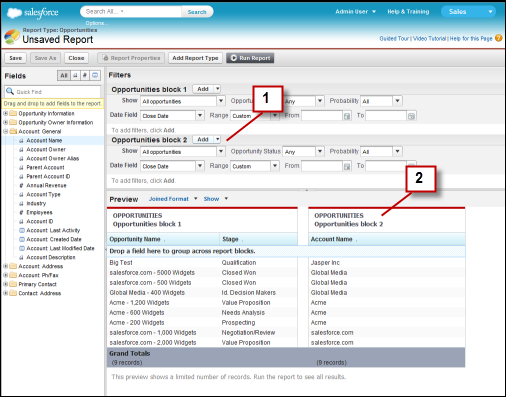
When you’ve added the block, notice that standard and field filters for the additional block are added to the Filters pane (1). Also, the new block appears in the Preview pane (2).
- Click Save.
To delete a block, click  in the block header, then click Remove
Block.
in the block header, then click Remove
Block.
Did this article solve your issue?
Let us know so we can improve!
