You are here:
Count Unique Values in Report Results
See how many distinct values a column in your report returns with a unique count.
Required Editions
| Available in: Lightning Experience |
| Available in: Essentials, Group, Professional, Enterprise, Performance, Unlimited, and Developer Editions |
| User Permissions Needed | |
|---|---|
| To add a unique count to a report saved in a private folder: | Create and Customize Reports |
| To add a unique count to a report saved in a private or public folder: | Report Builder OR Report Builder (Lightning Experience) |
When you add a unique count to a column, it shows the number of unique column values in report results. Duplicate values aren’t counted.
- While editing a report in the report builder, find the column for which you want to count unique values.
-
Click
 | Show Unique Count.
- Click Save.
A count of unique values appears as a grand total for the whole report and as a subtotal for each group.

Example Opportunity reports often list multiple opportunities with the same account. Add a
unique count to the Account Name column to see how many individual accounts values
appear in the report. 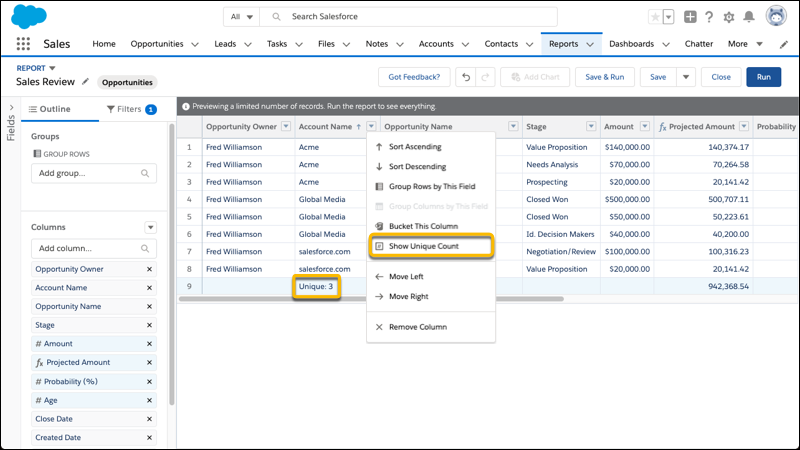
To remove the unique count, click | Hide Unique Count.
As you get ready to count unique values in report results, take note of these limitations.
- Each report supports up to three unique counts.
- Lightning table dashboard widgets don’t support unique counts.
- Null values, displayed as a dash (-), are counted as a unique value.
- Fields of these data types don't support unique counts:
- Blobs
- Clobs
- Encrypted fields
- Multi-select picklist
- Text area, including long text area and rich text area
Did this article solve your issue?
Let us know so we can improve!
