You are here:
Edit a Row-Level Formula
Edit a row-level formula to expand, refine, or change how it evaluates report data.
Required Editions
| Available in: Lightning Experience |
| Available in: Essentials, Group, Professional, Enterprise, Performance, Unlimited, and Developer Editions |
| Available in: Enhanced Folder Sharing |
| User Permissions Needed | |
|---|---|
| To create, edit, and delete formulas in private reports: |
|
| To create, edit, and delete formulas in public and private reports: |
|
Edit row-level formulas directly in the Lightning report builder. Here's how.
- Edit a report.
-
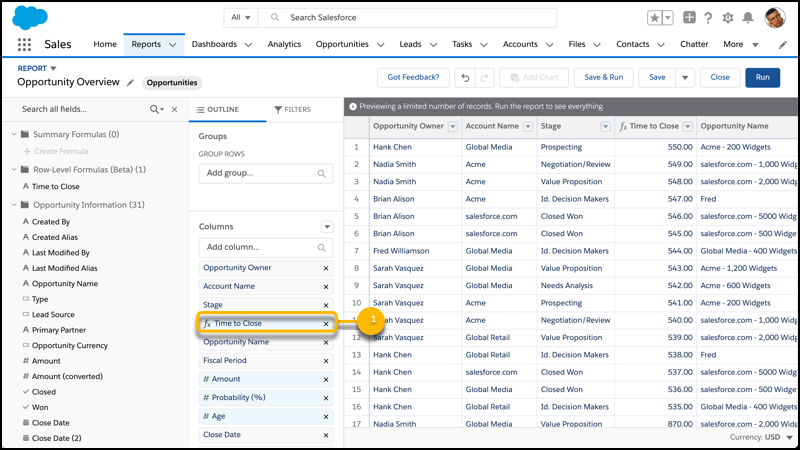
From the Columns section of the OUTLINE pane, click the row-level formula column's name. For
example, if the row-level formula you want to edit is named Time to
Close, then click Time to Close (1).
-
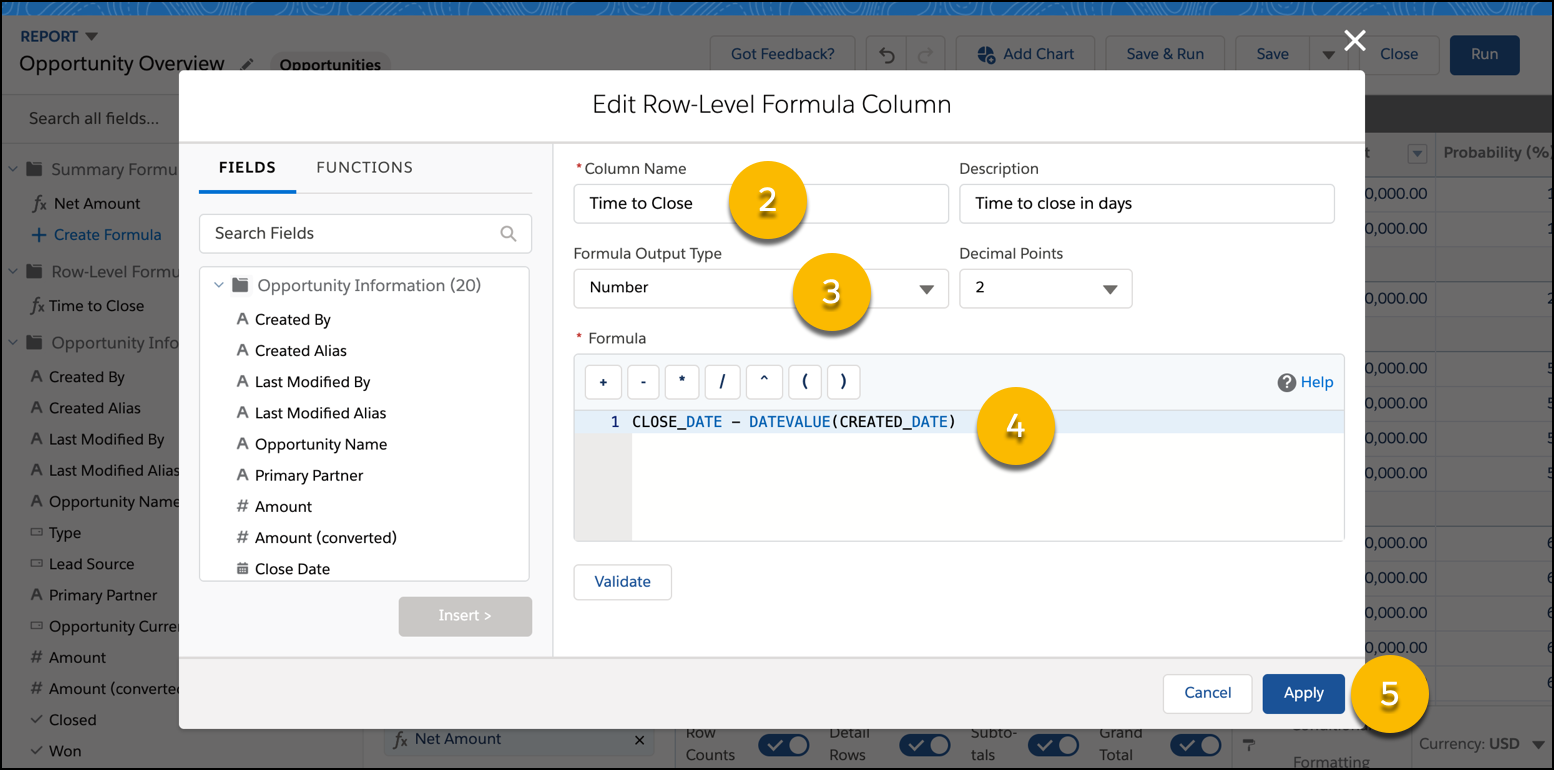
From the Edit Row-Level Formula Column window, edit the Column Name
(2), choose a Formula Output Type (3), and edit the
Formula (4). If applicable, edit the Description
and change the number of Decimal Points.
To test your formula for errors, click Validate. If necessary, resolve any errors. Then, click Apply (5).
 Tip For a little row-level formula inspiration, see Examples: Evaluate Each Record in Reports with Row-Level Formulas in Salesforce Help.
To learn more about writing formulas, see Formula Operators and Functions by Context in Salesforce Help.
-
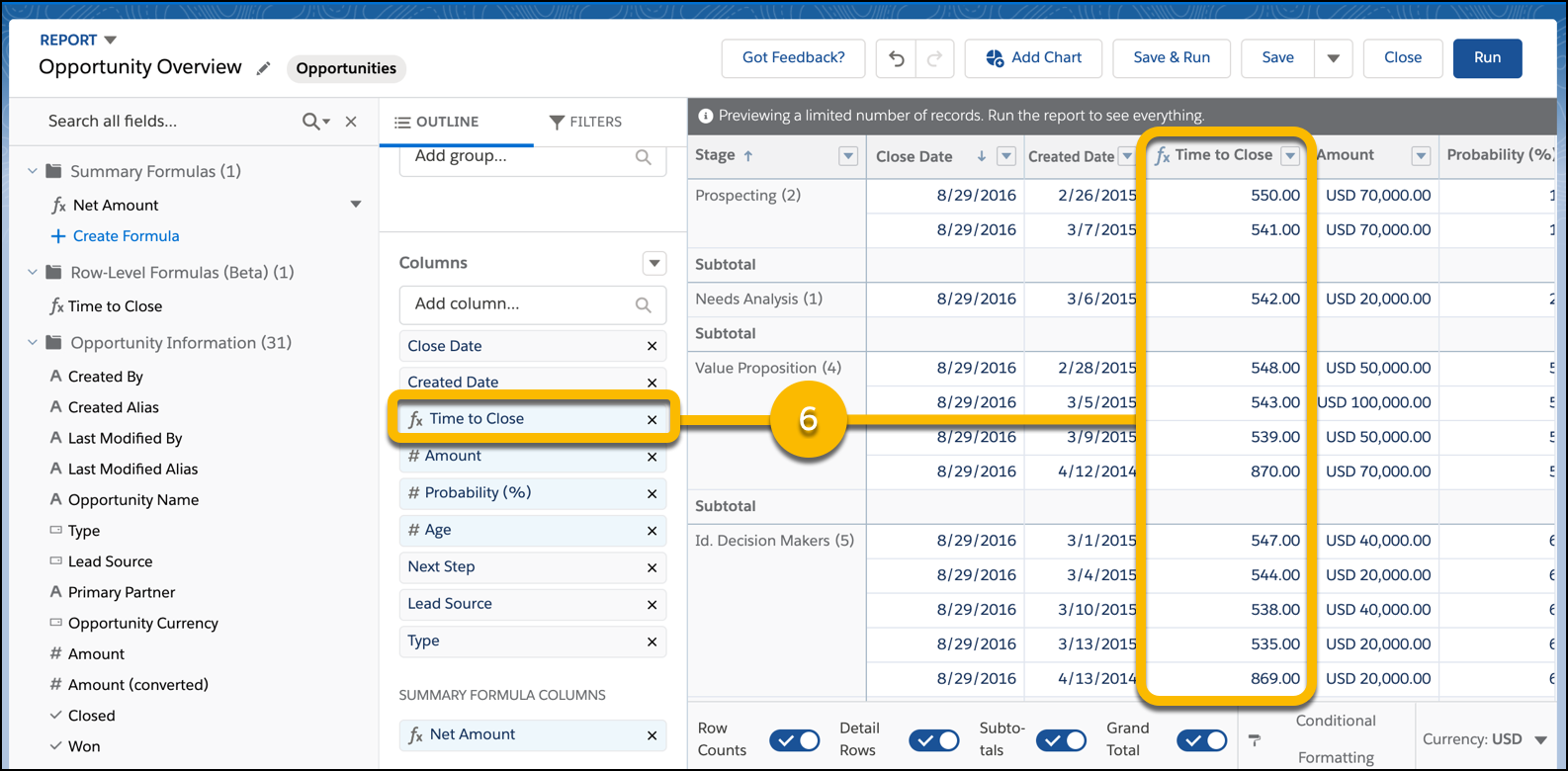
The edited row-level formula appears as a column on the report (6).
- To save and run the report, click Save & Run.
The row-level formula column on the report is updated to reflect your edits.
Did this article solve your issue?
Let us know so we can improve!
