You are here:
Examples: Evaluate Each Record in Reports with Row-Level Formulas
"How many days did it take each opportunity to close? Which case subjects mention the word widget?" Here's how to write row-level formulas that answer these business questions, and others.
Required Editions
| Available in: Lightning Experience |
| Available in: Essentials, Group, Professional, Enterprise, Performance, Unlimited, and Developer Editions |
| Available in: Enhanced Folder Sharing |
| User Permissions Needed | |
|---|---|
| To create, edit, and delete formulas in private reports: |
|
| To create, edit, and delete formulas in public and private reports: |
|
To answer common questions like these, assess each record in a report:
- How many days did it take each opportunity to close?
- Which case subjects mention the word "widget"?
The answer to these questions, and many more, are a row-level formula away. Here's how.
Example: How many days did it take each opportunity to close?
To answer this question, create an opportunity report and write a row-level formula that subtracts the Created Date from the Closed Date.
- Create or edit an opportunities report.
- From the Columns section of the Outline pane, click
 | Add Row-Level Formula.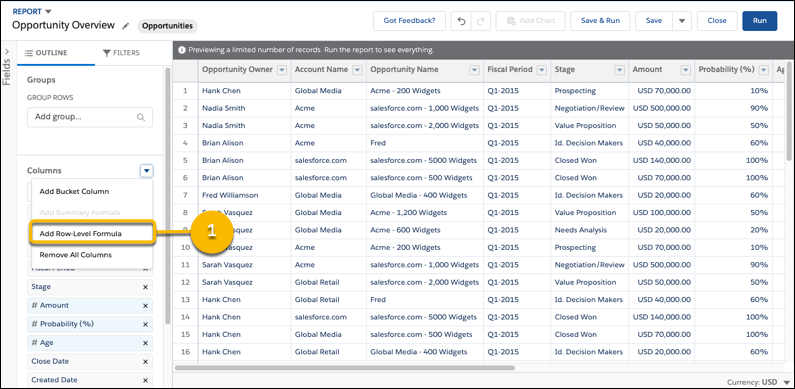
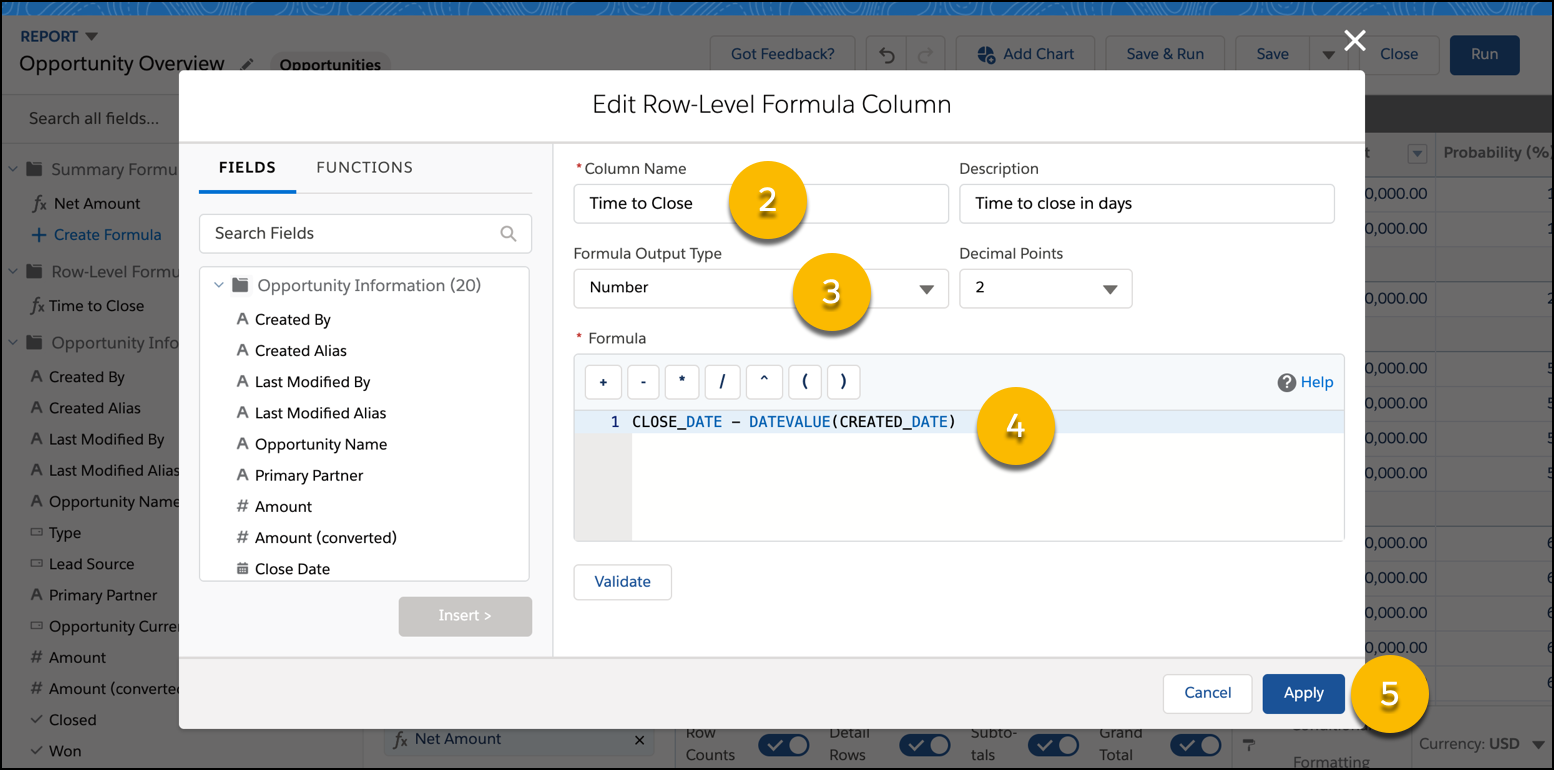
- From the Edit Summary-Level Formula Column window, write the formula.
- In Column Name, enter Time to Close.
- In Description, enter Time to Close in Days.
- From Formula Output Type, select
Number.
Even though this formula works with date values, number is the output type needed because the formula performs subtraction and returns a number.
- From Decimal Points to 0.
- In Formula, write:
CLOSE_DATE - DATEVALUE(CREATED_DATE) Note
NoteCLOSE_DATEandCREATED_DATEare the API names of the Close Date and Created Date fields. Formulas work with the API names of fields, not the display names. The easiest way to enter the API name of a field is to search for it from the FIELDS menu, select it, and click Insert >.- Because
CLOSE_DATE's data type isdateandCREATED_DATE's data type isdatetime, we convert the value ofCREATED_DATEto thedatedata type with theDATEVALUE()function. The two values must have a matching data type so that we can subtract one from the other. (Datetimeanddateare different data types becausedatetimeincludes information about units of time smaller than a day - hours, minutes, seconds, and so on - andDATEdoes not.)
- To make sure that the formula is error-free, click Validate. If necessary, resolve errors.
- Click Apply (5).
- To save the report, click Save.
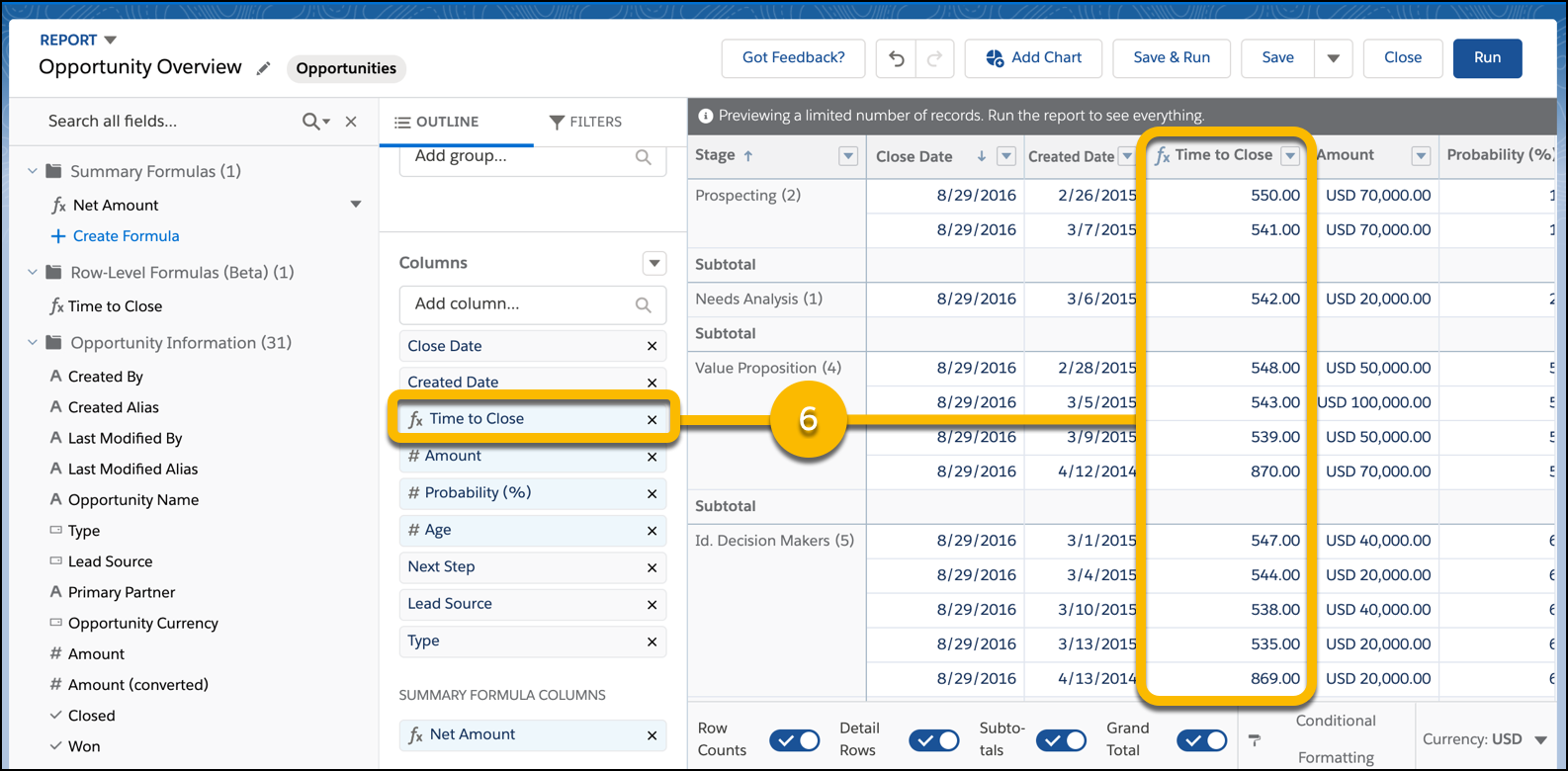
The row-level formula appears as a report column named Time to Close (6). The Time to Close column calculates how many days each opportunity was open by subtracting Created Date from Closed Date.
Example: Which case subjects mention the word "widget"?
To answer this question, create a cases report and write a row-level formula that evaluates each case subject to see whether it includes the term "widget".
- From the Columns section of the OUTLINE pane, click | Add Row-Level Formula.
- From the Edit Summary-Level Formula Column window, write the formula.
- In Column Name, enter Mentions Widgets?.
- In Description, enter Determines whether or a case subject includes the term "widget".
- From Formula Output Type, select Text.
- In Formula, write:
IF(CONTAINS(SUBJECT, "widget"), "Yes", "No")NoteSUBJECTis the API name of the Subject field. Formulas work with the API names of fields, not the display names. The easiest way to enter the API name of a field is to search for it from the FIELDS menu, select it, and click Insert >.
- To make sure that the formula is error-free, click Validate. If necessary, resolve errors.
- Click Apply.
- Click Save.
The row-level formula appears as a report column named Mentions Widgets?. The Mentions Widgets? column evaluates each case's subject field to determine whether it includes the text widget. If it does, the row-level formula returns Yes. If it doesn't, the row-level formula returns No.
