You are here:
Subscribe to Get Report Notifications in Salesforce Classic
In Salesforce Classic, subscribe to a report to receive report notifications periodically when the metrics you care about most meet certain conditions. Set the conditions that trigger notification, and specify if you want to be notified via Salesforce app notifications, Chatter, or email.
Required Editions
| Available in: Salesforce Classic |
| Available in: Group, Platform, Professional, Enterprise, Performance, Unlimited, and Developer Editions |
| User Permissions Needed | |
|---|---|
| To subscribe to reports in Salesforce Classic: | Run Reports |
| To enable or disable Salesforce Classic report notification subscriptions: | Customize Application |
For example, you could subscribe to an open-issue report and get notified every morning if there are over 20 open issues. You can subscribe to notifications for up to five reports.
Watch a demo:  Report
Notifications (Salesforce Classic)
Report
Notifications (Salesforce Classic)

Personal Report Notifications aren’t related to the Schedule Future Runs feature, which enables you to email reports at specified times without specifying conditions. To schedule emailed reports, select Schedule Future Runs from the Run Report dropdown menu.
- On the Report Run page, click Subscribe.
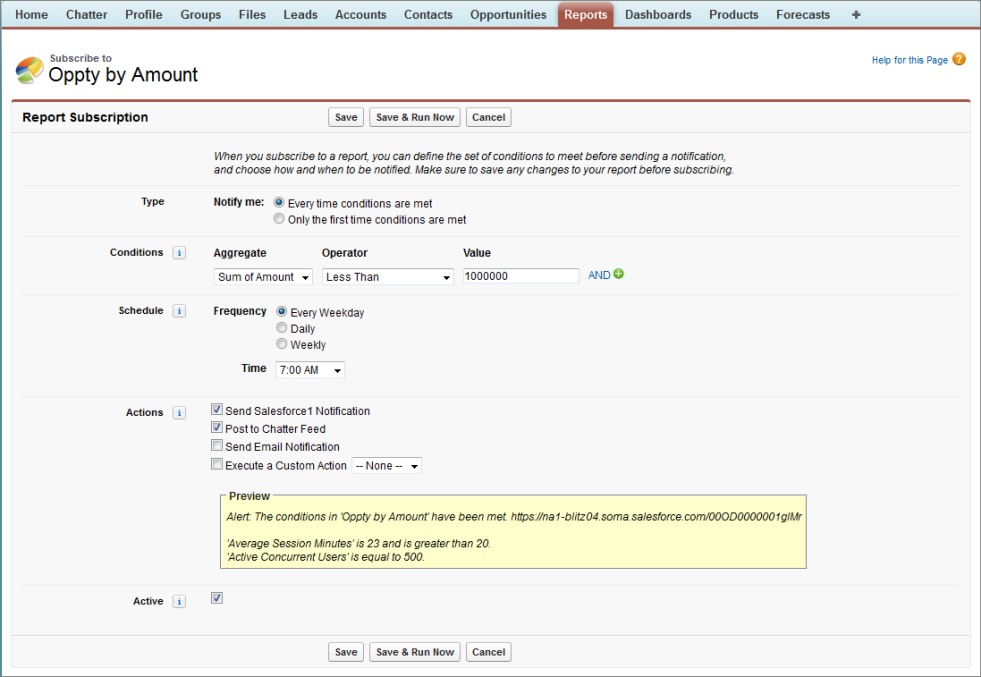
- On the Report Subscription page, choose whether to be notified each time conditions are met or only the first time.
-
Specify each condition in three parts: aggregate, operator, value.
For example, trigger notifications whenever the sum of amount is less than $1 million.
- Aggregate is the metric that’s the basis of your condition. It can be Record Count, Average Amount, Smallest Amount, Largest Amount, or Sum of Amount.
- Operator is the basis of comparison, such as Equal, Not Equal, Greater Than, and so on.
- Value is the number that you want the aggregate compared to.
Your conditions are evaluated when the report is run. If all conditions are met (up to five conditions per report), notifications are sent, -
Schedule how often (every weekday, daily, or weekly) and when to evaluate for
your conditions.
For example, run the report every weekday at 7 a.m.
-
Select one or more notification types.
- Send a Salesforce in-app notification
- Post to Chatter
- Send an email notification
- Execute a custom Apex action, such as creating tasks or escalating
cases
For more information about developing a custom Apex class, see the Apex Developer Guide.
- Make sure that the subscription is active if you’re ready to start receiving notifications.
- To schedule the notifications, click Save.

A report is scheduled to be run every weekday at 7 a.m. If the sum of the amount is less than 1,000,000, a Salesforce app notification is sent and a Chatter post is made.