Salesforce includes many options for setting up, maintaining, and customizing your
organization. If you’re a Salesforce administrator or developer, you use the Setup menu
frequently.
Required Editions
Available in: Salesforce Classic and Lightning Experience
Available in: all editions except Database.com
All setup options are all available from the Setup menu. The way you access the Setup menu
depends on which Salesforce experience you’re using and on your organization’s user
interface settings.
Look at the top of any Salesforce page.
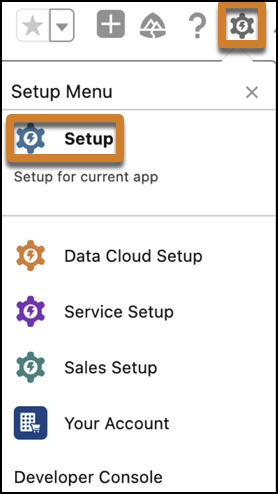
If you’re using Lightning Experience, click , then select Setup.
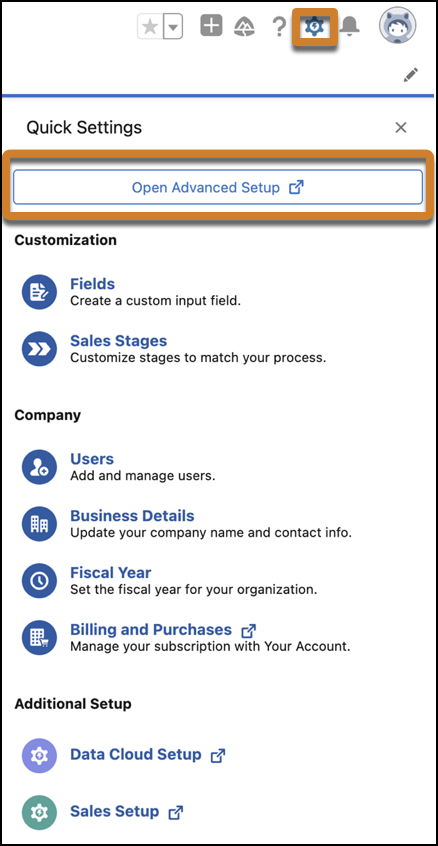
If you're using Quick Settings in Lightning Experience, click , then select Open Advanced Setup.
If you’re using Salesforce Classic and you see Setup in the
user interface header, click Setup.
If you’re using Salesforce Classic and you don’t see
Setup in the header, click your name, then select
Setup.
Enter the name of the Setup page that you want in the Quick Find
box, then select the appropriate page from the menu.
Tip Type the first few characters of a page’s name in the Quick
Find box. As you type, pages that match your search terms appear in the
menu. For example, to find the Language Settings page, type lang
in the Quick Find box, then select Language
Settings.
We use three kinds of cookies on our websites: required, functional, and advertising. You can choose whether functional and advertising cookies apply. Click on the different cookie categories to find out more about each category and to change the default settings.
Privacy Statement
Required Cookies
Always Active
Required cookies are necessary for basic website functionality. Some examples include: session cookies needed to transmit the website, authentication cookies, and security cookies.
Functional Cookies
Functional cookies enhance functions, performance, and services on the website. Some examples include: cookies used to analyze site traffic, cookies used for market research, and cookies used to display advertising that is not directed to a particular individual.
Advertising Cookies
Advertising cookies track activity across websites in order to understand a viewer’s interests, and direct them specific marketing. Some examples include: cookies used for remarketing, or interest-based advertising.