A list view is a filtered list of one object’s records, but even after filtering, there
are sometimes so many records in the list that it’s a challenge to find what you need. To
understand and navigate your records more easily, apply sorting to your list views. You can sort
any list view by 1 field column, and in Lightning Experience, you can sort a list view by up to
5 columns. Sorting is alphanumeric.
Required Editions
User Permissions
Needed
To sort a list view:
Read on the records in the list
Sort a List View by a Single Column
Required Editions
Available in: both Salesforce Classic and Lightning Experience
Available in: all editions
Open the list view.
Click the header of the field column that you want to sort by.
An arrow at the top of the column indicates how the list is sorted: from the
column’s first record () or from its last ().
Sort a List View by Multiple Columns
Required Editions
Available in: Lightning Experience
Available in: all editions except Starter and Pro Suite
Open the list view.
Click .
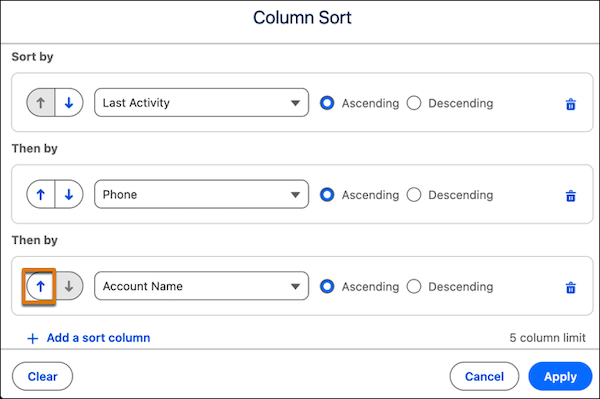
Select up to five columns in the order you want Salesforce to sort by and whether to
sort in ascending order or descending order for each column.
Your list view is sorted first by the top column you select in the Column Sort
window, then by the second column, and so on. For example, let's say that your
selections sort by Last Activity, then by Phone, and then by Account Name. If you change
your mind about the sort order and you want to sort by Last Activity, then by Account
Name, and then by Phone, click next to the Account Name column. The Account Name column moves above the Phone
column in the sort order.
Click Apply.
Your list view refreshes with the new sort order applied. An arrow at the top
of each column that you sorted by indicates how that column is sorted: from its first
record () or from its last (). To reverse the sort order of a column, click that column's
header.
To switch back to sorting by a single column, click the header of a column that isn't
included in the multiple column sort. To return to the default sort order, click and then select Reset Column Sorting.
Note Sort by multiple
columns is supported for list views on object home pages. Other types of list views, such
as record lists in Experience Cloud sites, can’t be sorted by multiple columns. You can
sort by multiple columns only on list views for objects that render with Lightning Web
Components (LWC). If you don’t see , then sort by multiple columns isn’t supported for that list
view.
Did this article solve your issue?
Let us know so we can improve!
Loading
Salesforce Help | Article
Cookie Consent Manager
General Information
Required Cookies
Functional Cookies
Advertising Cookies
General Information
We use three kinds of cookies on our websites: required, functional, and advertising. You can choose whether functional and advertising cookies apply. Click on the different cookie categories to find out more about each category and to change the default settings.
Privacy Statement
Required Cookies
Always Active
Required cookies are necessary for basic website functionality. Some examples include: session cookies needed to transmit the website, authentication cookies, and security cookies.
Functional Cookies
Functional cookies enhance functions, performance, and services on the website. Some examples include: cookies used to analyze site traffic, cookies used for market research, and cookies used to display advertising that is not directed to a particular individual.
Advertising Cookies
Advertising cookies track activity across websites in order to understand a viewer’s interests, and direct them specific marketing. Some examples include: cookies used for remarketing, or interest-based advertising.