
Test Your Mobile Publisher App’s Single Sign-On with Apple ID
Test your Mobile Publisher app’s SSO configuration.
Required Editions
| Setup for Mobile Publisher available in: Lightning Experience |
| Setup for Mobile Publisher available in: production only (not sandbox) |
| Available in Lightning Experience in: Enterprise, Performance, and Unlimited Editions |
| User Permissions Needed | |
|---|---|
| To create and modify a Mobile Publisher project: | Manage mySalesforce Apps |
| To view the settings: | View Setup and Configuration |
| To edit the settings: | Customize Application AND Manage Auth. Providers |
-
Test SSO into your Salesforce org.
- From Setup, enter Domain in the Quick Find box, then select My Domain.
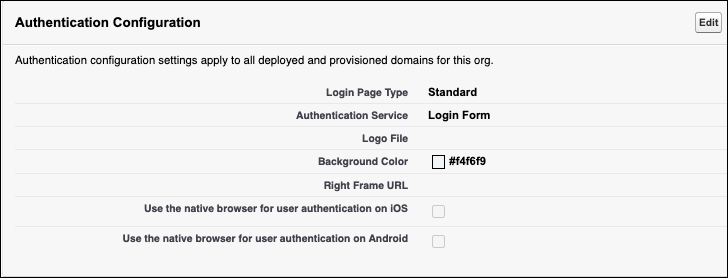
- Under Authentication Configuration, click Edit.
- Select Apple as your authentication service, and save the settings.
- Log out, and then go to the Salesforce org's My Domain login page.
- Choose the Apple authentication service, and enter your Apple credentials.
-
Test SSO into your Salesforce Experience Cloud site.
- If you haven't done so already, create the Apple authentication service account.
- Make sure that you have enough licenses for site users.
- From Setup, enter Digital Experiences in the Quick Find box and then click All Sites. Next to your site, select Workspaces.
- Select Administration, and then select Login & Registration.
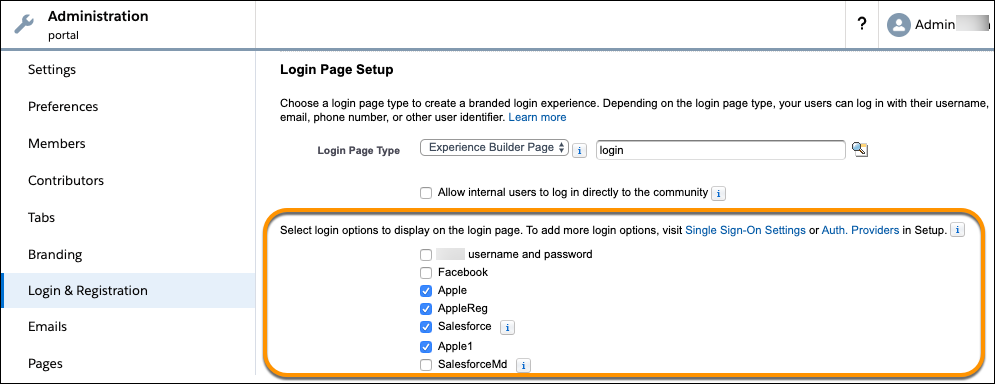
- Under Login, select the option to display your Apple auth. provider, and save the settings.
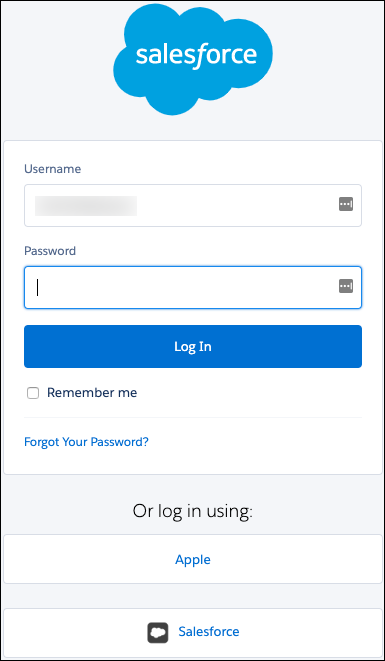
- Log out, and open your site login page.
- Click the Apple icon, and log in with your Apple credentials.
Did this article solve your issue?
Let us know so we can improve!
