You are here:
Executing Anonymous Apex Code
The Developer Console allows you to execute Apex code as another way to generate debug logs that cover specific application logic.
| User Permissions Needed | |
|---|---|
| To execute anonymous Apex in user context or system mode: | “API Enabled” and “Author Apex” |
The Execute Anonymous Apex tool in the Developer Console runs the Apex code you enter
using ExecuteAnonymous and generates a
debug log with the results of the execution.
-
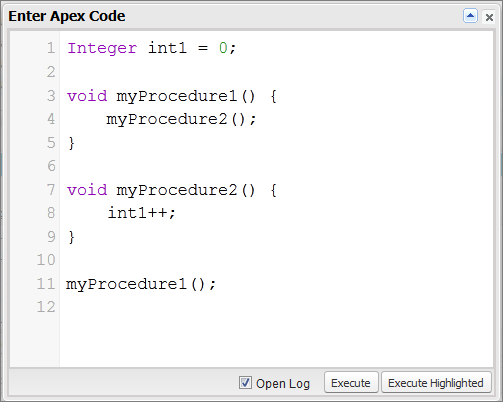
Click to open the Enter Apex Code window.
-
Enter the code you want to run in the Enter Apex Code window or click
 to open the code editor in a new browser window. To automatically open the
resulting debug log when execution is complete, select Open
Log.
to open the code editor in a new browser window. To automatically open the
resulting debug log when execution is complete, select Open
Log.
 Note You can't use the keyword
staticin anonymous code. -
Execute the code:
 Important Every time you run
ExecuteAnonymous, the code and its references are compiled. For repetitive calls, we strongly recommend you use compiled classes, such as Apex REST endpoints.- To execute all code in the window, click Execute or CTRL+E.
- To execute only selected lines of code, select the lines and click Execute Highlighted or CTRL+SHIFT+E.
- If you selected Open Log, the log automatically opens in the Log Inspector. After the code executes, the debug log will be listed on the Logs tab. Double-click the log to open it in the Log Inspector.
- To execute the same code again without making changes, click . If you want to modify the code, click , to open the Enter Apex Code window with the previous entry.
Did this article solve your issue?
Let us know so we can improve!
