You are here:
Chatter Groups
If you're working on a team, you can create a group for your team to share mission-related files and information. Share information through the group feed.
Required Editions
| Available in: both Salesforce Classic and Lightning Experience |
| Available in: Essentials, Contact Manager, Group, Professional, Enterprise, Performance, Unlimited, and Developer Editions |
You can join up to 300 groups, and your company can have a total of 30,000 groups. Chatter groups can be public, private, unlisted, and archived.
- Public: Anyone can see and add posts, comments, and files. Anyone can join a public group.
- Private: Only group members can see and add posts, comments, and files. All Experience Cloud site users can see the group picture, name, description, and members. If you want complete privacy, make the group Unlisted. People must ask the group's owner or managers to join the group. Users with the “Modify All Data” and “View All Data” permission can see group posts, updates, and files across the organization. Users with the “Manage All Data” permission can also join private groups directly and change group settings.
- Unlisted: Only group members and users with the “Manage Unlisted Groups” permission can see and add posts, comments, and files. People can’t ask to join the group. The group’s owner or managers must invite the group members. Unlisted groups offer more privacy and nonmembers can’t see or access unlisted groups in list views, feeds, or search results.
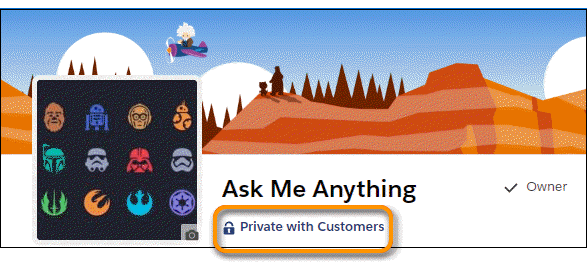
- Groups with Customers: Private and unlisted groups can allow customers. You can
identify groups with customers in Salesforce Classic by the orange upper left corner
of the group photo. You can identify groups with customers in Lightning Experience
by a caption in the group header.
- Archived: Some groups can be archived. When a group is archived, people can no longer create posts but previous posts are retained for reference.

Note In Lightning Experience, group feeds are live. Posts appear the moment they’re
published so they don’t require a page refresh to update. Live group feeds are new in
Lightning Experience, so they have lots of potential for enhancement and a few known issues.
- Content posted to the group is live, but mentions aren’t. If you post to group A, the post is live. If you mention group A in another feed, group A requires a page refresh to show that mention.
- When a group has a new post, you receive notifications only in Lightning Experience.
- When people add comments to a post that you’re engaged in, you’re notified only in Lightning Experience. And you’re notified only when you’re actively entering comments or you’ve clicked in the comments box.
- The number of participants supported in a live feed depends on your orgʼs subscription limits. If you're not getting a live group feed or live comments, refresh the page or click in a comments field. If the feed still isn't live, your org has likely hit its limit. You can still get updates the old-fashioned way by refreshing the page.
- If you’re in a group feed that doesn’t seem live anymore, it’s a known issue that we’re working on (Safe Harbor).
Note In Salesforce Classic, you can use the Collaboration Group Engagement report to
monitor your group’s activity, such as members, posts, comments, and likes. If you use
the report, you must add a group ID to see the number of post comments and likes. If you
leave the Group ID field blank, the report doesn’t calculate those fields. The Group ID
field is not available in Lightning Experience.
Did this article solve your issue?
Let us know so we can improve!
