You are here:
Control Chatter Access Through User Profiles
Modify existing custom user profiles to allow or deny access to Chatter.
Required Editions
| Available in: both Salesforce Classic and Lightning Experience |
| Available in: Enterprise, Performance, and Unlimited Editions |
| User Permissions Needed | |
|---|---|
| To enable Chatter: | Customize Application |
When Salesforce turns on Chatter profile-based rollout for your organization, it adds the Enable Chatter permission to your existing user profiles and permissions sets. Enable Chatter is automatically enabled for all standard profiles. It’s also automatically enabled for custom profiles when any of these user-level permissions are enabled manually or as part of a license:
- Create and Own New Chatter Groups (ChatterOwnGroups)—Users with this permission can create groups in Chatter.
- Create and Share Content Deliveries for Chatter Files (ChatterFileLink)—Users with this permission can use files with Chatter, like uploading, attaching, and sharing.
- Invite Customers To Chatter (ChatterInviteExternalUsers)—Users with this permission can invite users who don’t have a Salesforce license to Chatter.
- Manage Chatter Messages and Direct Messages (ManageChatterMessages)—Users with this permission have management access to Chatter Messages and Direct Messages (Experience Builder sites).
- Moderate Chatter (ModerateChatter)—Users with this permission can moderate Chatter feeds.
- Moderate Chatter Feeds (ModerateNetworkFeeds)—Users with this permission can moderate feeds in sites.
- Use Case Feed (ViewCaseInteraction)—Users with this permission can access Case feeds.
- View All Data (ViewAllData)—Users with this permission can view all data, regardless of their membership status in a feed or ownership of a record.
Modify your existing custom profiles with the desired permissions to manage access to Chatter, and create custom profiles, if necessary.
- Log in as a Salesforce administrator.
-
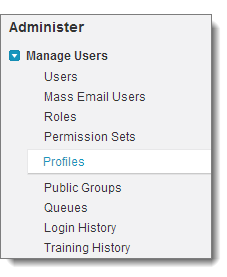
From Setup, enter Profiles in the Quick
Find box, then select Profiles.
-
For each custom user profile:
- Click Edit.
-
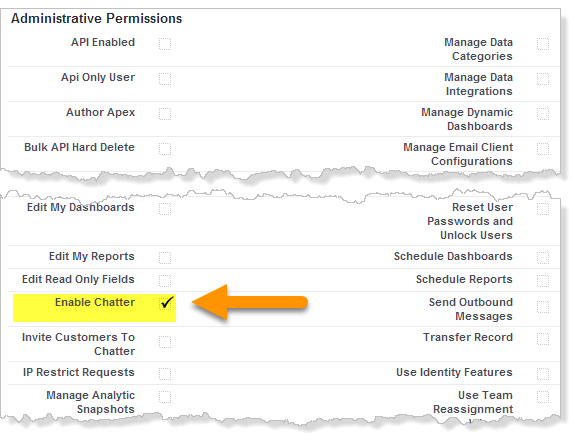
In the Administrative Permissions section, select or deselect Enable
Chatter, depending on whether you want users with this profile to have
Chatter access.
 Important The Enable Chatter permission is available only if Chatter profile-based rollout is enabled for your organization. Salesforce enables profile-based rollout at your request. After profile-based rollout is enabled, selecting the Enable Chatter permission on a profile doesn't automatically enable Chatter for people with that profile. People can't use Chatter until you turn on Chatter for your organization.
 - Save your changes.
- If applicable, create custom user profiles with the desired permissions and assign them to users.
Did this article solve your issue?
Let us know so we can improve!
