You are here:
Agentforce Proactive Fulfillment Alerts
Stay ahead of supply chain volatility by transforming insights from the Analytics Dashboard into actionable recommendations. Agentforce continuously monitors fulfillment orders and triggers proactive alerts when it detects fulfillment risks by evaluating real-time disruptions like weather alerts and operational inefficiencies, such as processing delays, workflow or lay out issues. Use these recommendations to trigger autolaunched flows so that Agentforce can temporarily exclude specific locations and reroute existing allocated orders or update the processing time of slower locations to mitigate delays before they affect the customer experience.
Required Editions
To help you manage fulfillment operations based on weather conditions, Agentforce integrates with the National Weather Service (NWS). When you use this feature, Agentforce shares your data with the NWS to retrieve weather alerts. Agentforce then uses this information to recommend or trigger actions in Order Management.
| View supported editions. |
-
To use Agentforce Order Management, your data streams must connect to Data 360, Data 360 permissions sets, and Order Management. See Turn on Data 360, Data 360 Standard Permission Sets, Implement Order Management.
-
Review the necessary data stream setup. See Order Management Analytics.
-
Create data streams between Order Management and Data 360 using data kits. See Share Data Using Order Management File-Based Data Kits.
-
From Setup, in the Quick Find box, enter Omnichannel Inventory, and then enable Omnichannel Inventory.. See Omnichannel Inventory Implementation
-
Create data streams between Omnichannel Inventory (OCI) and Data 36 using data kits. See Share Data Using Omnichannel Inventory File-Based Data Kits.
In addition to Agentforce, your org needs the Agentforce Employee add-on liciense. To add it, contact your Salesforce Account Executive.
Set Up Agentforce Order Routing
Follow the steps below to set up Agentforce Order Routing.
-
Enable Einstein Generative AI and Agentforce.
-
From Setup, in the Quick Find box, enter and select Einstein
Setup.
If you can’t find Einstein Setup, make sure that your org meets the prerequisites for generative AI features. For more information, contact your Salesforce Account Executive.
- Turn on Einstein.
- From Setup, in the Quick Find box, enter and select Agentforce Agents.
- Turn on Agentforce.
-
From Setup, in the Quick Find box, enter and select Einstein
Setup.
-
Configure the Order Routing agent.
- From Setup, in the Quick Find box, enter and select Agentforce Agents.
- Click New Agent.
- Select the Agentforce for Order Management template, and click Next.
- The required Subagents are preselected. Click Next.
- Name the agent, and for Company, enter Your company specializes in efficient order routing.
- Click Next.
- Select the language and tone for your agent's conversational responses.
- Click Create, and activate the agent.
-
Assign user access to the agent.
- From Setup, in the Quick Find box, enter and select Agentforce Agents.
- Select Order Routing Agent.
- From Agent Access, click Add.
- Select the Permission sets and profiles that include Agent Access. Only users with this permission set can interact with this agent.
- Click Add.
Insights and Recommendations
Top Insights and Recommendations identified by Agentforce.
Example Insights and Recommendations
In this example, each insight represents a unique fulfillment risk that Agentforce identifies and ranks by severity. Each card features a recommended action that dynamically changes to match the problem with the most effective mitigation action.

- If processing times triple in Chicago, Agentforce recommends creating a routing rule to exclude that location.
- If Agentforce identifies a consistent delay in Dallas as a calibration issue, it recommends updating the location’s estimated processing time.
- For proactive threats, such as a National Weather Service flood warning for Seattle, Agentforce suggests creating a weather-protection rule.
Review and Respond to Proactive Alerts
Review proactive alerts and decide how to respond based on the recommendations. Agentforce identifies fulfillment inefficiencies and provides recommendations, such as updating fulfillment processing time or creating routing rules.
-
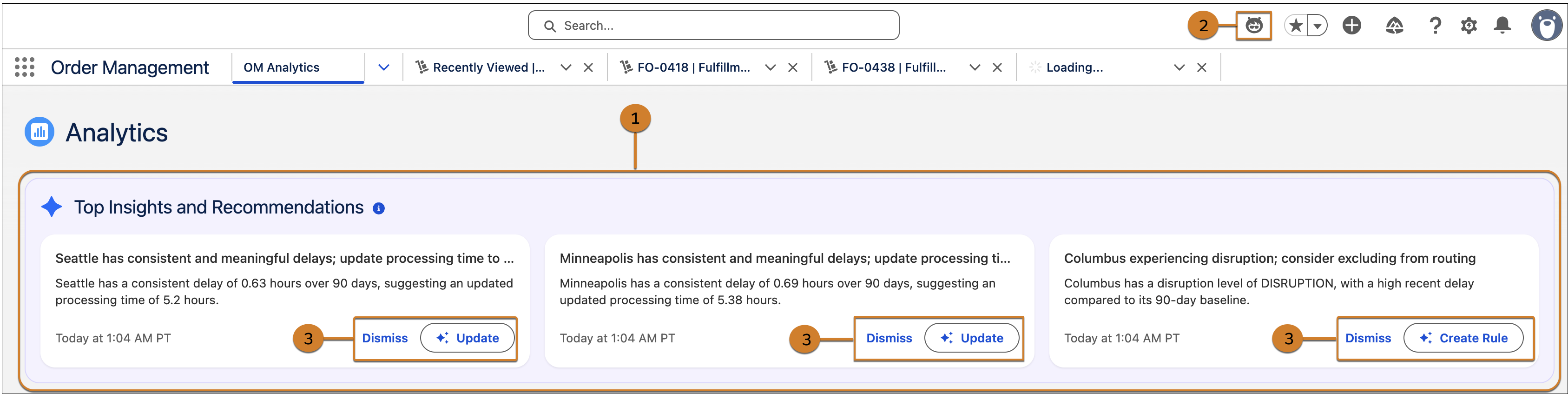
To view alerts, go to App Launcher | | Order Management | | OM Analytics | | Top Insights and Recommendations (1) .
If you don’t see the Agentforce icon (2), make sure that you’ve enabled Agentforce and activated Agentforce for Order Management. See Set Up Agentforce Order Routing.
-
Review the alerts, which include action buttons based on the specific insight, and choose
your action. Depending on the data, Agentforce recommends that you click Create a
Rule or Update Processing Time (3).
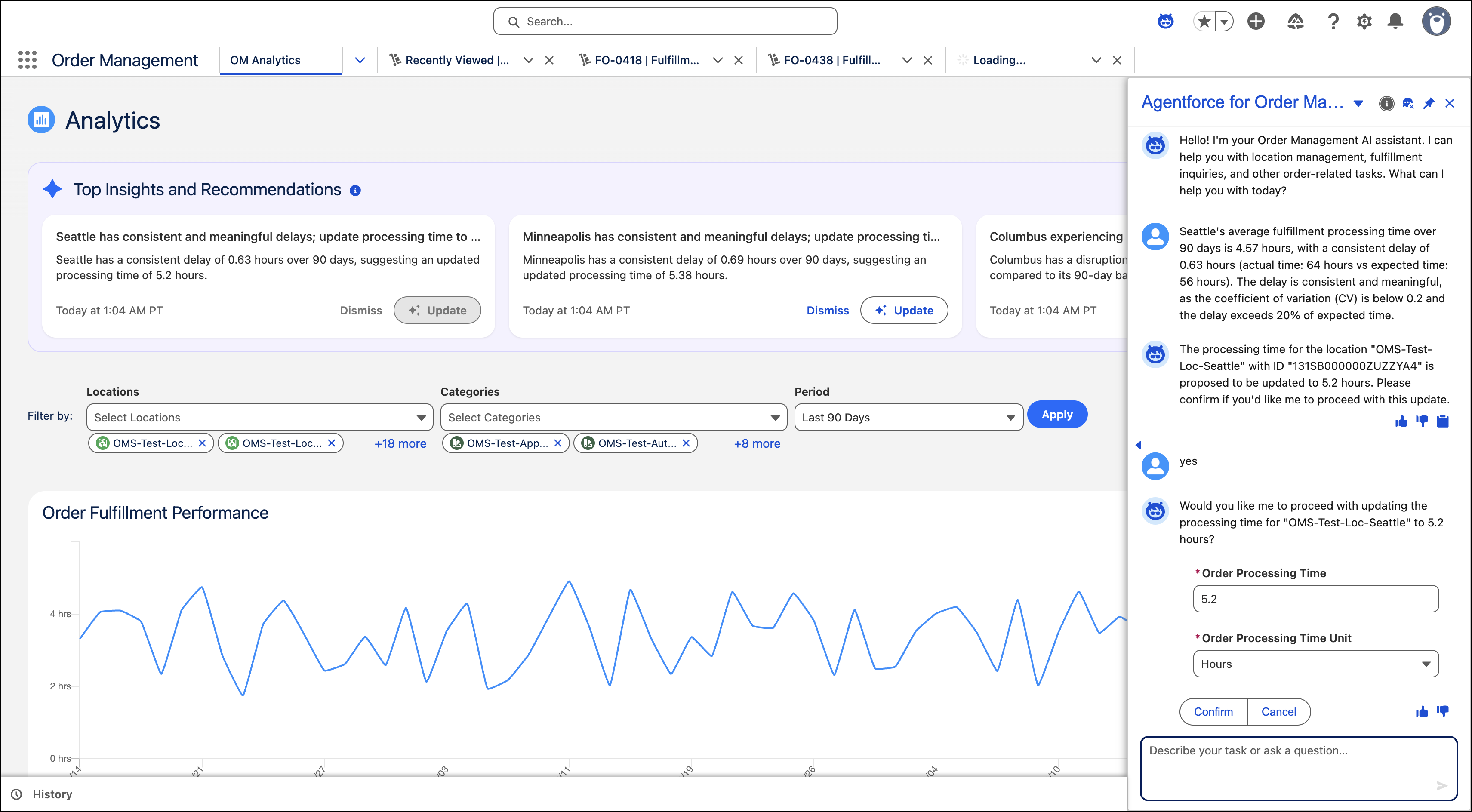
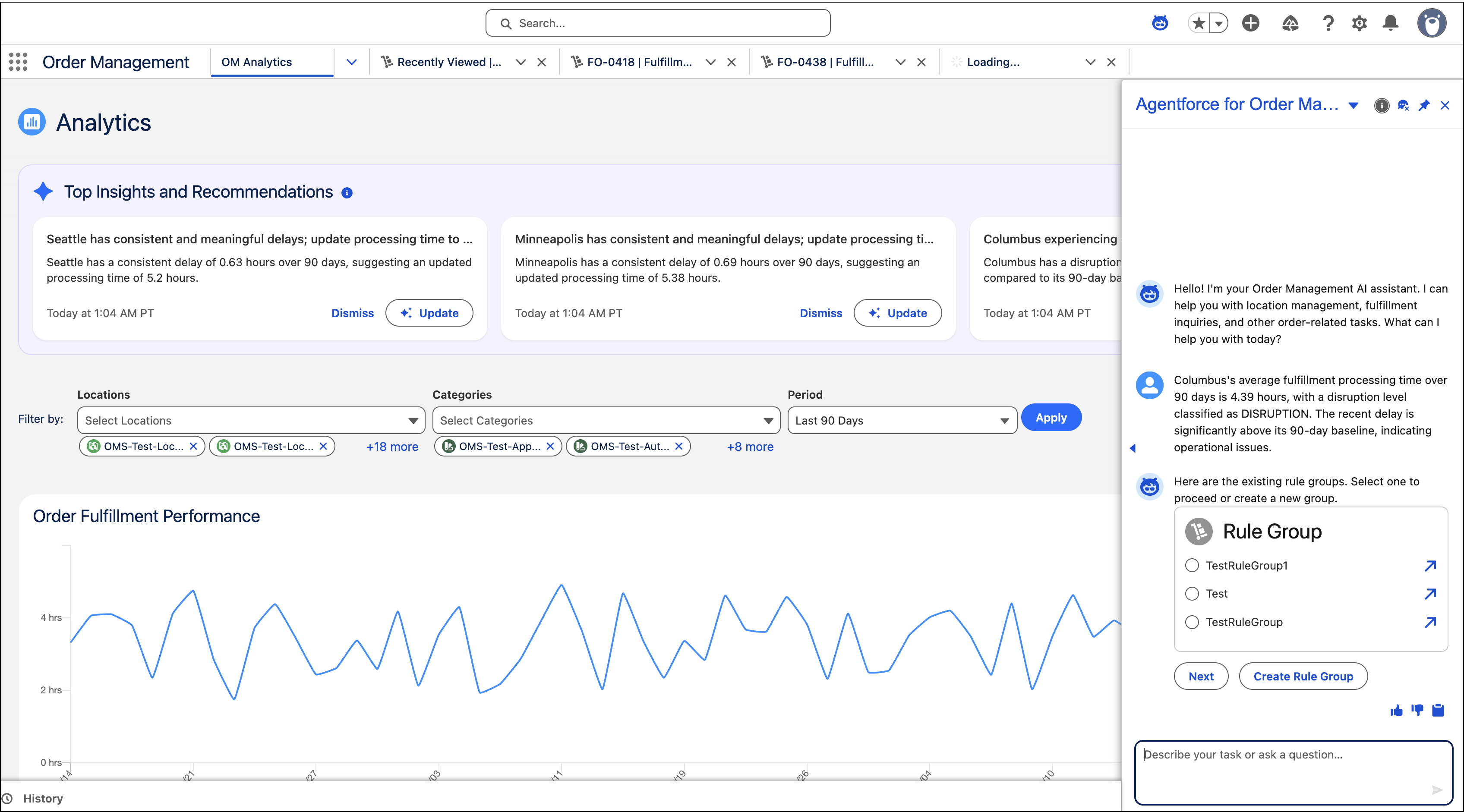
- To create a rule, click Create Rule.
- Select an existing rule group or create one.
-
Converse with the agent to create the rule.
- To update the processing time, click Update.
- Review the details and respond Yes.
-
Click Confirm to update the order processing time.