Track Site Users with Your Google Analytics Tracking ID
Add your Google Analytics™ tracking ID to track page views. Enable access to your
Salesforce data for deeper insights. Then, adjust your pages to more accurately reach your
customers.
Required Editions
Available in: both Salesforce Classic and Lightning Experience
Available in: Enterprise, Performance, Unlimited, and
Developer Editions
User Permissions
Needed
To customize or publish an Experience Cloud site:
Create and Set Up Experiences AND View Setup and Configuration AND be a member
of the site
OR
View Setup and Configuration AND be a member of the site AND have appropriate
role-based site access
To track using Google Analytics:
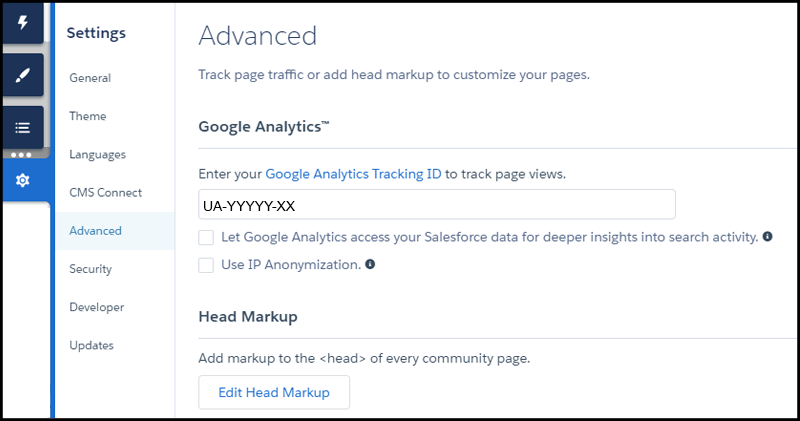
In Experience Builder, click
on the left
sidebar and click Advanced.
Enter your Google Analytics tracking ID.
To track user types, user IDs, and search activity, enable Let Google
Analytics access your Salesforce data for deeper insights into search
activity.
To enable the masking of IP addresses on the Google server side, which helps with
privacy compliance or concerns, Use IP Anonymization.
To enable the service, publish the site.
Your site’s analytics data streams directly to the Google Analytics service where you can
review and interpret it.
After you’ve set up Google Analytics to integrate with your data, you can create your own reports.
For developers of custom Lightning components, we provide the global forceCommunity:analyticsInteraction event. Use this event to track events
triggered by the custom component.
We use three kinds of cookies on our websites: required, functional, and advertising. You can choose whether functional and advertising cookies apply. Click on the different cookie categories to find out more about each category and to change the default settings.
Privacy Statement
Required Cookies
Always Active
Required cookies are necessary for basic website functionality. Some examples include: session cookies needed to transmit the website, authentication cookies, and security cookies.
Functional Cookies
Functional cookies enhance functions, performance, and services on the website. Some examples include: cookies used to analyze site traffic, cookies used for market research, and cookies used to display advertising that is not directed to a particular individual.
Advertising Cookies
Advertising cookies track activity across websites in order to understand a viewer’s interests, and direct them specific marketing. Some examples include: cookies used for remarketing, or interest-based advertising.