
You are here:
Control Public Access to Your Experience Builder Sites
Set the public access level to your Experience Builder site, and set page-specific access to your site pages.
Required Editions
| Available in: both Salesforce Classic and Lightning Experience |
| Available in: Enterprise, Performance, Unlimited, and Developer Editions |
| User Permissions Needed | |
|---|---|
| To customize an Experience Cloud site: |
|
| To publish an Experience Cloud site: |
|
If you allow public access, your Experience Cloud site pages are accessible to the public, including unlicensed users. If you don’t allow public access, members must log in to access the site.
- To enable public access in an Experience Builder site, open Experience Builder.
- From the All Sites page in Setup, click Builder next to the site name.
- From a site, click Experience Builder in the profile menu.
- Click Settings.
- In the General panel, select Guest users can see and interact with the site without logging in.
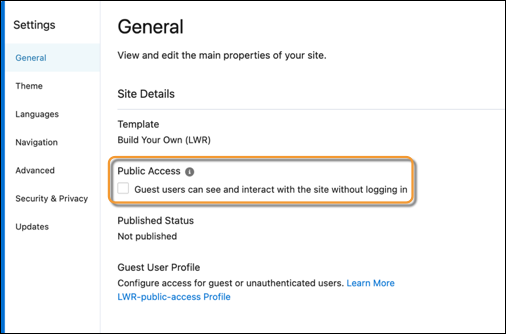
For certain components and pages to load correctly for guest users, you must give these users access to public APIs. For Aura sites, see Chatter and Discussions Best Practices and Considerations for Guest Users. For LWR sites, see User Interface API.

You can also set page-level access to specific Experience Builder site pages in Page Properties.
- Site Default Setting
- Reflects your choice for public access under General Settings.
- Public
- Makes the page public regardless of the site’s default setting.
- Requires Login
- Makes the page private and requires members to log in, regardless of the site’s default setting.
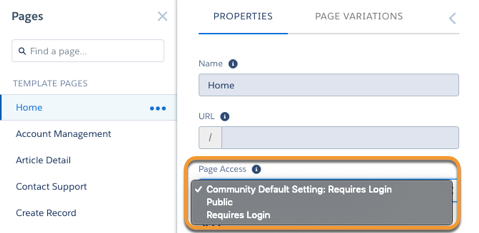
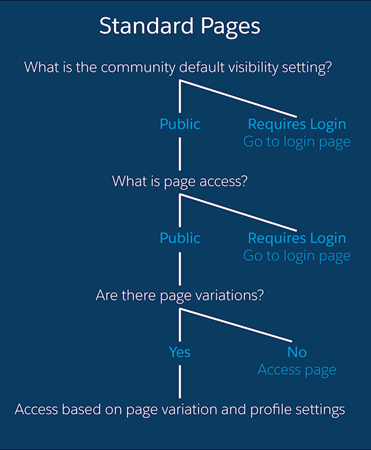
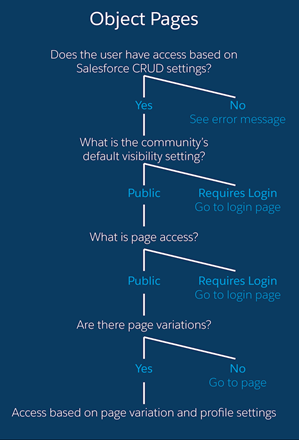
How do these settings work with audience criteria-based page visibility in Experience Builder? When a member is trying to access a page, Salesforce first checks the site’s default setting. Is it public or does it require users to log in? Then Salesforce looks at the page access. When that’s cleared, Salesforce checks the audience criteria-based visibility that you set in Page Variations.
How does this logic work for standard pages?
And what’s the logic behind pages that show object data?
You can also set privacy settings for some components, such as the Tabs and the Navigation Menu components. To make a component on a public page visible to guest users, select Publicly available in the component’s properties.

- Regardless of the settings, some pages are always public, and others are always private. Public pages include login-related pages (Login, Register, Forgot Password, Login Error, Check Password). The Messages page for direct messages is always private.
- If public access is enabled in Experience Builder at the page or site level, the preference Let guest users view asset files, library files, and CMS content available to the site is enabled in Administration | Preferences in Experience Workspaces. This preference lets guest users view asset files and CMS content available in the site on publicly accessible pages. Files include images associated with topics, recognition badges, site branding, and account branding. The preference remains enabled as long as the page has public access enabled.
- Best Practices and Considerations for Page-Level Access in Experience Builder
Experience Builder is a powerful tool for keeping your Experience Builder site secure. Keep these best practices and considerations in mind when working with access levels. - Experience Builder Sites Search Best Practices and Considerations for Guest Users
When setting up your search pages and components for Experience Builder sites, keep these best practices and considerations in mind to keep data secure from guest users. - Set Up Web-to-Case for Guest Users in an Experience Builder Site
When you set up Web-to-Case along with a case quick action, guest users can create a case without having to log in.
