Manage Release Updates
Review the requirements for each release update, and then test the changes. For updates with scheduled enforcement, complete the required steps before Salesforce enforces the changes. Track your progress for each release update directly in Setup.
Required Editions
| Available in: both Lightning Experience and Salesforce Classic |
| Available in: all editions |
| User Permissions Needed | |
|---|---|
| To view release updates: | View Setup and Configuration |
| To manage release updates: | Manage Release Updates OR Customize Application |
To understand how Salesforce displays release updates in Setup and how to read a release update card, see Get Information About a Release Update.

- From Setup, in the Quick Find box, enter Release Updates, and then select Release Updates.
- On the Release Updates page, select an update.
-
Click Get Started to act on your update.
For in-progress updates, click Resume, and for complete or enforced release updates, click View Update.
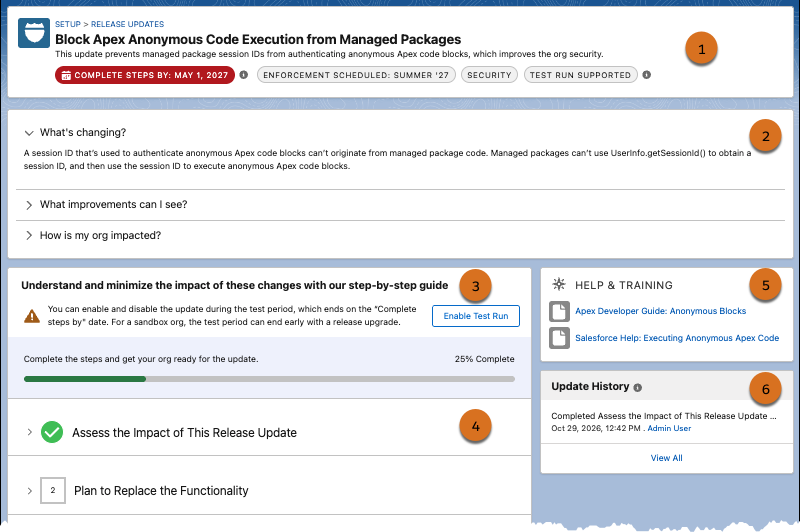
The header (1) at the top of the page includes the name and summary of the release update, plus key information, such as the enforcement timing. Use the three expandable sections (2) to see details about the changes, improvements you can expect, and impact on your org.
On the bottom left of the page (3), the progress bar reflects the percentage of complete steps. If a test run or self-service extensions are available, they appear in this section. Expandable steps (4) provide instruction on how to prepare for the update.
On the bottom right of the page, the Help & Training section (5) includes links to key documentation and resources. For an audit of the actions taken for this release update, see the Update History section (6).
-
Complete each release update step except the last step.
- Expand the step and follow the instructions.
-
After you complete the instructions for each step, click Mark as
Complete.
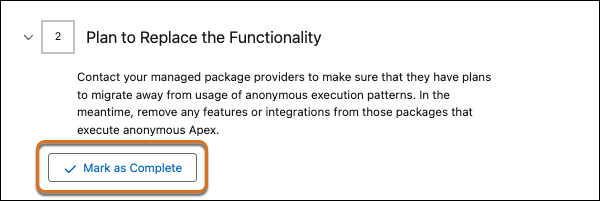
 Tip You can still complete the release update steps, even after enforcement.
If the Mark as Complete button is inactive, complete the previous steps.
After you mark each step as complete, the progress bar reflects the current status. No other changes occur in your org.
If you erroneously mark a step as complete, click Mark as Incomplete. You can't mark a completed step as incomplete when the Enable Test Run option requires that step or after Salesforce enforces the update.
-
When you're ready to test, click Enable Test Run, if
available.
Warning You can't enable or disable a test run after the Complete Steps By date. Sandbox org test periods can end before the Complete Steps By date.
The test run applies the changes for this release update to the org. With the test run enabled, verify that your affected customizations work as expected.
The Enable Test Run button isn't available for all release updates. If the button isn't available, follow the steps to implement the changes.
If the Enable Test Run button is inactive, complete the release update steps. For some release updates, the Enable Test Run button is active only after you complete some or all release update steps.
- To disable the test run, click Disable Test Run, if available. This option isn't available for all release updates.
- If the Enforcement Details section appears with the Request an extension link and you need more time, see Request an Extension for a Release Update.
-
After you finish the steps and your testing, expand the last step and click
Done.
This option is available only after you complete all other steps in the release update.
 Note After you confirm that you completed the update, you can't change the completion status of the release update steps.
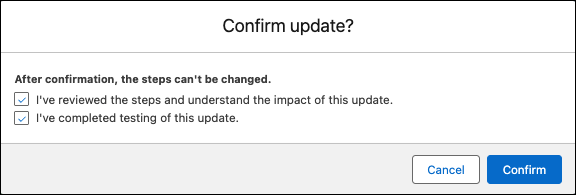
- Select the acknowledgments and click Confirm.
After you confirm that you completed the update, the release update card moves to the Archived view.
