Customize Related Lists
You can customize related lists on record detail pages in Salesforce and the Salesforce Customer Portal. Configure elements such as the buttons and columns, the column order, and the record sort order.
Required Editions
| Available in: both Salesforce Classic and Lightning Experience |
| Available in: Essentials, Group, Professional, Enterprise, Performance, Unlimited, and Developer Editions |
| User Permissions Needed | |
|---|---|
| To customize related lists: | Customize Application |

- From the management settings for the object you want to edit, go to Page Layouts.
-
Click
 on a layout’s row in the list view, and select Edit, or
click the name of the layout.
on a layout’s row in the list view, and select Edit, or
click the name of the layout.
-
To edit a related list, double-click its tab. If you’re using the enhanced page layout
editor, you can also click the
 icon.
icon.
A related list configuration window appears.
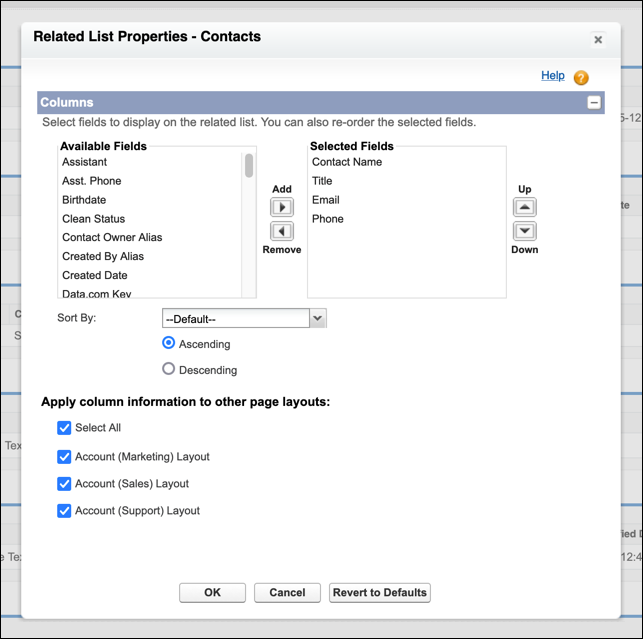
In this window, you can’t:
- Rename the related list. Instead, edit the related list label on the related object’s lookup or master-detail field.
- Customize the History related list because it links to data stored elsewhere.
- Customize certain standard related lists, such as Notes & Attachments, Contact Roles, and Account Team, because Salesforce locks these lists on every object where they appear.
-
Select the fields to include in the related list, define the order in which fields
appear, and select the record sort order.
The default sort order is by record ID. You can include up to 10 fields per related list. To show more than four fields in Lightning Experience, edit the related list component in the Lightning App Builder. Then select Enhanced List as the related list type.
Only fields from the related object are available to add. If you don’t see an expected field in the list, confirm that it’s defined on the related object.
-
Apply your related list customizations to other page layouts, if appropriate.
Only layouts that include this related list appear in the list. Layouts that include related lists with the same customizations that the current layout had when you opened it are selected by default. Salesforce's assessment of which layouts have the same customizations is based on the state of the current layout before editing it. This assessment can lead to previously deselected layouts becoming re-selected when an edited layout is reopened. To avoid unintended changes across multiple layouts, always verify the list of selected layouts.
-
To customize the standard buttons, custom buttons, and quick actions that appear on the
related list, click + in the Buttons section header.
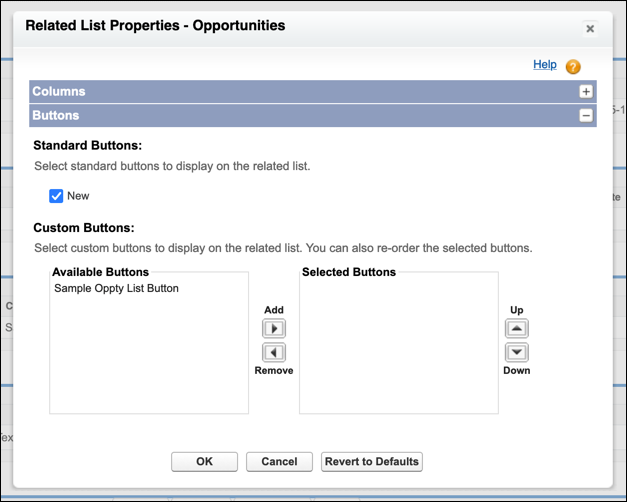
Custom buttons and quick actions appear as options only when they’re defined on the related object. For example, to show a quick action on the Contacts related list of an account, define the quick action for contacts, not accounts. A custom button also needs a display type of List Button.
- If necessary, select Revert to Defaults to undo any customizations and use the default Salesforce settings in the related list.
- To store your customizations, select OK.
-
Save the page layout. This step saves your related list changes.
If you add, move, or remove related lists from the layout, you can optionally apply these changes to all users. If a user customized their display, this step overwrites their changes. This action isn’t reversible.
Keep these considerations in mind when customizing related lists.
- In Lightning Experience, you set some options on the record page in the Lightning App Builder rather than on the page layout. Select the related list on the record page, and then customize the Related Lists, Related List–Single, or Dynamic Related List–Single components. Depending on the component, you can make changes such as specifying the related list type or reordering the list’s actions. You can also resize and sort columns, or show more than four fields. See Standard Lightning Page Components and Create Dynamic Related Lists in Lightning App Builder.
- To enable related list hover links for Salesforce Classic, use the User Interface settings in Setup. Record detail pages then include links for each related list at the top of the page. Users can hover over a link to view and manage the related list’s items in an interactive overlay. Or they can click the link to jump to the related list without scrolling. For Lightning Experience, add the Related List Quick Links component to a Lightning page for similar hover-to-preview functionality.
- Related lists have constraints that affect what you can add and rearrange. See Page Layout Limitations for details.
