
You are here:
Manage Quality Alerts
Model Builder displays quality alerts when it detects issues in your model's training data, quality metrics, or during cross-validation. The alerts can surface in the model setup, details, and inspector.
Required Editions
| USER PERMISSIONS NEEDED | |
|---|---|
| Allow users to manage models in AI Models | Enables you to create, update, and delete models in AI Models |
| PERMISSION SETS | |
|---|---|
| Data Cloud Architect | Admin-level access to all AI Models features, including the ability to create, update, delete, and activate models. |
| Data Cloud User | Restricted access to use a model, including getting predictions and improvements derived from a model. |
Alerts in the Model Setup
You can manage alerts when setting up a model's variables. We also recommend that you address any alerts when reviewing your settings, before you save and train the model. To manage alerts when setting up variables, follow these steps.
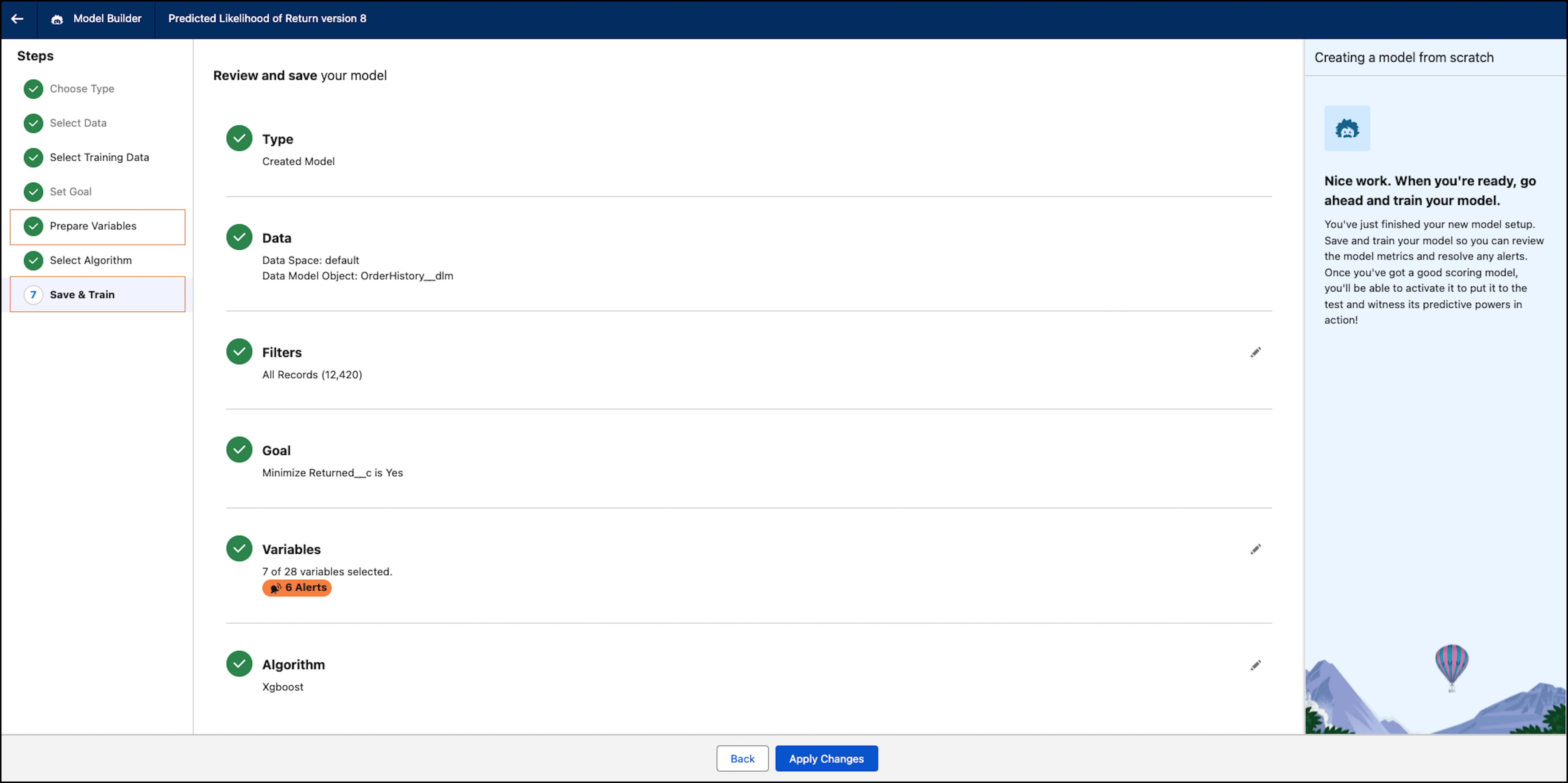
- Click a model to access its setup.
- Click Prepare Variables to view any variable alerts.
- To learn about issues impacting your model, go to the right side of the page, and choose an action. For example, you can resolve a multicollinearity alert by excluding a specific variable before model training.
Alerts in the Model Details
After model training, alerts can surface in the model details. Here, you can get an overview of an alert, its impact on training data, and the model metrics. To manage alerts in the model details overview, follow these steps.
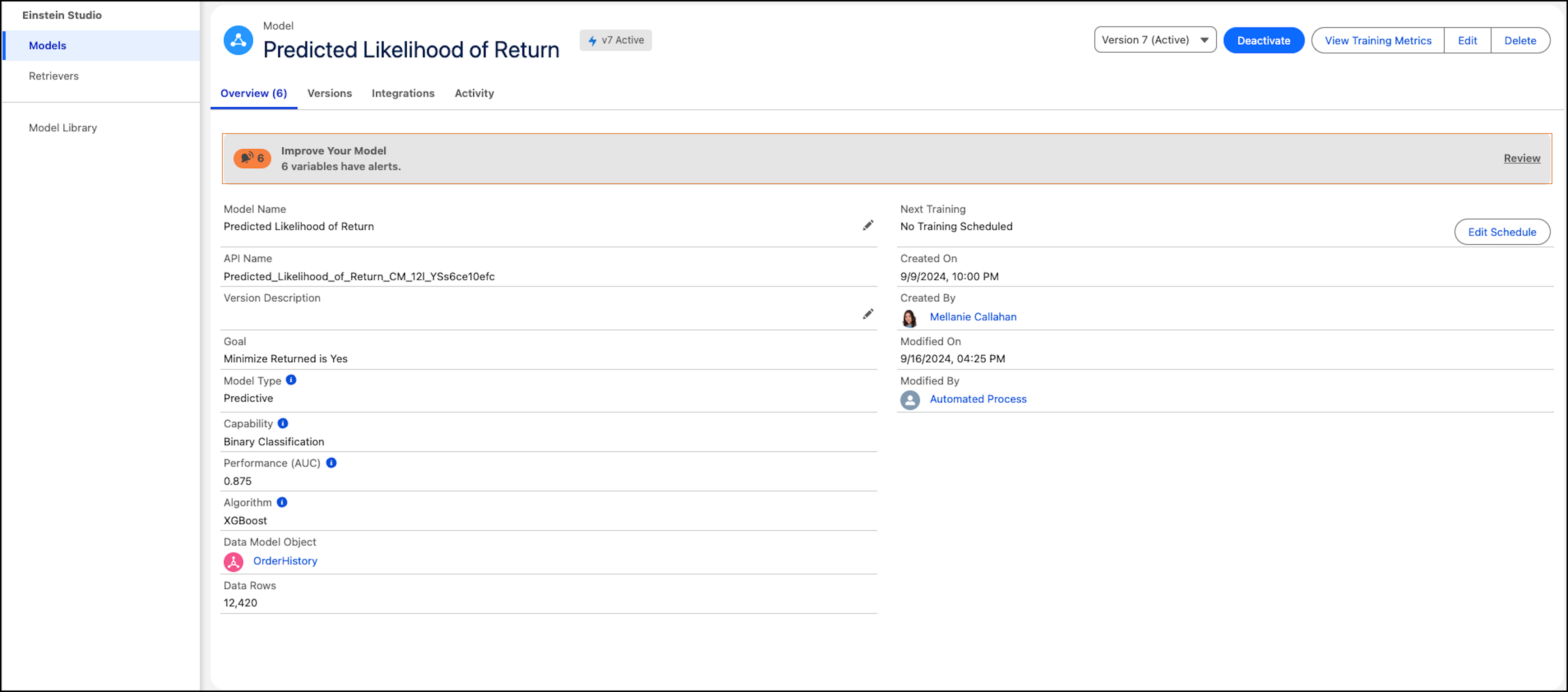
- Click a model to view its details.
- In the "Overview" tab, review what alerts are impacting your model.
- To learn about the issues impacting the model, click Review. This opens the model details, where you can address the alert.
Alerts in the Model Inspector
After model training, alerts can also surface in the model inspector, where you can learn about the model's training quality and related metrics. To manage alerts in the model inspector, follow these steps.
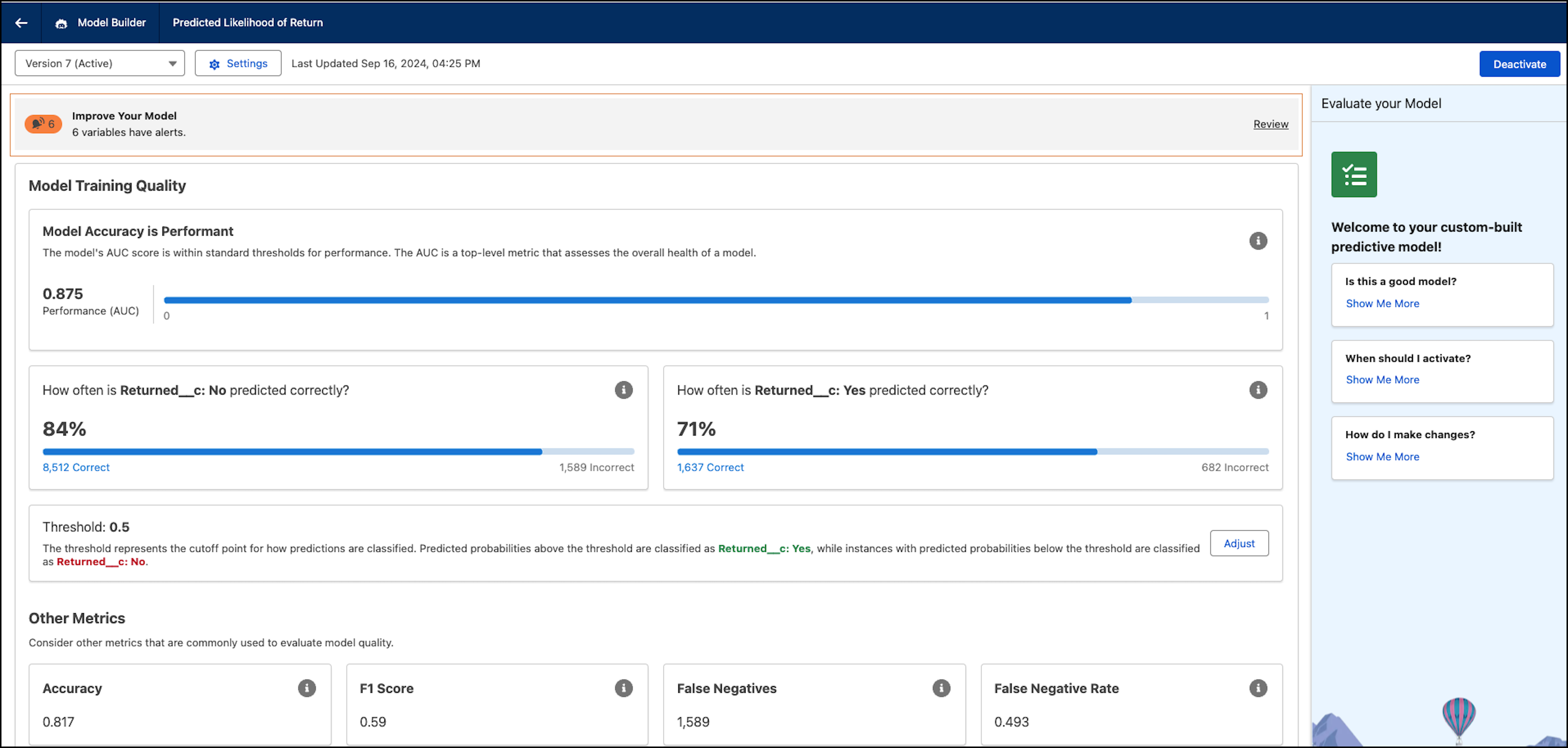
- Click the model to view its settings. Here, you can review the model alert details such as the alert type, county, and more.
- To learn about issues impacting the model, look at the section below the alert.
- (Optional) To review the alert later, click Mute. You can unmute when you're ready to review and address your alerts.
- To learn about the issues impacting the model, click Review Alerts. This opens the model setup, where you can take further action.
