
You are here:
Apply Transformations to Your Data
Transform modeling data to improve the reliability, accuracy, and explainability of predictions. For models created from scratch, Model Builder automatically transforms unstructured text and replaces missing data. You can also manually transform variables in binary or regression models.
Required Editions
| Available in: All Editions supported by Data 360. See Data 360 edition availability. |
| USER PERMISSIONS NEEDED | |
|---|---|
| Allow users to manage models in AI Models | Enables you to create, update, and delete models in AI Models. |
| PERMISSION SETS | |
|---|---|
| Data Cloud Architect | Admin-level access to all AI Models features, including the ability to create, update, delete, and activate models. |
| Data Cloud User | Restricted access to use a model, including getting predictions and improvements derived from a model. |
Text Clustering Transformation
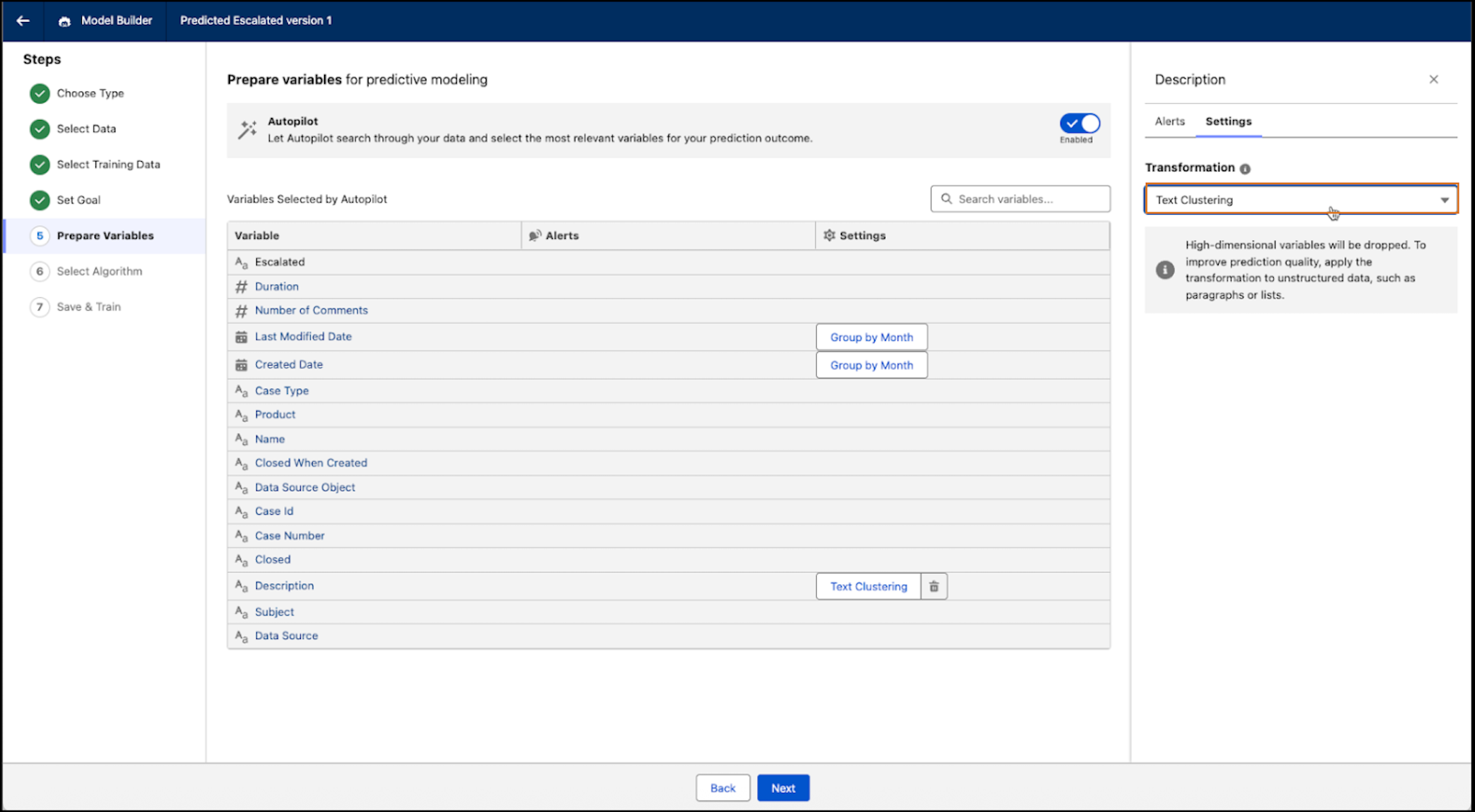
The Text Clustering transformation analyzes unstructured text fields and creates text clusters. At prediction time, the model applies the transformation and assigns a predetermined text cluster based on the text provided. The transformation reduces high cardinality and combines free-form text fields into smaller clusters with similar data. This helps a model to learn from and use the text more effectively.
- In Model Builder setup, click a text variable (such as, Description) that contains a unstructured text.
- From the Settings tab and go to the Transformation dropdown menu.
- Select Text Clustering.
- Apply the transformation and click Next. Continue to build the model and activate it when you're ready.
Replace Missing Values Transformation
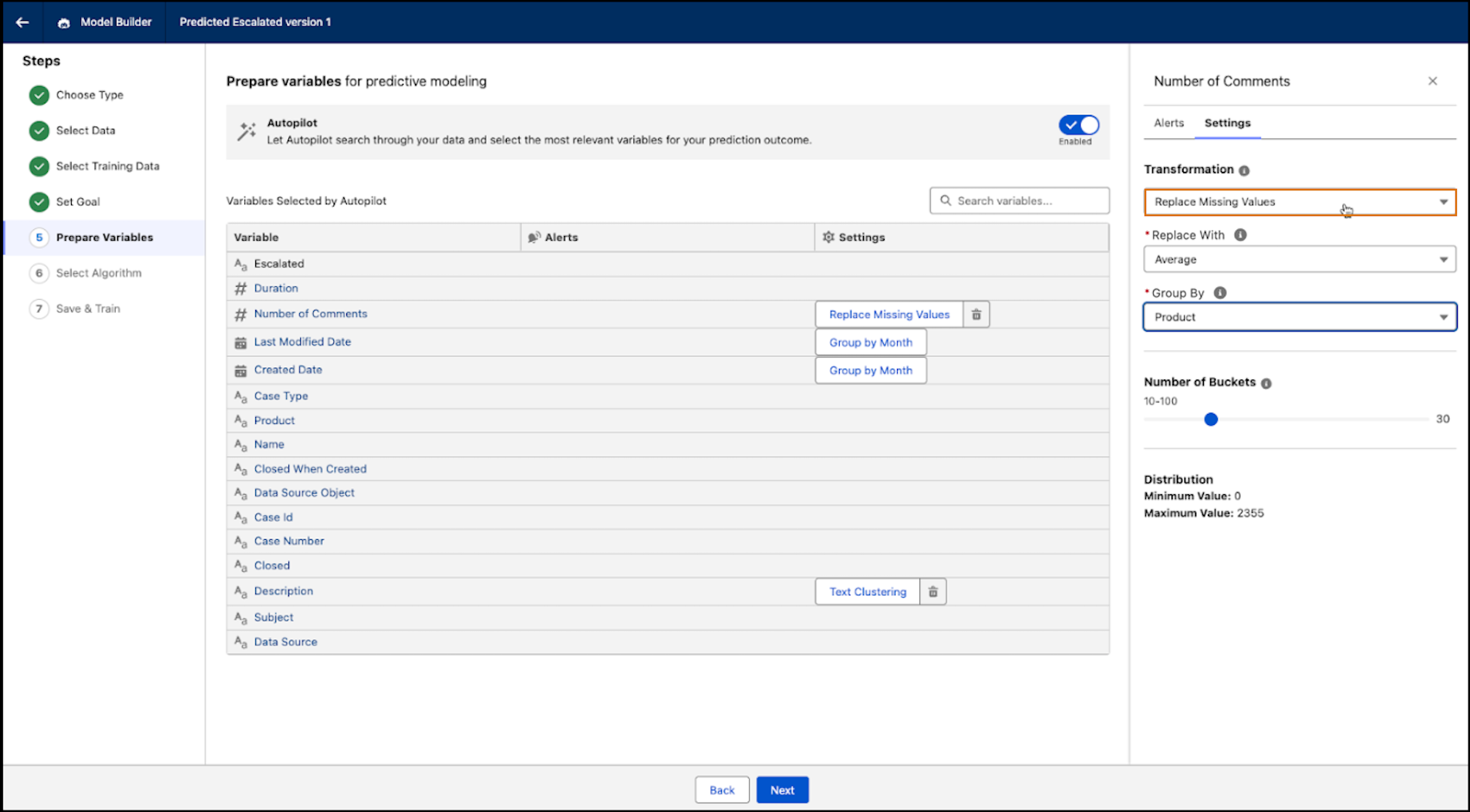
The Replace Missing Values transformation uses statistical imputation such as (mean, median, or mode) to populate missing values. At prediction time, the model calculates new values based on the settings you defined in Model builder and data from another similar variable in the dataset. It uses these numerical values to replace missing values. The transformation enhances data completeness and consistency in your analysis.
- In Model Builder setup, click a numeric variable (such as, Tenure) that contains missing or null values.
- Click the Settings tab.
- From the Transformation dropdown, select Replace Missing Values.
- From the Replace With dropdown, select Average, Median, or Mode to calculate the numerical values.
- On the Group By dropdown, select the variable that you want to get the imputed values from.
- Apply your transformation and click Next. Continue to build the model and activate it when you're ready.
Date Transformations
You must transform date variables before they can be used by your model. During model training or at prediction time, the model uses the transformation settings you defined in Model builder to group and interpret date values. Dates can be transformed by the day of the week or month of the year, enabling the model to learn from these time-based patterns.
- In Model Builder setup, click a date variable (such as, Created Date) that contains date values.
- Click the Settings tab.
-
From the Transformation dropdown, select how you want to transform date values (by day or
month).
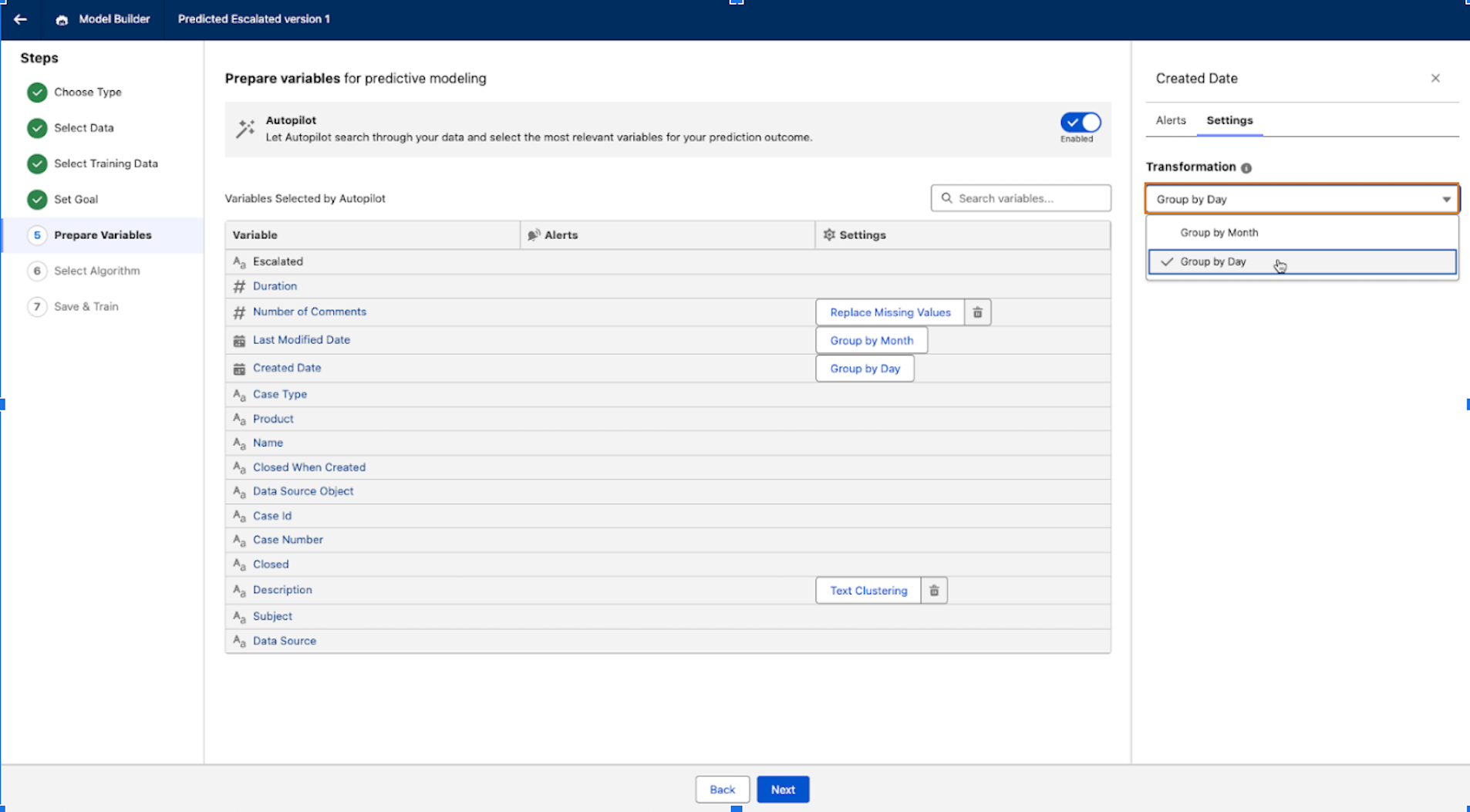
- Click Next. Continue to build the model and activate it when you're ready.
