
You are here:
Manage Large Language Model (LLM) Access by Hiding Configurations
Hide an LLM configuration when you want users in Prompt Builder to change to a different model in their prompt templates. They can select a newer LLM version or a different LLM, possibly from a different provider. You can suspend access to a new LLM until you've completed testing. Optionally, you can later show a hidden LLM configuration to make it visible for selection.
-
In Model Library, click the LLM configuration you want to hide.
The Model Visibility column shows whether a model is shown or hidden from selection in Prompt Builder.
- Click the Configured Models tab.
-
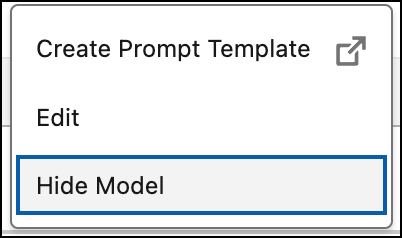
For the LLM configuration you want to hide, choose Hide Model
from the dropdown menu.
The Model Visibility column shows the model configuration as Hidden. The text (Not Available) appears in front of the model configuration name.
- To show a hidden model, choose Hide Model from the dropdown menu.
Prompt templates that currently use a hidden model will run the same as before. In Prompt Builder, the prompt template shows that the model is hidden. To change to a different model, the user selects an available model from the Models list. If they clone a prompt template with a hidden model, they must select another model before saving the cloned copy.
