
You are here:
Combine Rows from Different Data Sources Using the Append Node
Use an append node to combine rows from multiple input data sources into a single result.
- In a batch data transform that has at least one input node, click the Add Node button
(
 ) between
two nodes or at the end of the data
transform.
) between
two nodes or at the end of the data
transform. - Select Append.
- Select the data to append to the batch data
transform.
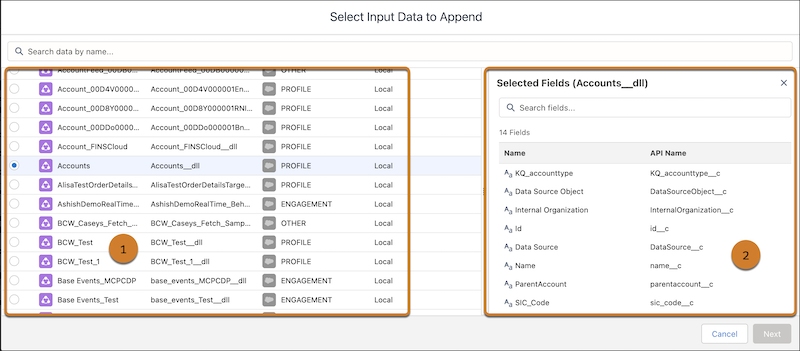
- Select the object that you want to add (1).
- Under Selected Fields (2), choose which of the object’s columns (also called fields) to include in the appended data, or click Name to select all columns.
- Click Next.
- Choose how to map columns.
- To automatically map all columns each time your batch data transform runs, turn on Map all columns.
- To manually map two columns, enter the column name from the appended rows next to its corresponding batch data transform column.
A batch data transform maps all columns from both data objects based on matching column API names. To map columns that don’t have corresponding API names, select Allow schema merge. Note If a column is mapped for one source and not the other, the append node inserts null values for all source rows that the column doesn’t apply to. If a numeric column isn’t mapped to a source and null numeric handling isn’t enabled, the append node inserts zeroes instead of nulls for those source rows.
 - To add a column from the appended rows that doesn’t exist in the batch data transform, click + and select the column. Leave the batch data transform column blank.
- Click Apply to add the node to the batch data transform.
- Click Save.
When you run the batch data transform, the append node combines rows from both data objects into the same source data.
Did this article solve your issue?
Let us know so we can improve!
