
You are here:
Categorize Date Field Values into Buckets
Use a transformation to create a calculated field based on a formula. You add transformations inside a Transform node. You can string together multiple transformations to manipulate data sequentially.
- In the Transform node, select the date field in the Preview tab.
- In the Transform toolbar, click the Bucket button (
 ) to define
the buckets.
) to define
the buckets. - Select whether to use absolute or relative dates.Absolute dates are defined dates on a calendar, like July 25, 2023. Relative dates are a time period in relation to the day the data is viewed, like last quarter, or next month.
- Select
 .
. - Enter a label for the first bucket.The first bucket is for the earliest date range. Each subsequent bucket must have a later date range than the previous bucket.
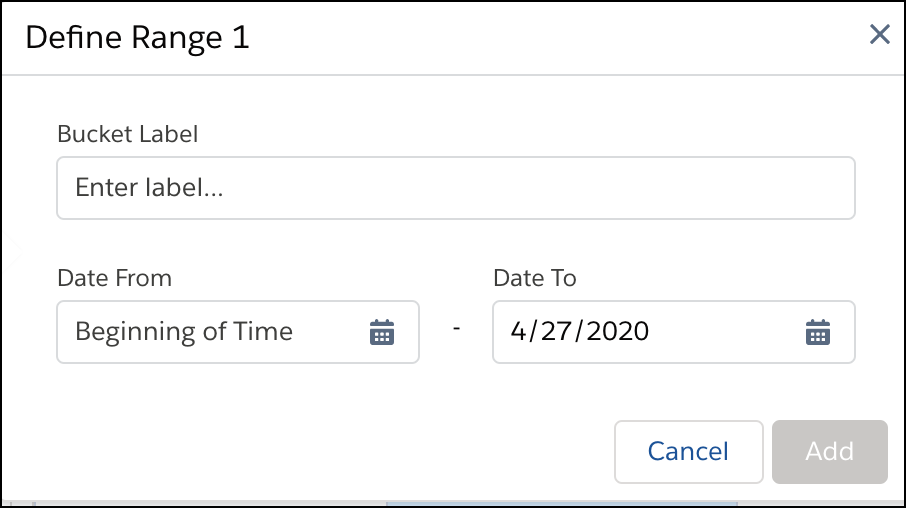
- Select the date range for this bucket.
- Click Add.
- To create another bucket with a later date range, click and specify the details.
- To place null values into their own bucket, select Bucket null values.
- Under Show Results In, select whether the new bucket values should appear in a new field and what should happen to the original field.
- If you elect to create a field, set its label under Field Label.
- Click Apply to add the transformation to the Transform node. The Preview tab shows the new bucket field.
- To view the
canvas,
click the Collapse button (
 ).
). - Click Save.
After you run the batch data transform, you can view the bucket assigned to each row in the bucket field.
Did this article solve your issue?
Let us know so we can improve!
