
You are here:
Connect and Reorganize Nodes or Branches in a Batch Data Transform
Connect disconnected nodes or branches to append data from any node to any other node in a batch data transform. You can also create a branch at an intermediate node, and append it to another path in the batch data transform.
- To create a branch and join or append it to another path, hover over a node to see the
Branch button (
 ). Then
drag the Branch button on top of a node in the other path.
). Then
drag the Branch button on top of a node in the other path.
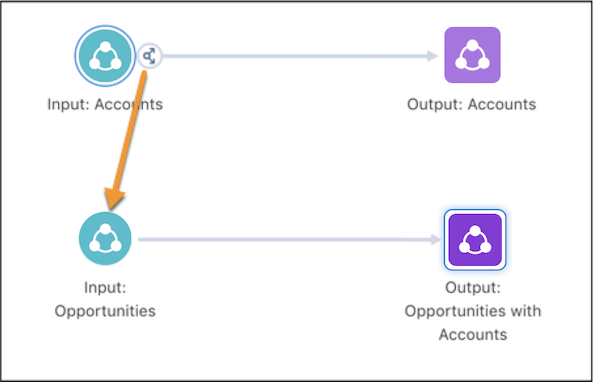
- In the Connect Nodes box, select to append the data.
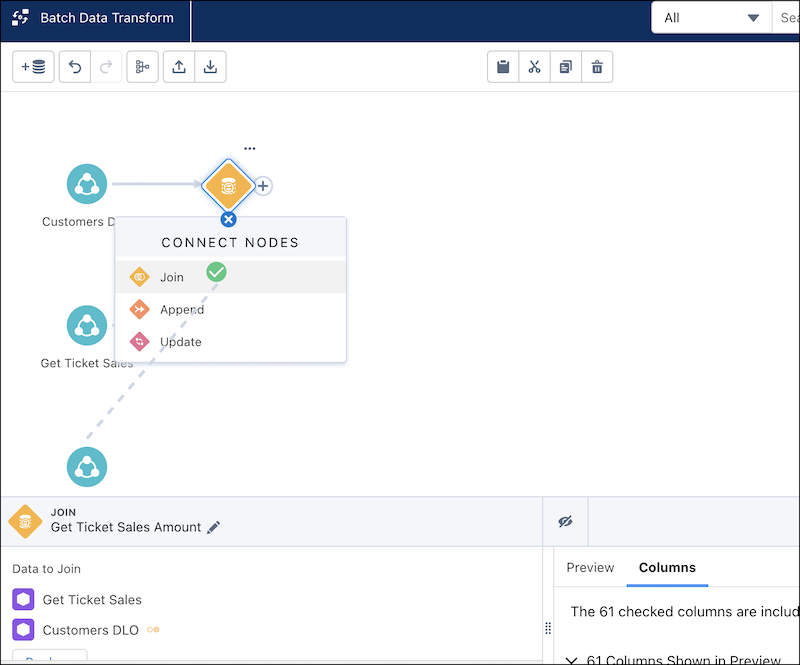
- In the Connect Nodes box, select to append the data.
- To append data to another node, drag the Add Node button (
 ) for a node or a Branch
button on top of the predecessor.
) for a node or a Branch
button on top of the predecessor.
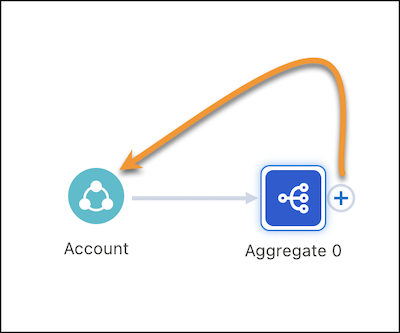
- Then select to append the data in the Connect Nodes box. This canvas joins aggregated
account data back to the account records.
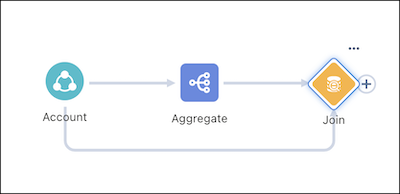
- Then select to append the data in the Connect Nodes box. This canvas joins aggregated
account data back to the account records.
- To make the flow of data easier to view, reposition the data transform nodes in the canvas.
Select and move individual nodes, or drag your mouse to select as many nodes as you want. Pull
the group of nodes around to rearrange, or delete them all at once.
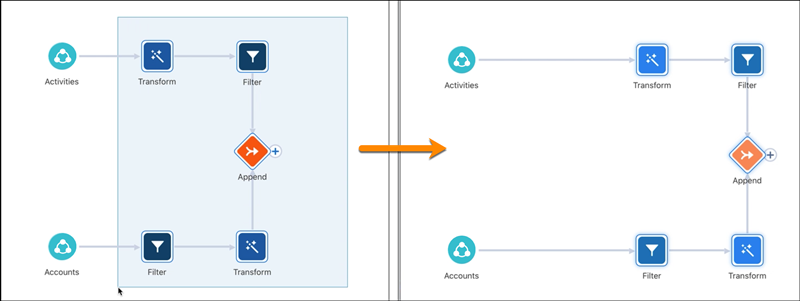 For example, you can move upstream nodes after a downstream node in the canvas, where nodes flow right to left.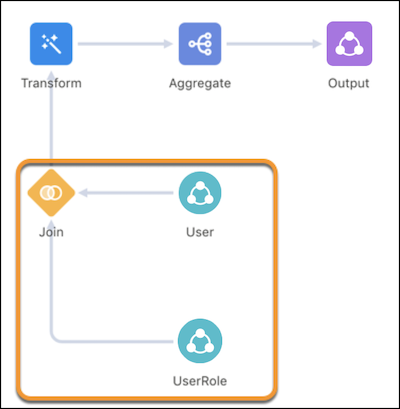
Did this article solve your issue?
Let us know so we can improve!
