
You are here:
Data Preview Sampling
Use data preview sampling to see a more accurate picture of your data at each node in Preview. By widening the sample size and selecting the mode to arrange your data, data sampling helps prevent working without preview data. Select Filtered Rows to isolate specific values.
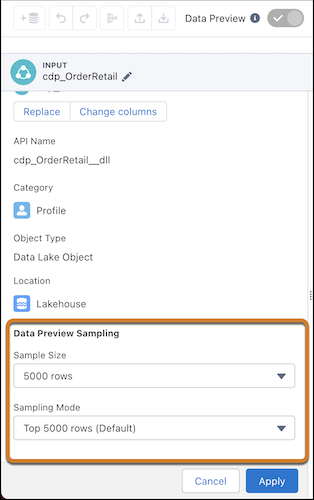
By default, the sample size is set to 2000 and the Sampling Mode is set to the top 2000 rows. This means that Preview shows the first 2000 rows of your data.
- In an Input node, under Data Preview Sampling, select a Sample Size. This is the number of rows to include in preview. By default, the sample size is set to 2000. The Sampling Mode is set to the top 2000 rows.
- Under Sampling Mode, select the mode that best fits your data. Select All Column Values to populate a sample when you need to see all column values, such as when creating a bucket. Select Filtered Rows to isolate specific values.
- If you choose the Filtered Rows sampling mode, click the + under Filter and choose the column value to filter on. Select the values to include in your filtered results. To include currency fields in a filter, set the currency for the transform. Setting the currency after creating a transform resets the preview.
- Click Apply.
Did this article solve your issue?
Let us know so we can improve!
