
You are here:
Filter Node
Use a Filter node to remove rows that you don’t need in your target. For example, you can filter case records to focus on escalated cases only. Filter values are case-sensitive.
- In a batch data transform that already has at least one Input node, select the
Add Node button
 between two nodes or at the end of the batch data
transform. To show the Add Node button between two nodes, hover the cursor on the connecting
line.
between two nodes or at the end of the batch data
transform. To show the Add Node button between two nodes, hover the cursor on the connecting
line. - In the Add Node dialog box, select Filter.
- Click the + to add a standard filter. A standard filter uses conventional filter
operators—equals, does not equal, less than, and so on. For more granularity in your filter
options, such as access to string and math functions, select Add Custom Filter
Expression from the dropdown next to Filters. Filter values for both options are
case-sensitive.
- To apply an aggregate function to currency values, set a currency. If you don't specify a currency, the node uses the currency from the first row of data.
- If you define a filter condition on a dimension column, you can select a filter value from a list of values in your data. Then, click Add new value and enter the value.
 Note Column search results display up to 2000 values.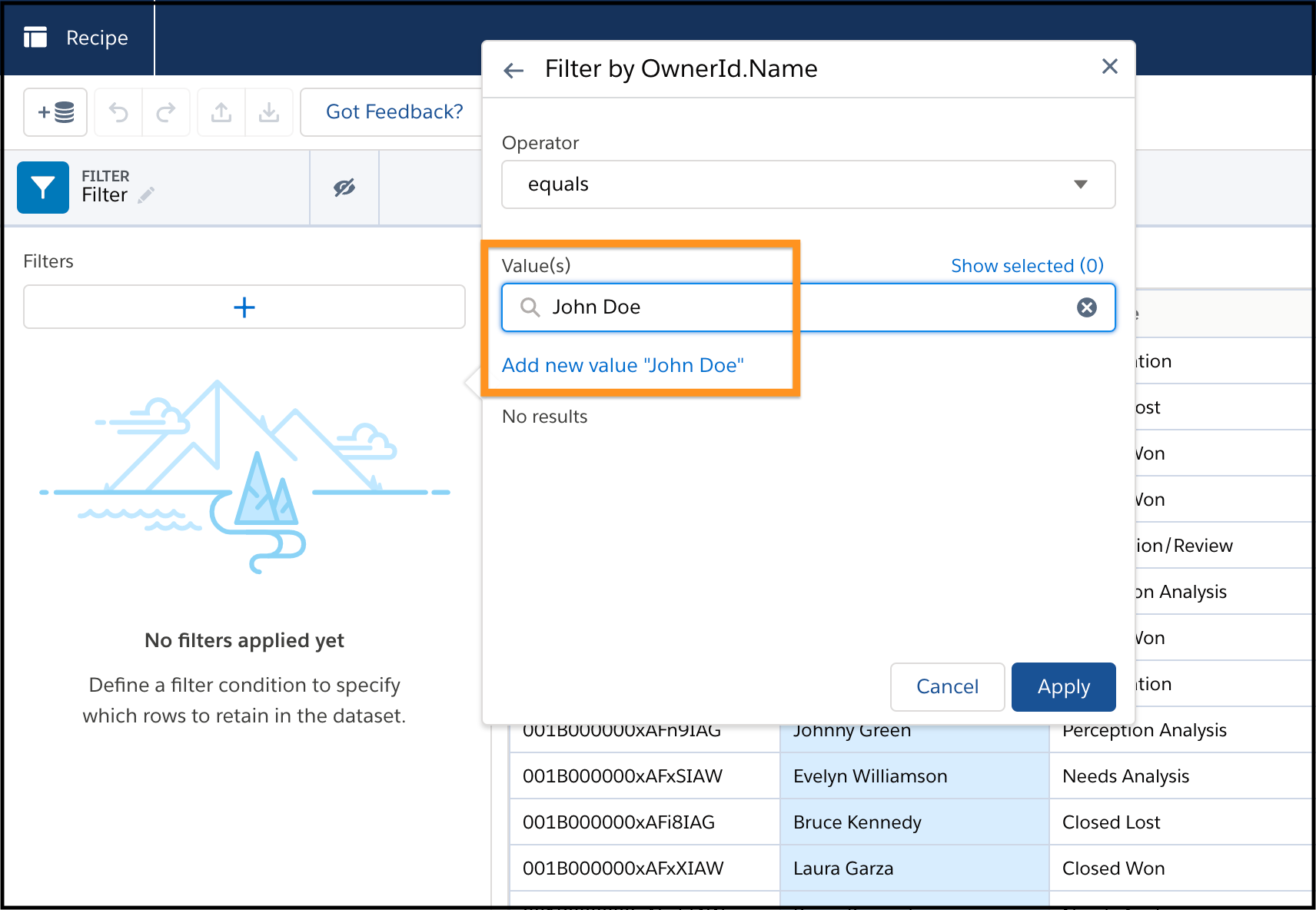
- Click Apply.
- To display the current standard filter logic click
 and Add Standard
Filter Logic.The default
and Add Standard
Filter Logic.The default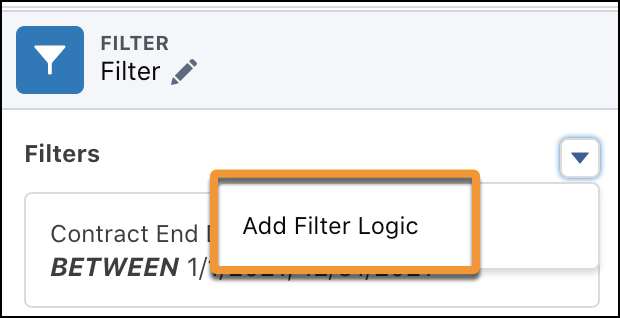
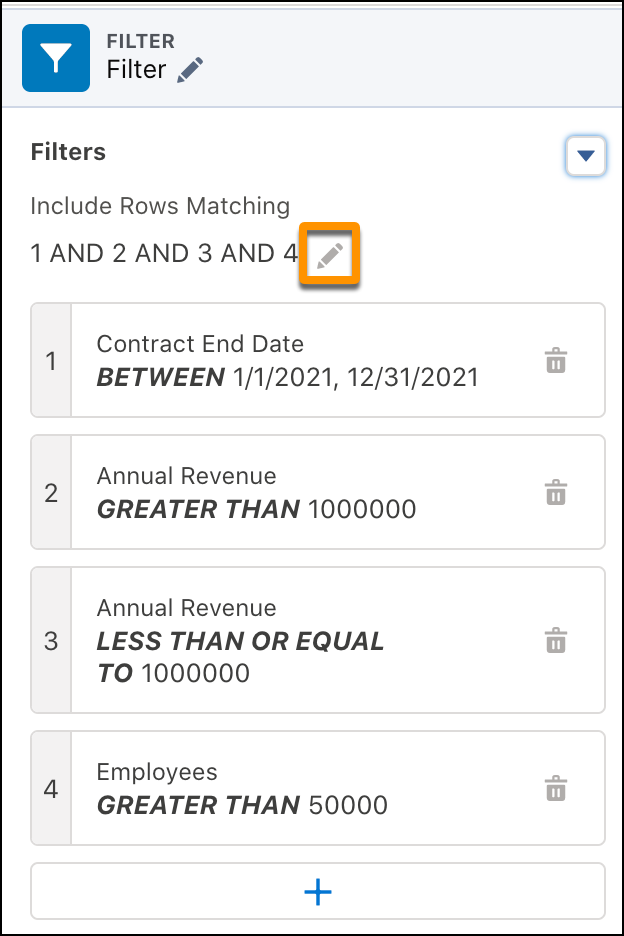
ANDlogic is shown, and each filter component is assigned a number. - To edit the logic, click the pencil icon (
 ).
).
- Build the filter logic with parenthesis and the
AND,OR, andNOTBoolean operators.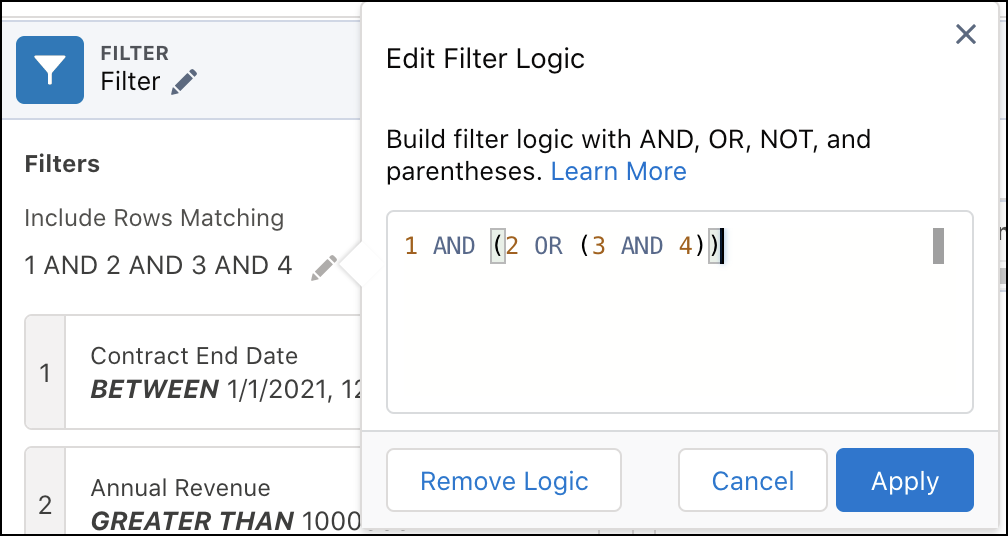
- Click Apply.
- Save the data transform.
Did this article solve your issue?
Let us know so we can improve!
