
You are here:
Add an Input Node to a Batch Data Transform
Create an input node for each set of data that you want to add to the batch data transform. The batch data transform creates an input node when you initially select your input data, but to add more data you add another node.
- From Data Transforms, on the Recently Viewed page, click New.
- In the canvas, click Add Input Data.
- For the batch data transform that you want to modify, from the dropdown menu, select Edit.
- In the canvas, click the Add Data
(
 ) button.
 - Select the input data (1) and then select which columns to include in the batch data
transform
(2).
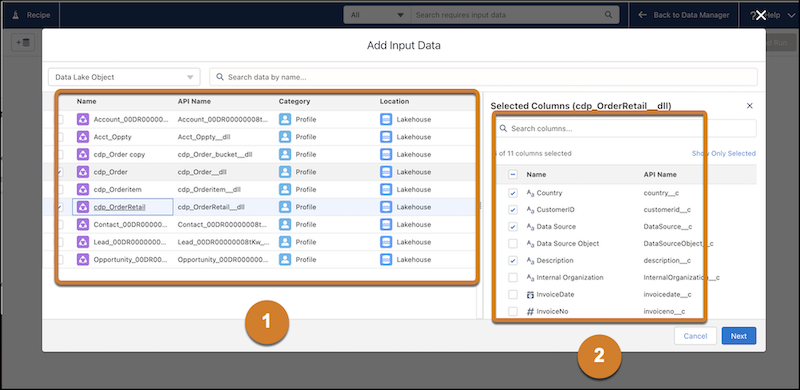
If you select multiple objects, click the Name, API Name, Category, or Location of a specific object to display its columns. To deselect all the columns, deselect Name.
- Click Next.
An input node for each input data selection is added to the canvas. If an input source has more than 100 columns, the first 100 columns are shown in Preview. To show more columns, click Change columns.
Did this article solve your issue?
Let us know so we can improve!
