
You are here:
Create an Einstein Segment in Data 360
Describe your segment to get suggested related attributes that are based on the data found in your org. To avoid bias and inaccuracies, all demographic attributes are removed. Attributes that produce fewer than 10 results for the segment population are also removed to improve the segment's accuracy.
Required Editions
| Available in: All Editions supported by Data 360. See Data 360 edition availability. |
| User Permissions Needed | |
|---|---|
| To create a segment: | Permission set:
|
Some Data 360 features have guidelines to optimize performance. Other features have restrictions or incur billing charges based on usage. Learn more about feature usage in the Data 360 Limits and Guidelines.
Before you start building Einstein segments, review our recommendations on writing good prompts.
- In Data Cloud, click Segments.
- Click New.
- Click Create with Einstein.
- Select the Segment Properties.
- Select the data space that the Unified Individual DMO that you’re basing this segment on is associated with.
- From the Segment On dropdown, select the Unified Individual DMO that you’re basing your segment on.
- Click Next.
- In the Einstein Segment Creation chat, enter a segment description of at least two words using simple phrases, and then press Enter. After you enter a description, all the words are translated for you into attributes and values based on the data that exists in your org.
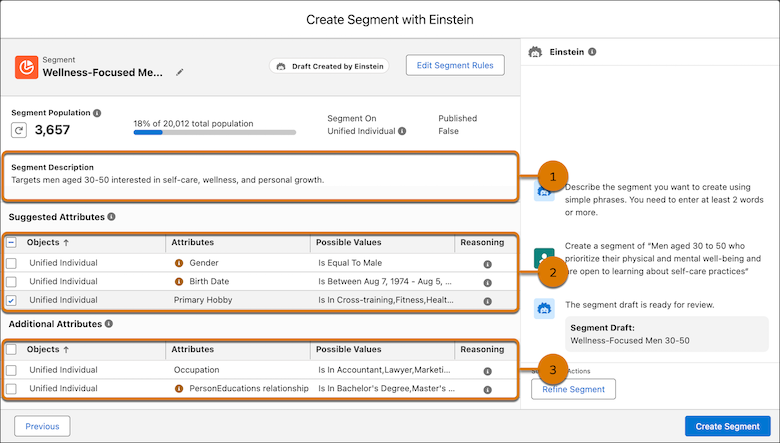
- In the Einstein Segment Creation chat, enter a segment description of at least two words using simple phrases, and then press Enter. After you enter a description, all the words are translated for you into attributes and values based on the data that exists in your org. A segment description is created based on the phrase that you entered (1), and the attributes related to the description are created. For example, Einstein generative AI translates “physical and mental well-being” into different values using the Primary Hobby attribute. Attributes are divided into suggested attributes (2) and additional attributes (3). The suggested attributes are the most relevant to your description and are selected by default. The additional attributes aren’t necessarily relevant to your description. You can deselect any of the suggested attributes and select any of the additional attributes.
- To edit the description or start over, click Refine Segment.
- For an accurate population number, click Count Population. Counting takes time to complete. If you make changes to your segment draft, recount the population.
- If you need to manually change any of the attributes or values this is done by clicking Edit Segment Rules. This action creates the segment and takes you to the Edit Rules tab. You can’t go back and make any changes in the editor afterwards. It’s recommended you do this only after you’re done creating your segment.
- When you're satisfied with the segment and its attributes, click Create
Segment.What to do next: The new segment appears on the Segment list view. To use the segment, publish it.
Did this article solve your issue?
Let us know so we can improve!
