You are here:
Manage Data 360 Objects and Field Mappings
Edit or remove objects and field mappings associated with a data model object (DMO) or data lake object (DLO). Manage mappings and objects to ensure data accuracy and maintain the integrity of your data model.
Required Editions
| Available in: All Editions supported by Data 360. See Data 360 edition availability. |

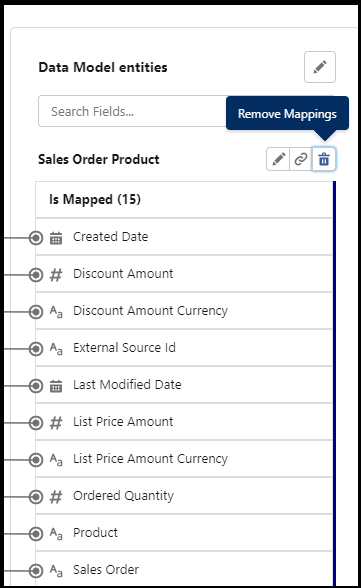
You can't remove mappings in these scenarios:
- The field mapping referential integrity check fails. When you try to remove a field mapping, Data 360 performs a referential integrity check. This makes sure that downstream dependencies such as identity resolution, calculated insights, and segments aren’t impacted. If the referential integrity check fails for any of the DMO fields that are currently mapped, you can’t remove the field mapping.
- A DMO field maps to only one DLO source. Removing the last mapping leaves the field empty. Because a custom DMO requires at least one active mapping, you must delete the entire DMO.
- The DLO is used in the source priority of identity resolution
reconciliation rules. You can’t remove the field mapping until you remove these
reconciliation rule dependencies.
 Important This dependency isn’t visible in the error dialog. You must manually confirm it through the Identity Resolution reconciliation rules configuration page.
 - The field corresponding to the mapping that you’re trying to remove is used on a Data 360 Lightning page. First, remove the field from the Data 360
page. Important This dependency isn’t visible in the error dialog. You must manually confirm it through the Lightning page configuration tool.
See Also
Delete an Object
The Delete Object option removes field mappings from all DLOs that are mapped to the DMO, and then deletes the DMO. While custom objects are fully deleted, standard objects are placed in an inactive state. Inactive standard objects continue to exist in the system and automatically reactivate after a field is re-mapped to them.
This option is unavailable when the DMO has downstream dependencies, such as identity resolution, segments, calculated insights, and activations. You must remove all dependencies before you can delete the object.
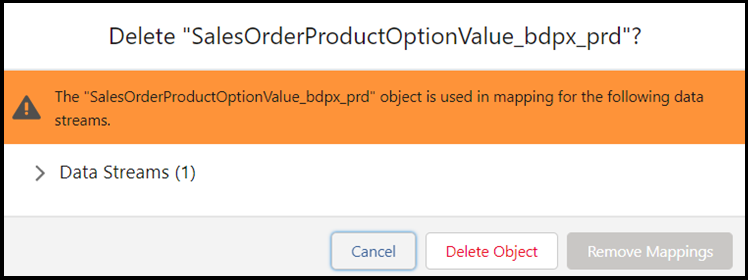
When at least one of the DMO fields is mapped from a single DLO, the Remove Mappings button is unavailable. In this situation, you can delete the object entirely.
Delete an Object with Dependencies
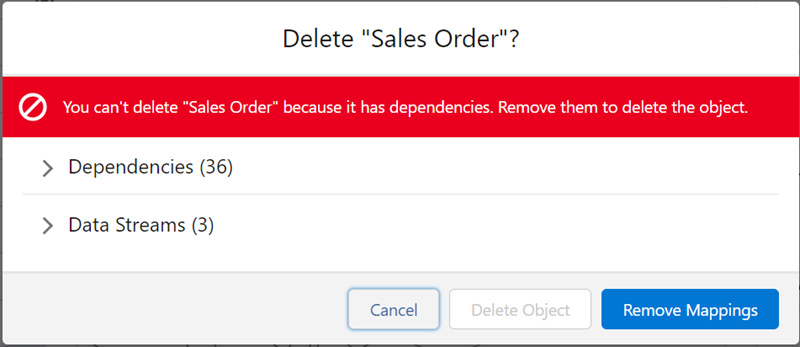
When you attempt to delete a DMO with dependencies, Data 360 lists the dependencies you must remove first. This integrity check is performed for each DMO field, not just the DMO. You can also view which data streams use the DMO, but data streams don't prevent deleting an object. After reviewing the dependency list, if you choose to disassociate the current DLO from its mapping to the DMO but not delete the object, click Remove Mappings instead of Delete Object.
- To delete a profile DMO, delete all segments related to the DMO.
- Delete the associated Segment Membership DMOs created by Data 360. Go to the Data Models tab and change the List Views from Mapped to All.
- Search for the name of the profile DMO that you want to delete. Then, delete both of the associated Segment Membership DMOs.
- Delete the profile DMO.
Replace Field Mappings
You can map to a different DLO field if it has the same data type as the DMO field.
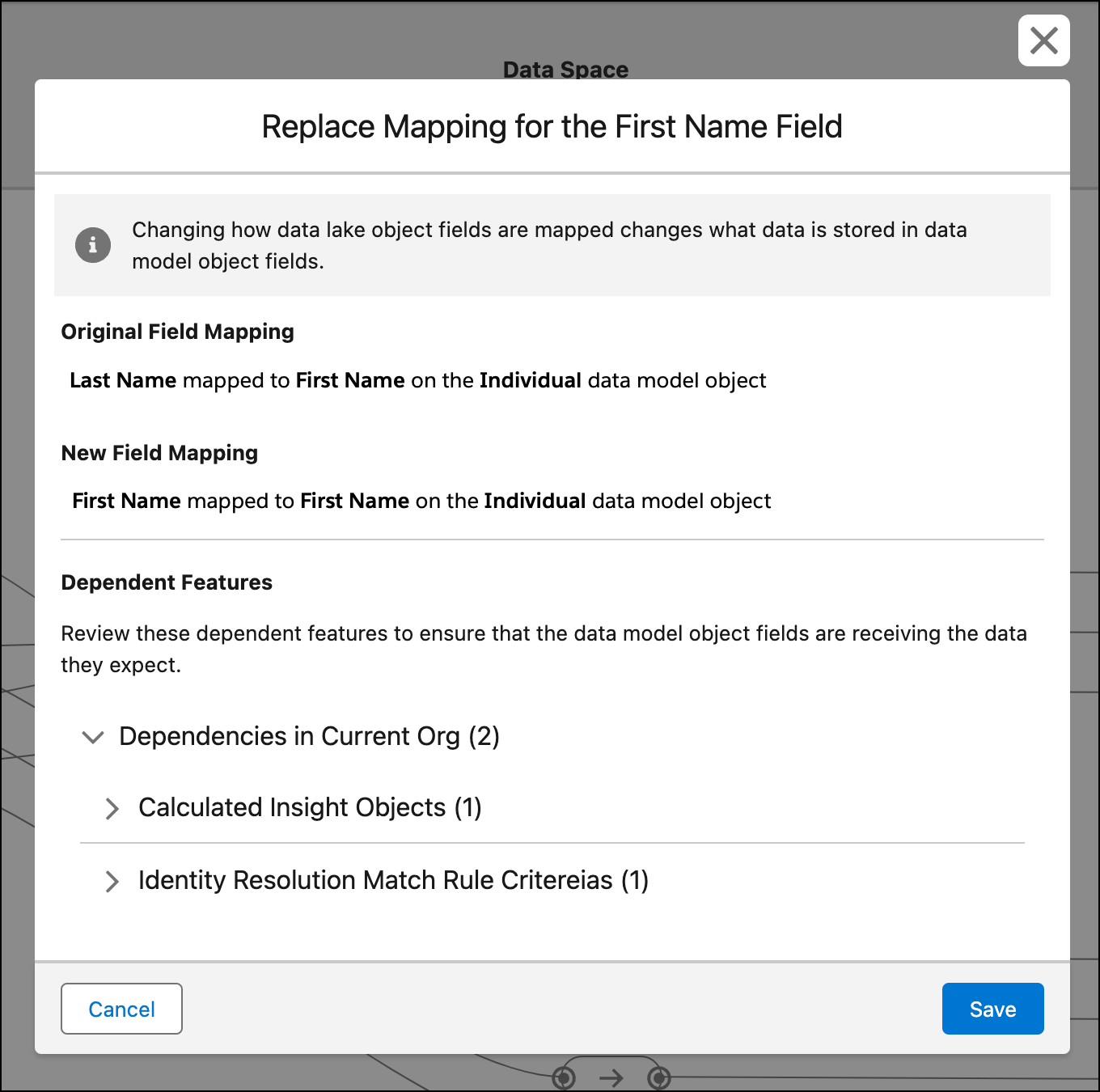
- Select the new DLO and DMO fields you want to map. The new mapping overrides the old one. For example, you can replace the incorrectly mapped DLO field "Last Name" with "First Name" to the same DMO field.
- Review dependent features to make sure that the DMO fields receive the correct data.