You are here:
Data Explorer Columns and Filters
You can personalize your data view in Data Explorer to show only the most relevant data for your selected object in Data 360. You can show up to 10 columns, which are organized alphabetically by default. You can sort the column data in ascending or descending order.
After selecting your object type and object, your data appears on the Data Explorer dashboard. You can edit columns to change the data that appears for that object. For a calculated insight object, include at least one dimension and one measure for your columns.
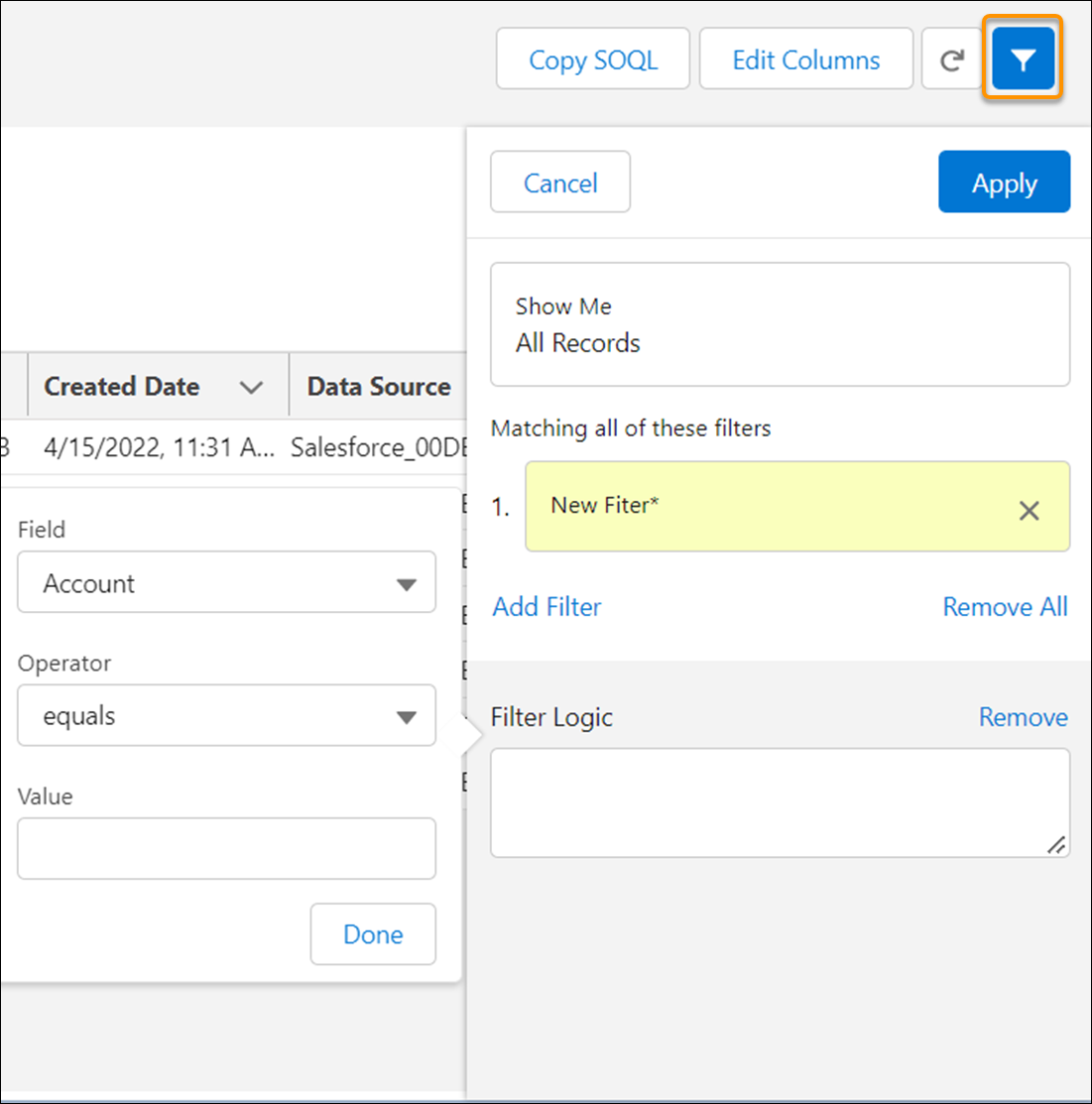
You can add a filter to your data to show or exclude values. Select the filter icon to add a filter. You can use these operators when building the filter logic. Don’t use commas with numbers in the Value field. For example, use 1000, not 1,000. Strings in the Value field are case-sensitive.
| Operator | Description |
|---|---|
| equals | Use the 'equals' operator to evaluate if the value of the selected field equals the specified input value. For example, if you want to select all the records where Account is 100001, then use 'equals' operator and supply 100001 as input Value. |
| not equals | Use the 'not equals' operator to evaluate if the value of the selected field isn’t equal to the specified input value. For example, if you want to select all the records where Account isn’t equal to 100001, then use 'not equals' operator and supply 100001 as input Value. |
| greater than | Use the 'greater than' operator to evaluate if the value of the selected field is greater than the specified input value. For example, if you want to select all the records where Account is greater than 100001, then use 'greater than' operator and supply 100001 as input Value. |
| greater than or equal to | Use the 'greater than or equal to' operator to evaluate if the value of the selected field is greater than or equal to the specified input value. For example, if you want to select all the records where Account is greater than or equal to 100001, then use 'greater than or equal to' operator and supply 100001 as input Value. |
| less than | Use the 'less than' operator to evaluate if the value of the selected field is less than the specified input value. For example, if you want to select all the records where Account is less than 100001, then use 'less than' operator and supply 100001 as input Value. |
| less than or equal to | Use the 'less than or equal to' operator to evaluate if the value of the selected field is less than or equal to the specified input value. For example, if you want to select all the records where Account is less than or equal to 100001, then use 'less than or equal to' operator and supply 100001 as input Value. |
| like | Use the 'like' operator to evaluate if the value of the selected field
matches the characters of the text string in the specified input value. The
'like' operator supports only text data types. The operator provides a mechanism for matching partial text strings and includes support for '%' wildcard. For example, 'appl%' matches appleton, apple, and appl, but not Bappl. |
| in | Use the 'in' operator to evaluate if the value of the selected field is in a comma-separated list. The 'in' operator doesn't support date and datetime data types. For example if you want to select all records from certain countries in APAC Region you can use 'in' operator and specify the list of countries like Japan, Taiwan, S Korea. |
| not in | Use the 'not in' operator to evaluate if the value of the selected field is not in a multivalue comma-separated list. The 'not in' operator doesn't support date and datetime data types. For example if you want to omit all records from certain countries in APAC Region you can use 'not in' operator and specify the list of countries like Japan, Taiwan, S.Korea. |