
You are here:
Configurations
Use these configuration steps to welcome new loyalty members to your program.
Connect Loyalty Management to Marketing Cloud Engagement
Implement Marketing Cloud Connect to connect Marketing Cloud Engagement and Loyalty Management.
- Configure Marketing Cloud Engagement and Marketing Cloud Connect.
- In Salesforce, assign the Loyalty Management permission set to the Marketing Cloud Connect system user.
- In Salesforce, for the Marketing Cloud Engagement system user profile, select Marketing User.
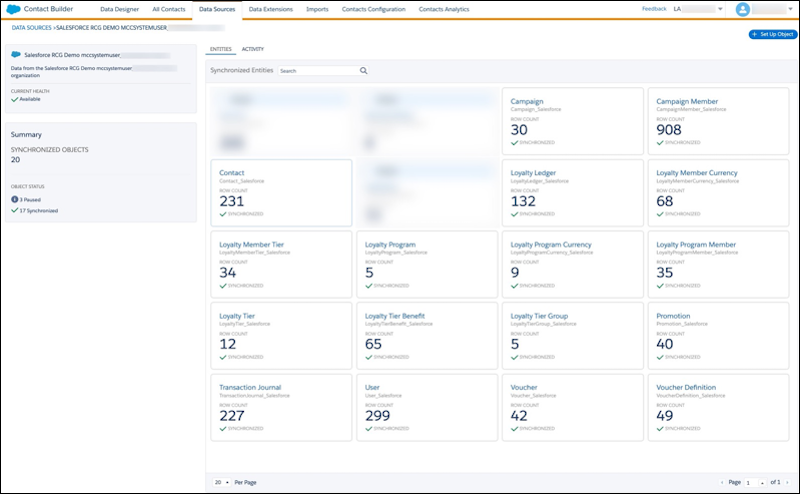
- To ensure proper mapping, synchronize the Loyalty data extensions in this order.
- Contact and User
- Loyalty Program and Campaign
- Loyalty Tier Group and Campaign Member
- Loyalty Program Currency, Loyalty Program Member, Loyalty Tier, Loyalty Tier Benefit, and Voucher Definition
- Loyalty Member Currency, Loyalty Member Tier, Promotion, and Transaction Journal
- Loyalty Ledger and Voucher
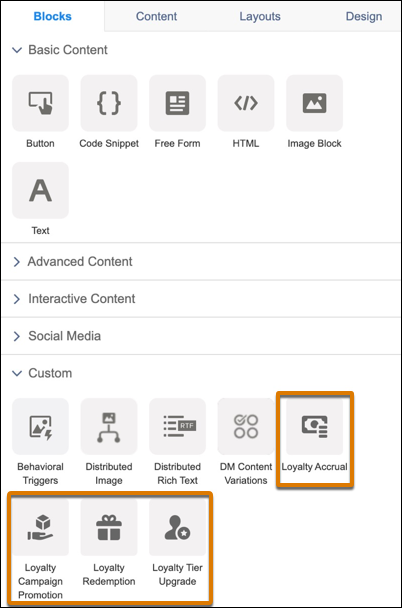
- Install the Loyalty Management Content Blocks
managed package for Marketing Cloud Engagement.
Welcome New Loyalty Members to Your Program via Marketing Cloud Engagement
- Build an email in Marketing Cloud Engagement welcoming members to your loyalty program.
- Create a Welcome Journey in
Marketing Cloud Engagement to deliver personalized loyalty welcome emails to
members.
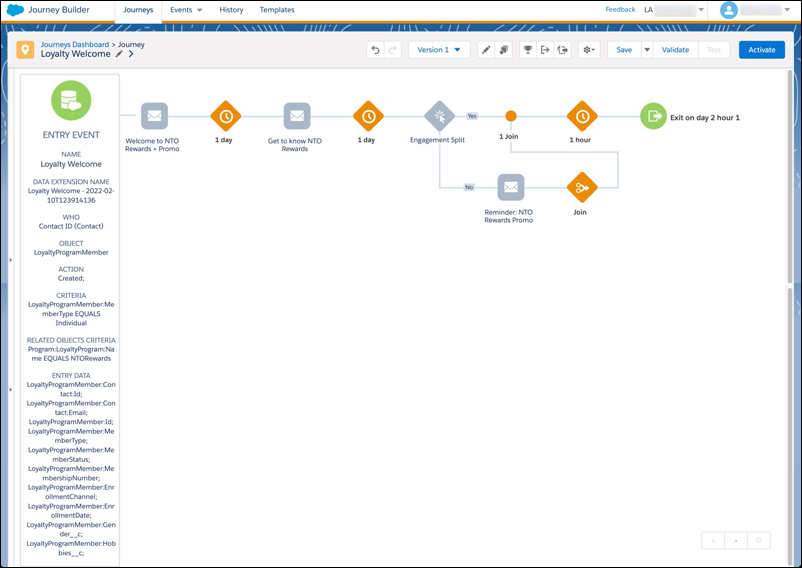
- Add wait periods, splits, and defined customer touchpoints.
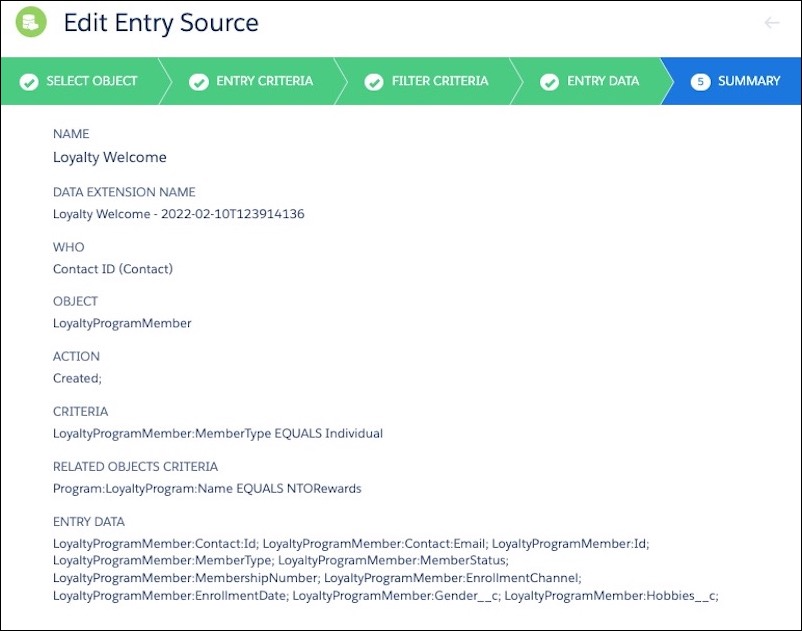
- To capture newly enrolled loyalty members, define a Salesforce data
entry based on the Loyalty Program Member object.
Some marketing campaigns related to your Loyalty Program require using queries for journey entry. Use the query’s resulting data extension for the journey entry. To include decisions splits, create additional queries. Consider Marketing Cloud Engagement query performance when designing your solution.
- Query activities time out after 30 minutes. Multiple factors can cause query timeouts.
- If the query activity is part of an automation, don’t add other activities to the same step of the automation.
Alternatively, you can use an API entry event to add the loyalty member to the journey directly from B2C Commerce or Salesforce Flow. To initiate the journey using REST API event, see Interaction: Fire the Event.
See Also
- Salesforce Help: Marketing Cloud Connect
- Salesforce Help: Integrate Loyalty Management with Marketing Cloud Engagement
- Salesforce Help: Configure Marketing Cloud Connect
- Salesforce Knowledge: Campaign Object Syncing Permissions
- Salesforce Help: Optimizing a SQL Query Activity
- Salesforce Help: SQL Reference
- Salesforce Help: Optimize Journey Builder Performance
- Salesforce Help: Journey Entry Source: Data Extension
