
You are here:
Cumulus Links Core Activations to the Marketing Cloud Engagement Contact Model
Cumulus follows these steps to link core activations to the Marketing Cloud Engagement Contact Model.
Activate the Data 360 audiences to Engagement. It can take up to an hour before creating the data extension in Engagement and longer to populate it with all audience data.
In the Engagement Contact Builder app, the data specialist creates attribute groups to represent each Data 360 activation grouping identified in their research with the Marketers.
- In Marketing Cloud Engagement, hover over the Audience Builder icon, and click Contact Builder.
- Click Create Attribute Group.
- For Name, enter Policy Information.
- Click Save.
- Click Link Data Extensions.
- Select Shared Items > Shared Data Extensions >Data 360 and select the Individual Policy Information data extension that you
created.
 Note Segments are created as a shared data extension with this naming format: {first 52 characters of segment name}_{16 characters of activation_name}_{32 characters of Alphanumeric Random number.
 - Associate the Individual Policy Information data extension.
- Make sure that data deletion is turned off for commonly shared data extension.
- Relate the data extension with a 1:1 relationship for ContactKey↔Individual ID.
Note For both performance and functional reasons, we don’t recommend activating Related Attributes as attributes in a commonly shared data foundation for journey decisions, waits, or exits. Instead, we recommend converting the related attribute into a Calculated Insight. - Read the informational notice and click Done.
- Wait for the system to process, and review the result.
- To connect the Unified Individual Policy Information data extension to the Individual Policy Information data extension, click the chain icon.
- Relate the data extensions with a 1:1 relationship for Individual ID↔Individual ID.
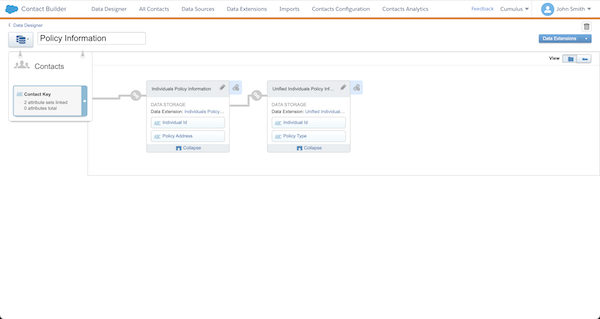
- Click Done.
- Create an attribute group and repeat these steps for the Individual Credit Information activation in the Credit Information Attribute Group.
Did this article solve your issue?
Let us know so we can improve!
