
You are here:
Cumulus Uses Data 360 Data Throughout Marketing Cloud Engagement to Create Event-Triggered Journeys
Now that the team at Cumulus Bank and Financial Services has set up their Marketing Cloud Engagement data foundation, their data from Data 360 can be used throughout Engagement in a scalable, reusable way.
- In Marketing Cloud Engagement, navigate to Journey Builder.
- Click Create New Journey.
- Select Multi-Step Journey and click Create.
- For the Entry Source, drag the Data Extension activity to the canvas.
- Select the New Auto Policyholders data extension, and click Done.
- Set the journey schedule to Recurring and Evaluate New Records Only.
- To make an outline of the 30-day onboarding journey, drag the required activities to the canvas.
- Configure the activities in the journey.
- To personalize the email contents, use the journey personalization tool to select the attributes that come with the New Auto Policyholders data extension.
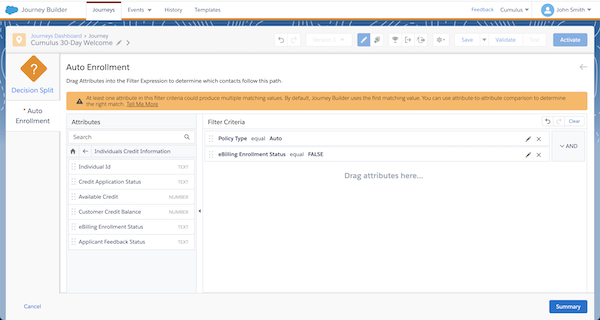
- For Decision Splits and Exit Criteria, use the attributes from the Individual and Unified
Individual portions of the data foundation to build your expression.
- In Journey Settings, for Contact Entry mode, select No re-entry.
- Click Summary and then click Done.
- Review your journey and click Save.
- To ensure that all the information has been completed, click Validate.
- Click Activate.
Did this article solve your issue?
Let us know so we can improve!
