Connect a Published Data Source (PDS) to a New Semantic Model
Once a trusted connection between your Salesforce org and Tableau Cloud site is
configured, you can create a model in the Data 360 Semantic Layer by connecting to the appropriate
PDS.
Note You must have CRUD access to semantic models.
In Data Cloud, go to the Semantic Layer tab.
Click Create New Model.
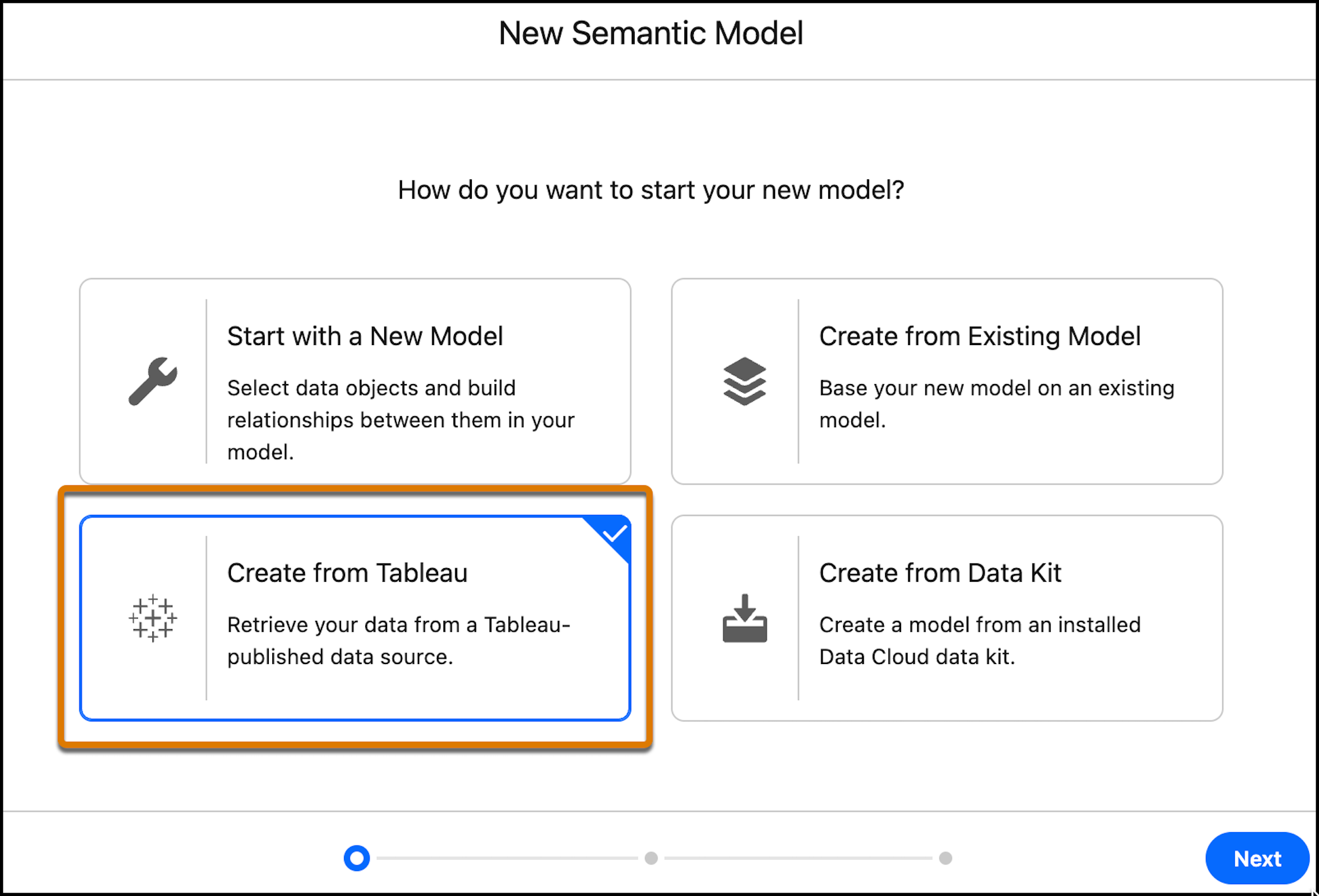
Select Create from Tableau, then click
Next.
The Choose Published Data Source screen opens.
Enter the full Site URL, including /site/<site-name>/ in the path.
Example: https://us-east-1.online.tableau.com/#/site/pdsprod.
Enter the Site ID of the Tableau site you want to connect to. The Site ID corresponds to
the site’s URL.
In the Tableau Cloud site, browse to the PDS you want to use.
From the actions menu •••, select Share.
Click Copy Site ID.
You can also copy it using the Copy Site ID button on the Tableau
site’s Connected App settings page.
Click Connect.
Select the Published Data Source (PDS) you want to use, then click
Next.
The New Semantic Model screen opens.
Select a Data Space.
Enter a name for the semantic model.
Optionally, add a description.
Click Create.
Your semantic model is now connected to the selected PDS.
In the connected
model, you’ll see the fields inherited from the PDS, including their names and data types. While
you cannot modify the original PDS structure, you can enrich the model in the Semantic Model
Builder by adding calculated fields, defining metrics, and providing descriptions and Business
Context.
Once published, the model can be consumed in Tableau Next, allowing you to explore and analyze your data without recreating definitions or duplicating metadata.
Rows returned from Tableau are billed according to the number of processed rows in Data 360.
The data queries are federated and, while processed through Data 360, don't create any data
objects in Data 360.
Did this article solve your issue?
Let us know so we can improve!
Loading
Salesforce Help | Article
Cookie Consent Manager
General Information
Required Cookies
Functional Cookies
Advertising Cookies
General Information
We use three kinds of cookies on our websites: required, functional, and advertising. You can choose whether functional and advertising cookies apply. Click on the different cookie categories to find out more about each category and to change the default settings.
Privacy Statement
Required Cookies
Always Active
Required cookies are necessary for basic website functionality. Some examples include: session cookies needed to transmit the website, authentication cookies, and security cookies.
Functional Cookies
Functional cookies enhance functions, performance, and services on the website. Some examples include: cookies used to analyze site traffic, cookies used for market research, and cookies used to display advertising that is not directed to a particular individual.
Advertising Cookies
Advertising cookies track activity across websites in order to understand a viewer’s interests, and direct them specific marketing. Some examples include: cookies used for remarketing, or interest-based advertising.