
You are here:
Set Up Trust Between Salesforce and Tableau Cloud
To create a semantic model from a PDS, you’ll first need to establish a trusted connection between your Salesforce org and Tableau Cloud site.
Required Editions
| Available in: All Editions supported by Data 360. See Data 360 edition availability. |
| User Permissions Needed | |
|---|---|
| To set up trust between Salesforce and Tableau Cloud: | Data Cloud Architect permission set AND Semantic Models permission set AND Tableau Next license |
This steps below must be completed by both a Salesforce Admin and a Tableau Admin.
Add Tableau User Ids to Salesforce Users

Note The semantic model will use this user identity to query the PDS, including respecting any
row-level security in the PDS.
-
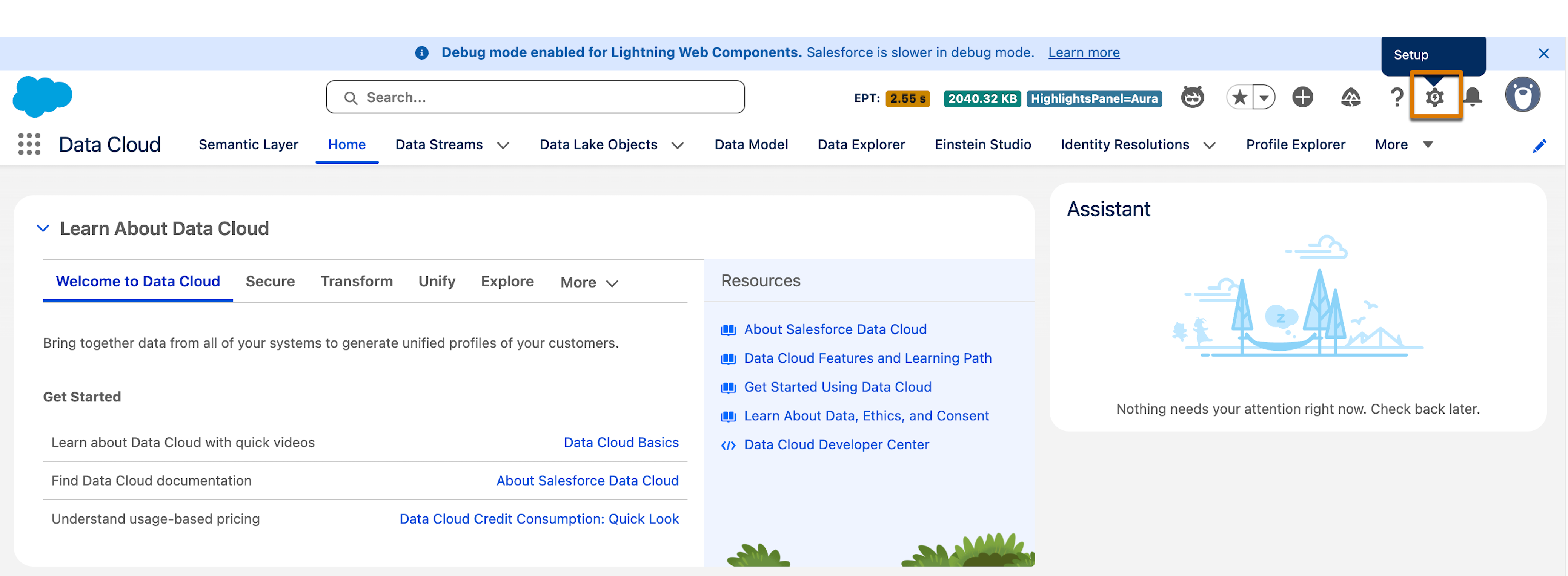
To set up trust between Salesforce and Tableau Cloud, as a Salesforce Admin, click
Setup to open the Salesforce Setup page.
- Use search to find and open Tableau Embedding.
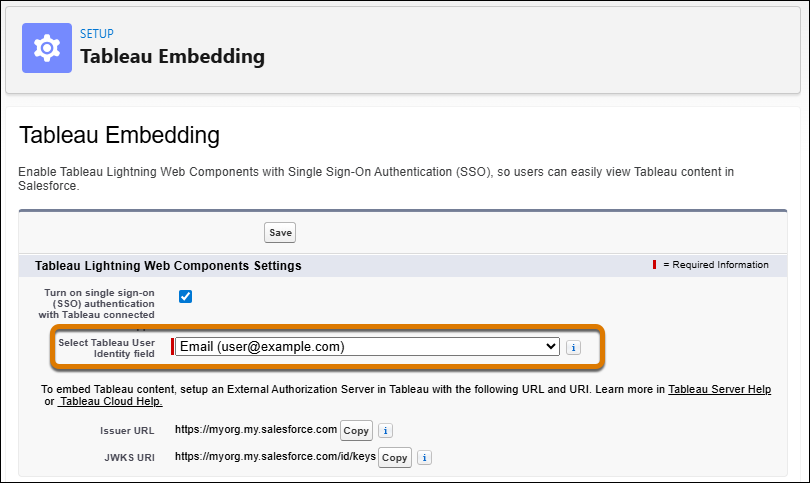
- Use the Select Tableau User Identity field parameter to specify which Salesforce user field corresponds to the Tableau user identity.
-
If the Salesforce user’s email matches the Tableau user’s email, set Select Tableau User
Identity field to Email.
- If the emails are different, you’ll need to create a custom field on the User object in Salesforce to store the Tableau user identifier. To create the custom field, in Salesforce Setup, go to the Object Manager tab, search for and open the User object. Then click Fields and Relationships and click New to create the field. After the field is created, return to Tableau Embedding and select it from the Select Tableau User Identity field dropdown.
Create Connected App in Tableau
-
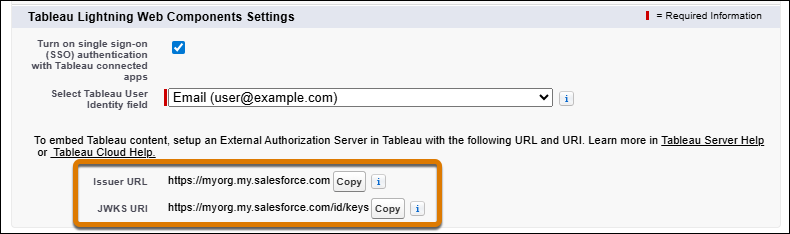
Copy the following two parameters from Tableau Embedding: Issuer URL and JWKS URI. These
values are required to establish a connection with your Tableau Cloud site.
- Now, as a Tableau Admin, log in to your Tableau Site, then go to Settings > Connected Apps and click New Connected App. Make sure to select OAuth 2.0 Trust, as it’s the only option that allows specifying the JWKS URI and Issuer URL required for integration with Salesforce.
- Enter a name for the connected app.
- Copy the Issuer URL and JWKS URI from Salesforce and paste them into the connected app form.
- Select the checkbox to enable the connected app.
- Click Create to complete the setup.
Once trust is configured, you can create a new model in the Data 360 Semantic Layer by connecting to the appropriate PDS.
Did this article solve your issue?
Let us know so we can improve!
