Creating joins between two objects is crucial for providing a comprehensive view of the
data when information is distributed across multiple tables or datasets. You can define the type
of join you want to create between two data objects in the logical view including left, right,and
inner join.
Often, data is stored in separate tables to maintain efficiency and organization. For example,
sales transactions may be in one table, while customer details are in another. A join lets you
combine these tables to view sales alongside customer information, allowing a more comprehensive
analysis.
Important You must create joins between all data objects in the logical view,
otherwise you can’t preview or save the logical view.
In Data Cloud, on the Semantic Layer tab, select a data model.
On the Model tab, expand Logical Views.
Create or edit a logical view.
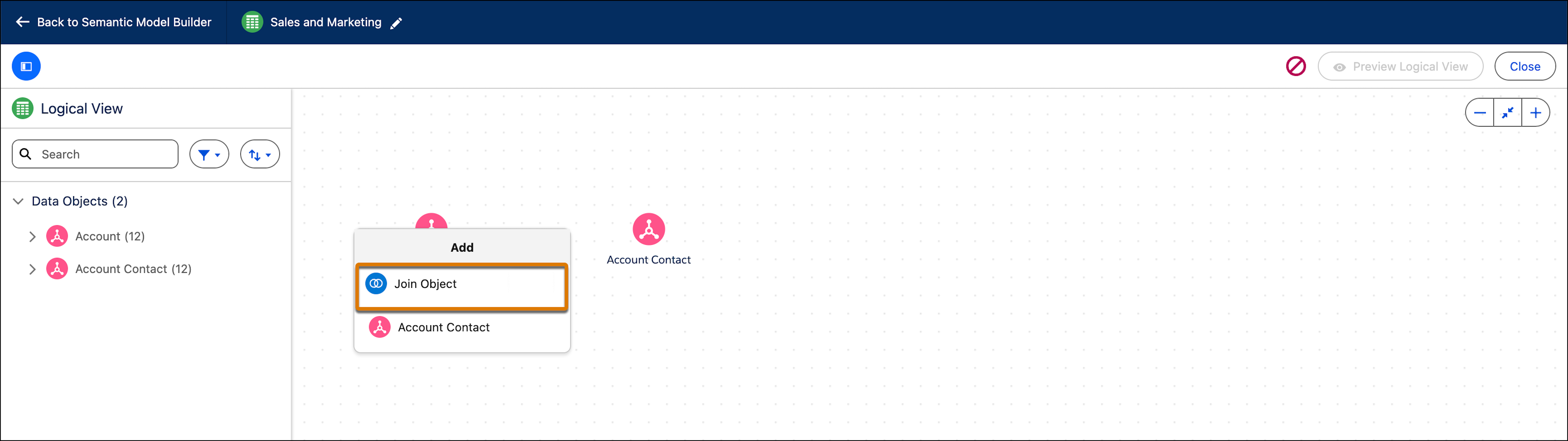
To add a join, click the plus sign next to the object and from the dropdown select
Join Object.
From the dropdown menu, select Join.
Select the object that you want to join and then click Save.
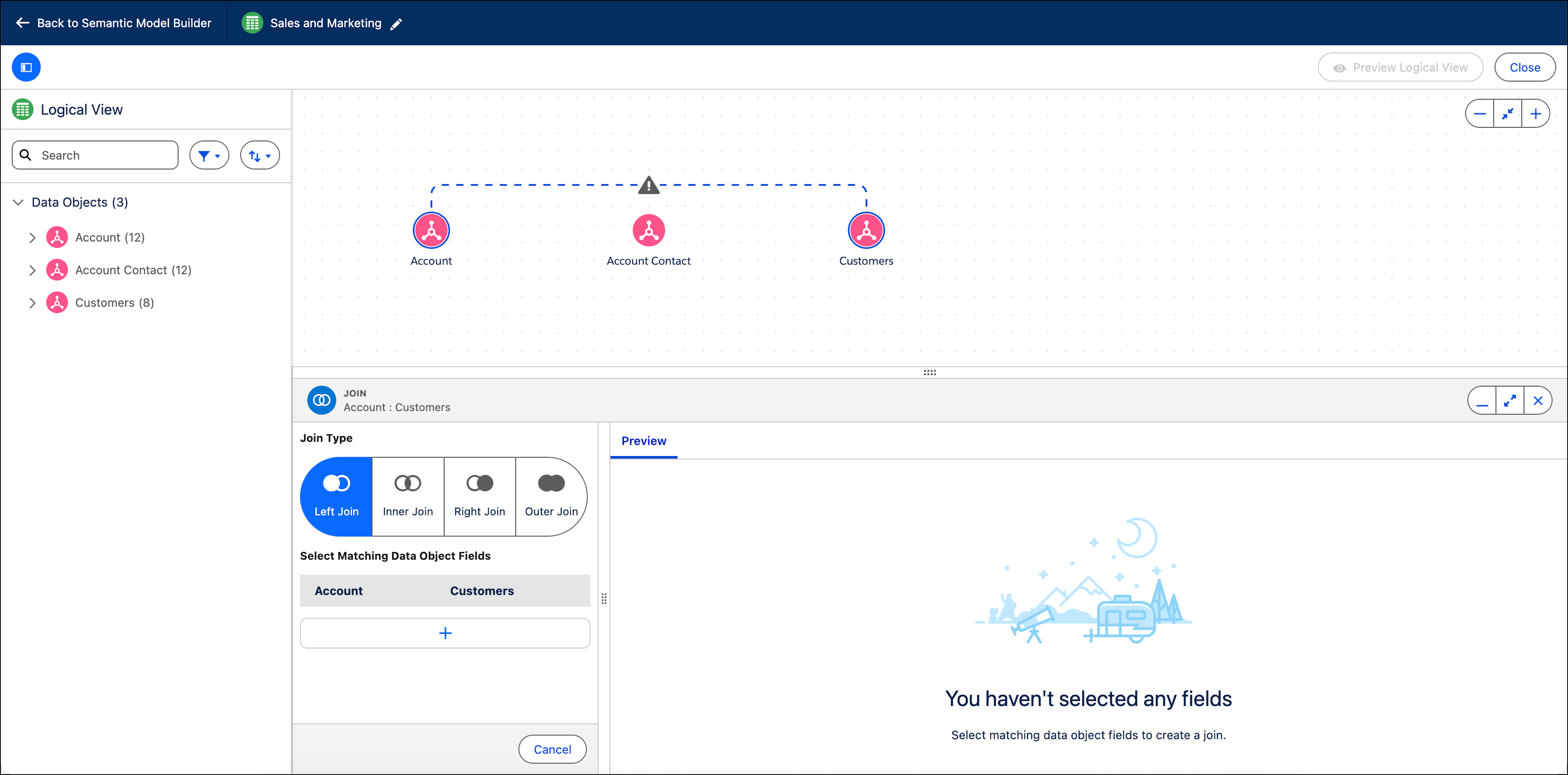
You can only join one object at a time. After you select the data object you need to
select the join type and select which data object fields you want to join together.
Select the join type.
The join type determines which rows and fields are available.
Left Join—Returns all records from the left table and the matched
records from the right DMO.
Inner Join—Returns all records that have matching values in two
DMOs.
Right Join—Returns all records from the right table and the matched
records from the left DMO.
Outer Join—Returns all records when there’s a match in either the
left or right DMO.
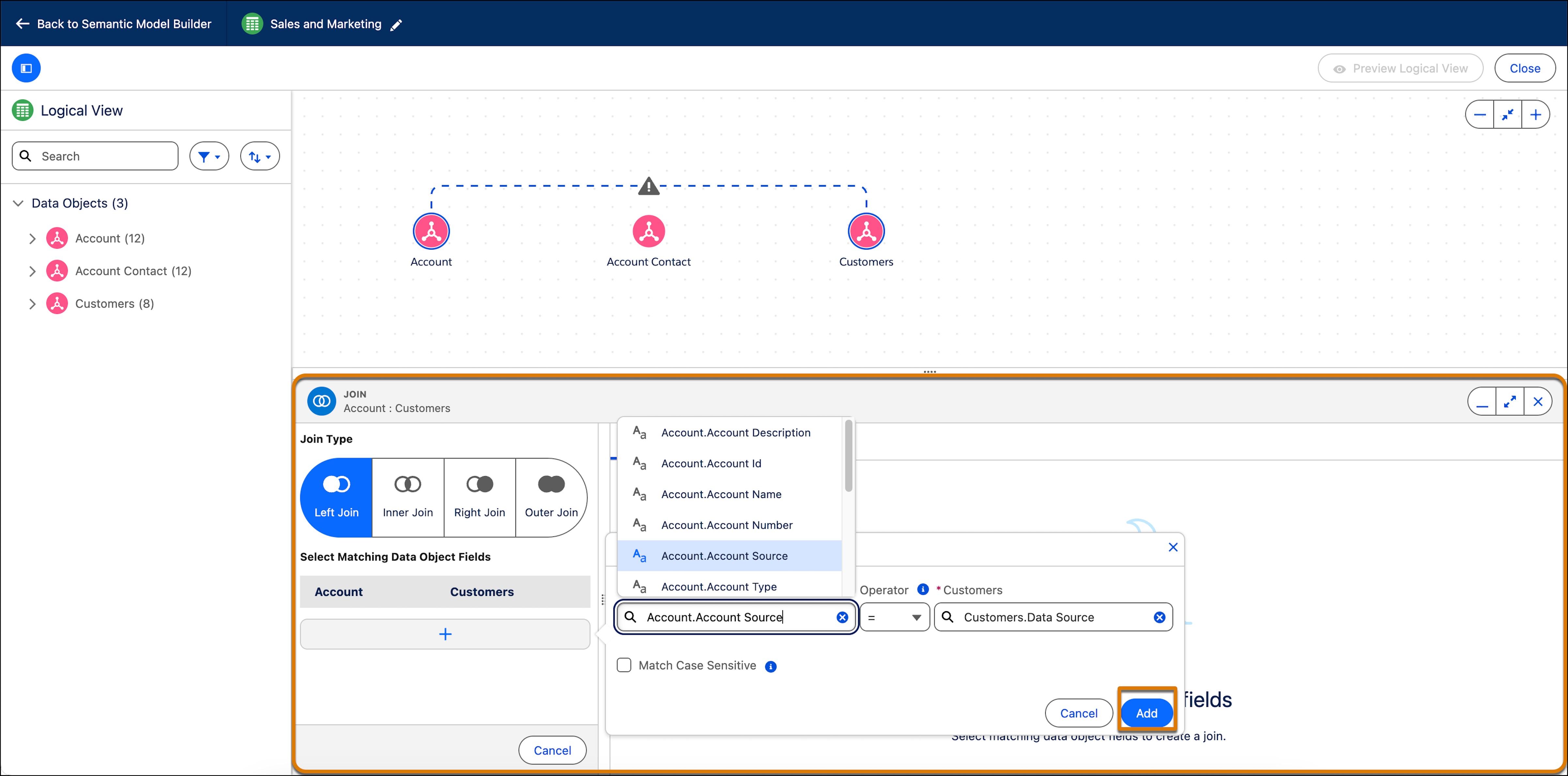
Under Select Matching Data Object Fields, click the plus sign and
select the matching data objects for the logical view.
Under the left object, search for the field name.
Under the right object, search for the matching field name.
Click Add.
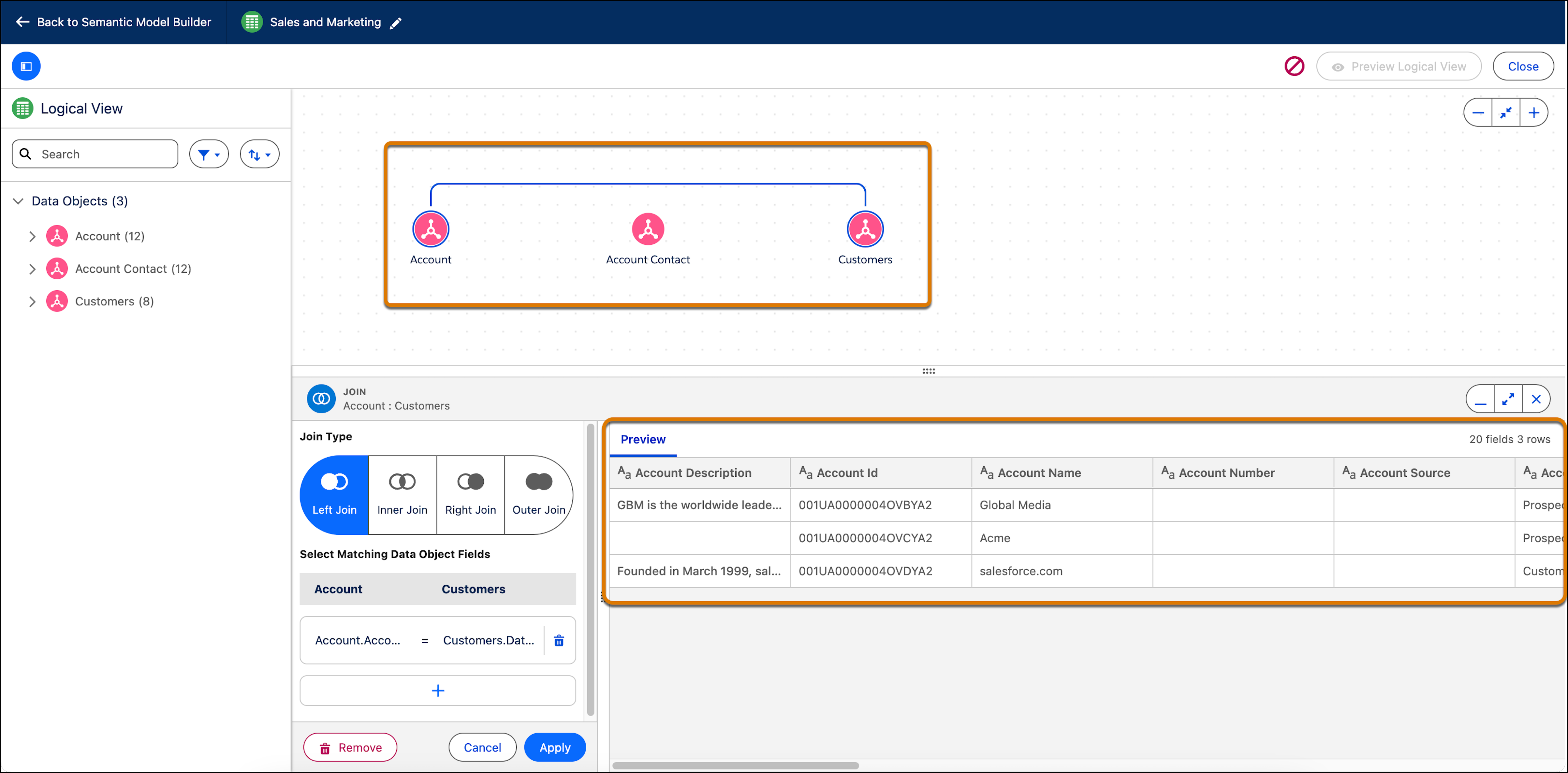
Repeat this process for each pair of matching fields that you want to add. After you add
your fields the bottom pane shows a preview of the logical view.
Click Apply.
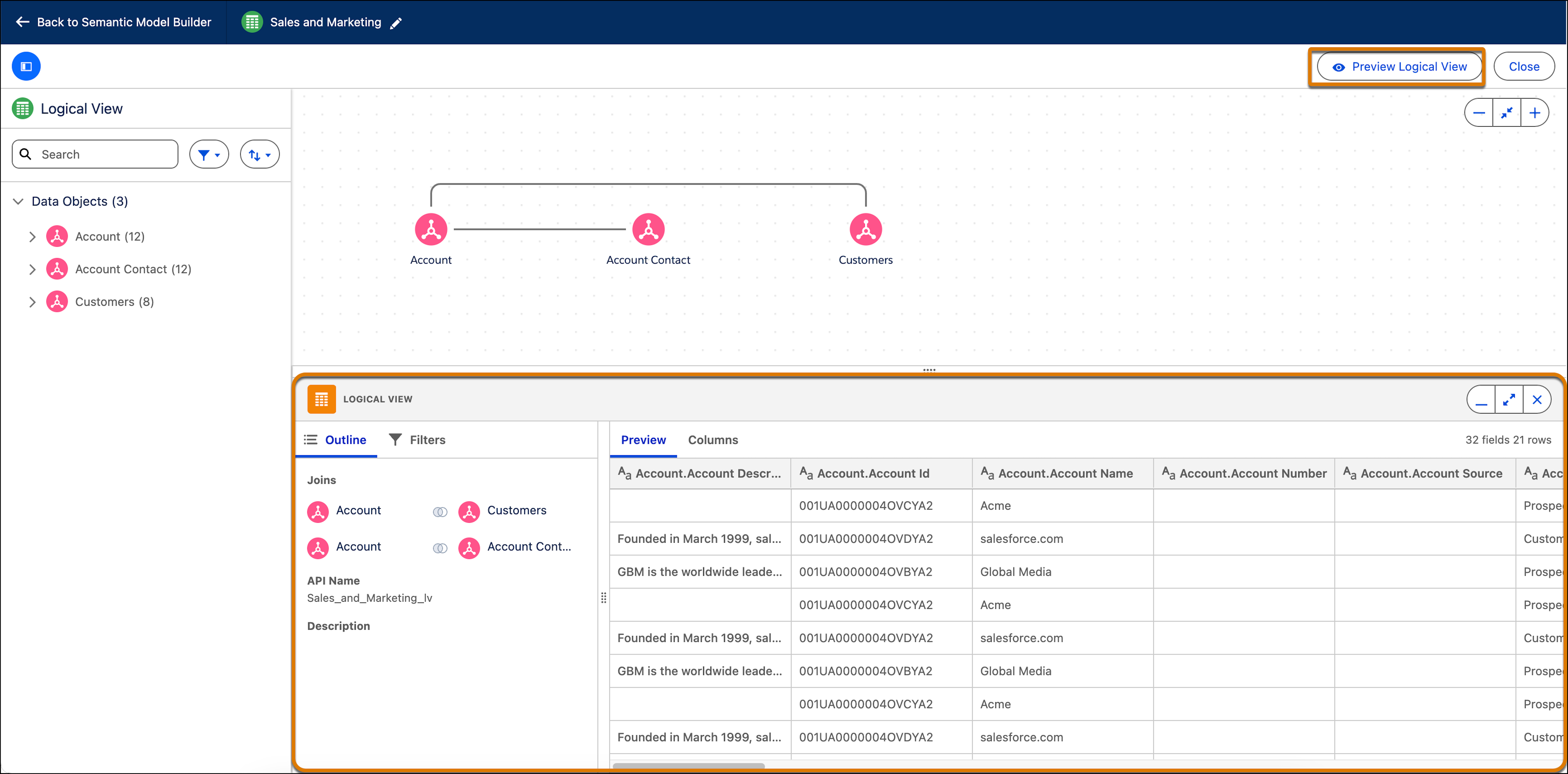
A line connecting the two objects indicates that the join is successful.
Continue adding objects and creating joins to build your full logical view.
After you’re done click Preview Logical View.
If the preview doesn’t work, check the logical view for errors and that the joins are
correct.
To limit the preview to specific columns, go to the Columns tab and select the columns to
include.
Did this article solve your issue?
Let us know so we can improve!
Loading
Salesforce Help | Article
Cookie Consent Manager
General Information
Required Cookies
Functional Cookies
Advertising Cookies
General Information
We use three kinds of cookies on our websites: required, functional, and advertising. You can choose whether functional and advertising cookies apply. Click on the different cookie categories to find out more about each category and to change the default settings.
Privacy Statement
Required Cookies
Always Active
Required cookies are necessary for basic website functionality. Some examples include: session cookies needed to transmit the website, authentication cookies, and security cookies.
Functional Cookies
Functional cookies enhance functions, performance, and services on the website. Some examples include: cookies used to analyze site traffic, cookies used for market research, and cookies used to display advertising that is not directed to a particular individual.
Advertising Cookies
Advertising cookies track activity across websites in order to understand a viewer’s interests, and direct them specific marketing. Some examples include: cookies used for remarketing, or interest-based advertising.