Loading
About Salesforce Data 360
Table of Contents
Select Filters

          No results
          No results
          Here are some search tips

          Check the spelling of your keywords.
          Use more general search terms.
          Select fewer filters to broaden your search.

          Search all of Salesforce Help
          Verify and Reauthenticate a Salesforce CRM Connection

          Verify and Reauthenticate a Salesforce CRM Connection

          Verify your Salesforce CRM connection trust and re-authenticate if disruption was caused by a sandbox refresh. If your Salesforce org has a CRM connection to a sandbox org, and that sandbox has recently refreshed, the refresh process generates a new Org ID for the sandbox org that conflicts with the Org ID associated with the existing connection. Because Data 360 can’t establish trust with the refreshed sandbox, the connection to Data 360 is disrupted and requires reauthentication. When the connection is disrupted, data streams associated with it can encounter errors, including deployment failures for new streams and errors within the stream’s refresh history.

          Required Editions

          Available in: All Editions supported by Data 360. See Data 360 edition availability.
          User Permissions Needed
          To reauthenticate a connection

          System admin profile OR

          Data 360 Architect permission set

          • To verify the connection’s trust, you can initiate a row-level action on the connection record on the Salesforce CRM page and follow Data 360’s on-screen instructions if reauthentication is needed. Reauthenticating the connection updates the connection record’s Org ID to match the refreshed sandbox’s Org ID and restores full connection functionality. After reauthenticating, you can create new data streams and data action targets as normal.
          • Reauthentication also automatically connects existing data action targets to the refreshed sandbox and enables existing data streams to resume data ingestion from the refreshed sandbox.
          • Authenticating a Salesforce CRM connection associated with a Data 360 One companion connection requires assistance from Support.
          1. In Data 360, select Setup and select Data 360 Setup.
          2. Under Salesforce Integrations, select Salesforce CRM.
          3. Go to the connection for which you want to verify trust, and click the row-level action Verify Connection.
          4. Follow the on-screen instructions to perform an action, depending on the status of the org associated with this connection, and whether it’s a sandbox org.
          connection status action
          The connection is verified and doesn’t have trust issues. Continue to use it.
          The connection is associated with a Salesforce CRM production or development org, and has trust issues. Its status updates to Needs Reauthentication.
          The connection is associated with a Salesforce CRM sandbox org and has trust issues. This indicates that the sandbox has been refreshed. The connection status updates to Needs Reauthentication and a modal opens, indicating that the connection to the sandbox needs to be reauthenticated.
          • Locate the newly refreshed sandbox's credentials (see tip below).
          • Click Reauthenticate on the modal to get redirected to the login screen, or return to the Salesforce CRM Connection page and use the row-level action Reauthenticate Connection on the connection record.
          • Log in using the credentials of the newly refreshed sandbox.
          • Confirm reauthentication by entering the Data 360 org identifier. You can find this ID on the modal under Data 360 Org Details. This specifies which Data 360 org retrieves data from your source org. After confirming, check the checkbox to agree to reauthenticate the connection and click Reautheticate Connection.
          • Note that if the refreshed sandbox connection doesn’t have an alias, to maintain consistent stream naming following the sandbox refresh, this connection's alias is set to the original Org ID. When you reauthenticate, the connection is assigned the refreshed sandbox's new Org ID, while the alias remains as the original Org ID.
          The connection is associated with a Data 360 One companion org.
          • Ask your Salesforce Account Representative to disconnect the associated Data 360 One org.
          • After Data 360 One is disconnected, return to the Salesforce CRM Connection page and reauthenticate this sandbox connection using the Reauthenticate Connection row-level action.
          • After the CRM connection to the newly refreshed sandbox is reaauthenticated, Set up a new Data 360 companion connection for the refreshed sandbox on the Data 360 One page.

          After you perform the required steps, your Salesforce CRM connection is verified and authenticated, and you can proceed to use it.

          Tip
          Tip

          How to find your sandbox’s credentials

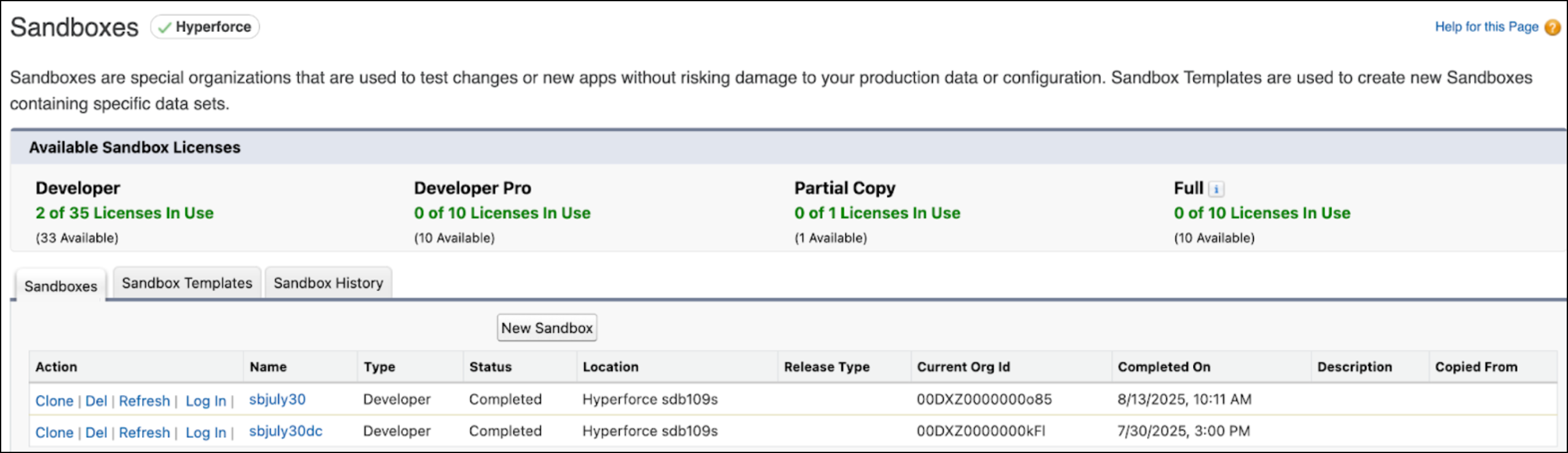
          In the org where your sandbox was created, go to Setup > Sandboxes.

          The Sandboxes table in your org

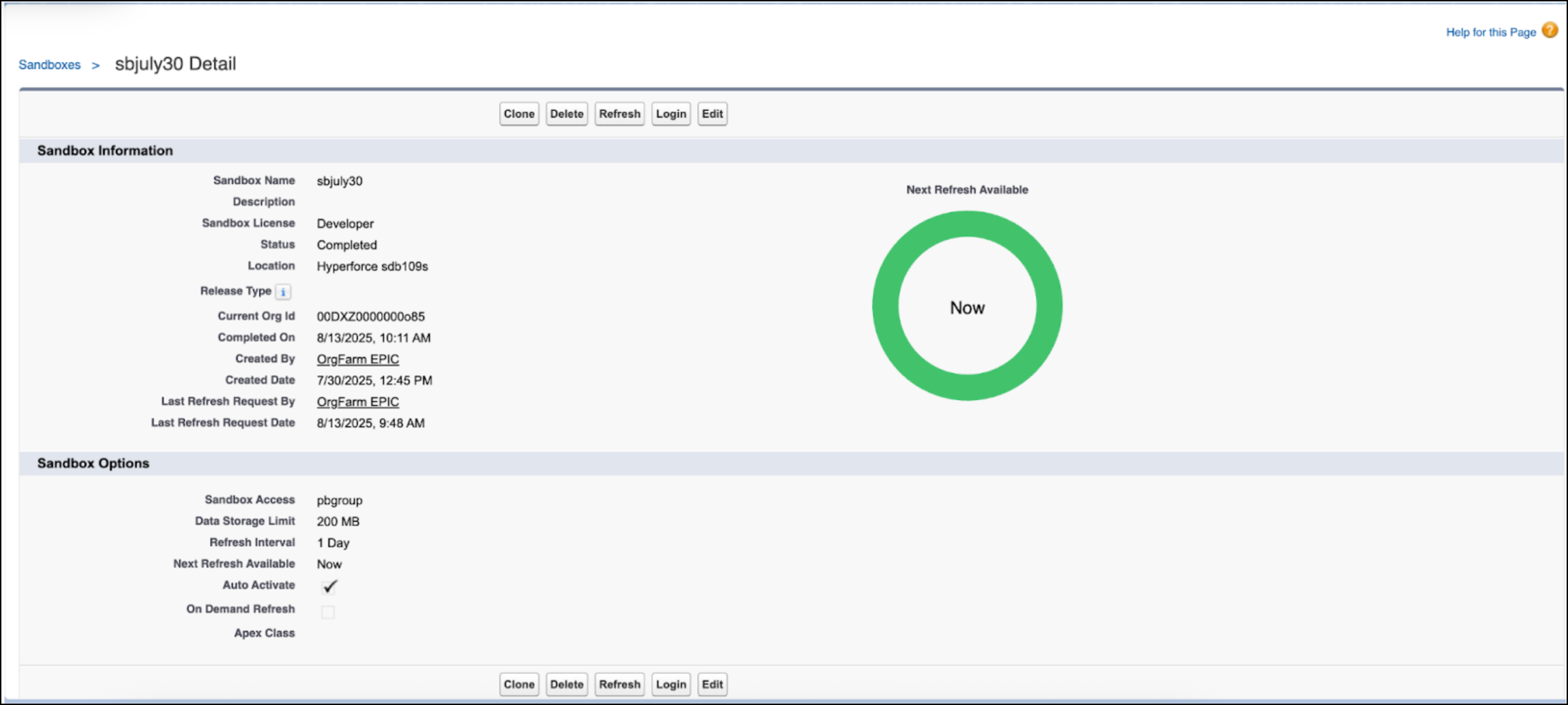
          Find the username of the newly refreshed sandbox, which consists of the parent org’s username and the appended sandbox org name. For example, if the parent org’s username is epic.out.a865f8b0263c@orgfarm.salesforce.com, and the sandbox name is sbjuly30, then the username of the sandbox is epic.out.a865f8b0263c@orgfarm.salesforce.com.sbjuly30. The password is the same as the parent org’s.

          Sandbox credentials
           
          Loading
          Salesforce Help | Article