
Loading
Feature degradation | Gmail Email delivery failureRead More
About Salesforce Data 360
Table of Contents
Select Filters

          No results
          No results
          Here are some search tips

          Check the spelling of your keywords.
          Use more general search terms.
          Select fewer filters to broaden your search.

          Search all of Salesforce Help
          View Harmonized Content Consistently in Data Explorer

          View Harmonized Content Consistently in Data Explorer

          The harmonized Unstructured Data Model Object (UDMO) record page, available through the Content Viewer in Data 360’s Data Explorer tab or in Service Cloud's Enterprise Knowledge component, provides you with a unified, in-app experience od all data interactions (structured knowledge and unstructured content). Through the Content Viewer, your harmonized content is presented in a standard, consistent format, regardless of its source.
          Required Editions

          Available in: All Editions supported by Data 360. See Data 360 edition availability.
          User Permissions Needed
          To view harmonized content

          System admin profile OR

          Data 360 Architect permission set

          Before you begin verify that you have created a Harmonization configuration for either Structrured Data or Unstructured Content.

          1. In Data 360, go to the Data Explorer tab.
          2. Select a data space.
          3. Select Data Lake Object as object type.
          4. Search and select the relevant harmonized Data Model Object (DMO) associated with the UDMO you created when you set up your unstructured data connector. Harmonized UDMO names start with harmonized.
          5. The list of files comprising the harmonized DMO that you select opens in a table view.
            1. Configure the columns of this table to view file attributes you're interested in as needed. To add or remove columns from your table view, click Edit Columns on the top right. Move any column from the left to the right to add it to your view, or from the right to the left to remove it from your view. For example, to include in your table view files in a specific language, make sure the Language clumn is on the right side, then find files in this language in the Language columns of the table.
            2. Filter the columns you’re interested in as needed. Click the filtering icon on the top right, and click Add Filter to select from the Field list the file attribute you’re interested in. For example, to get a filtered view of files authored by a specific user, select the Author filter under Field, select equals as the Operator, and enter the author’s username under Value.
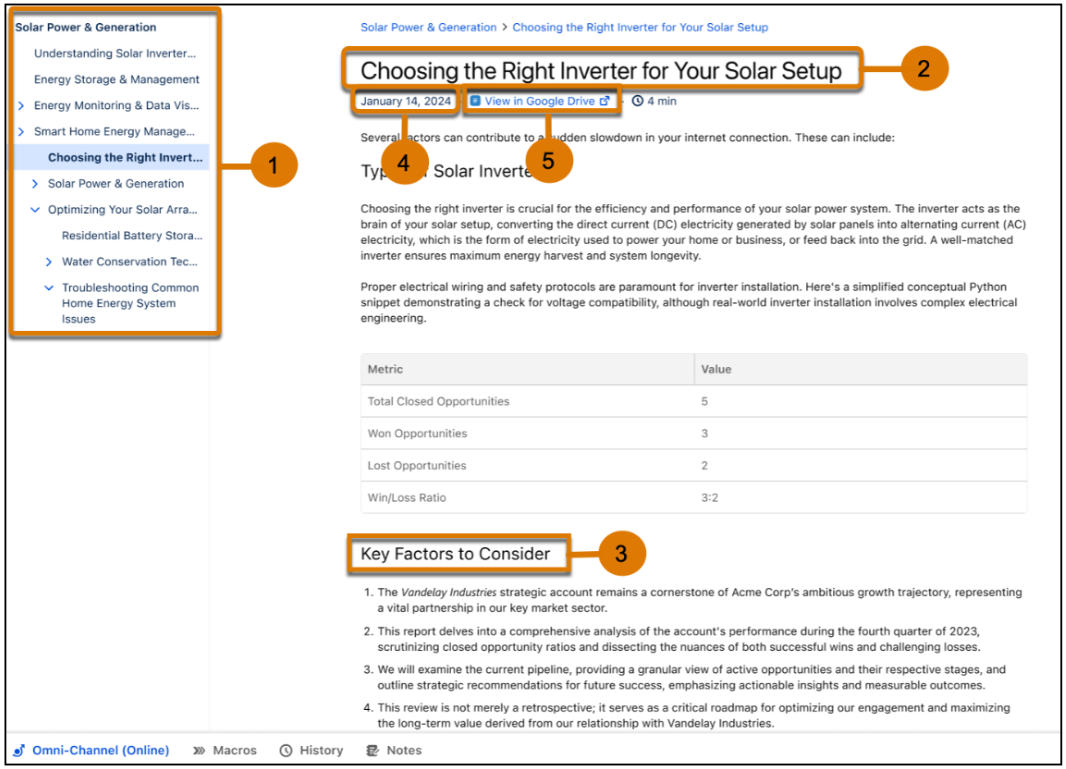
          6. Click View on the left side of any file row of the UDMO. You can now view and interact with the unstructured data directly within your application, in the Content Viewer. The Content Viewer presents content in a standard, consistent format regardless of its source, including images, tables, videos, and other elements. It is structured with several key sections to enhance user interaction and navigation.
            Content Viewer Elements
            1. Table of Contents (1): Indicates the location and hierarchy of the document or document section in its source system. Use the TOC to browse additional documents or sections in the current context.
            2. Title (2): Indicates the title of the document or relevant section.
            3. Document Headings – Hierarchy (3): Displays the content in a structured, clear format.
            4. Metadata (4): Includes the date when the document was last updated.
            5. View in Source (5): Allows you to view the full context of the current document in its source platform, for example, in the harmonized Google Drive.
           
          Loading
          Salesforce Help | Article