You are here:
Define Lightning Sync for Microsoft® Exchange Settings for Reps
After reps prepare their Exchange events to sync with Salesforce, admins can define sync settings for groups of reps in Lightning Sync configurations. This step kicks off the sync process, and determines how reps contacts and events sync between applications.
Required Editions
| Available to sync records from: Salesforce Classic, Lightning Experience, and the Salesforce mobile app |
| Available to set up from: Salesforce Classic and Lightning Experience |
| Available in: Professional, Enterprise, Performance, Unlimited, and Developer Editions with Sales Cloud, Service Cloud, and Lightning Platform |
| User Permissions Needed | |
|---|---|
| To access Lightning Sync setup: | Manage Users AND Manage Lightning Sync |
Before admins roll out Lightning Sync to reps, admins can familiarize themselves with our Lightning Sync Considerations. There’s potential for Lightning Sync to overwrite data or sync data between Salesforce orgs unless admins are considerate about how they roll out the product.
Defining sync settings lets admins define how their reps sync. Admins can decide:
- Which reps sync
- Whether contacts, events, or both items sync
- Which direction items sync
- To create filters to limit certain contacts or events from syncing
- Whether reps' private events sync
- Whether reps’ event series sync (Lightning Experience, Salesforce app)
- Whether all events sync, or only events that users log to Salesforce records using the Outlook integration
- Whether syncing events that reps delete in one system are automatically removed from the other system
- Whether important events are automatically related to the appropriate Salesforce contacts or lead
- From Setup, enter Sync in the Quick Find box, then select Outlook Integration and Sync.
- Click Let users sync contacts, events, or both between Microsoft Exchange and Salesforce to see more setup steps.
- From the Set Sync Settings and Check Status section, click New Config.
-
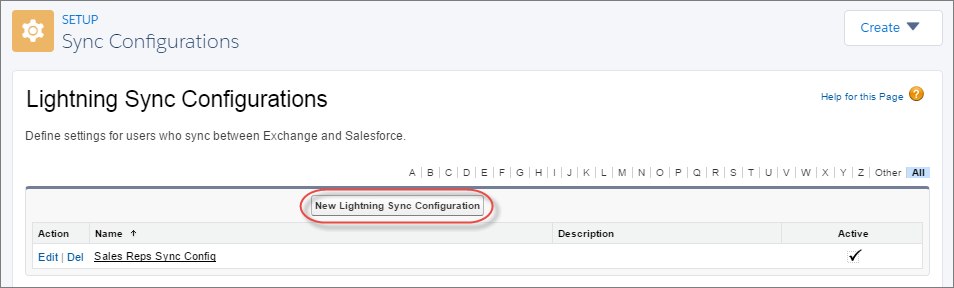
Click New Lightning Sync Configuration.
-
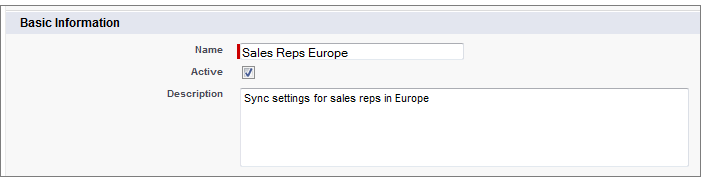
Enter the name of the configuration. For example, if you’re
creating a configuration for users in a particular region, enter a
unique name for it, and then select Active.
-
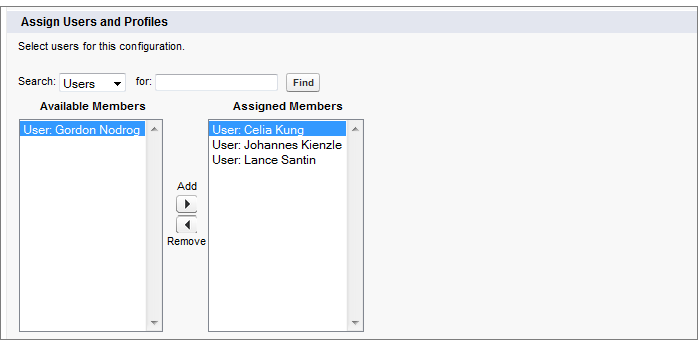
Assign users and profiles to this configuration.
- Indicate the sync direction for your users’ contacts or person accounts.
- To change field mappings between Salesforce and Exchange contacts, click Edit Field Mappings.
- Indicate the sync direction for your users’ events.
-
Indicate whether you want all Exchange events to sync to Salesforce, or
only the events that your users select.
- If you select All events, all of the events on a user’s default Outlook calendar syncs with Salesforce.
- If you select Events users select, events users log to Salesforce from the Outlook integration start syncing from Microsoft Exchange to Salesforce. To finish setting up that option, you’re required to enable the Outlook integration, and your users are required to complete the integration setup in Outlook. To learn more about how this setting works, see Use the Outlook or Gmail Integration to Select Which Events Sync.

- To change field mappings between Salesforce and Exchange events, click Edit Field Mappings.
- Click Save.
-
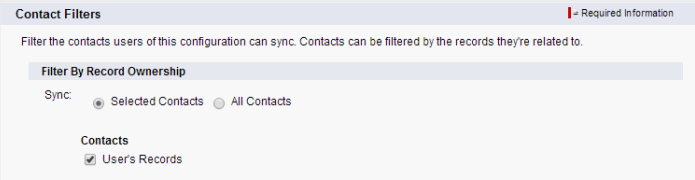
Set filters to specify the contacts users can sync from Salesforce to
Exchange. You are required to set filters based on your users’ record
ownership. Choose whether you want to:
- Limit contacts that users sync to only what users own, choose Selected Contacts, and then select User’s Records. Make sure that you select both of these settings together, or no contacts sync for users in this configuration.
- Let users sync all contacts they can see in Salesforce, choose All Contacts.
If you wish, set more sync filters. For example, to prevent contacts from outside your users’ territories from syncing, create sync filters for specific fields on users’ contact records. Contact filters don’t apply to contacts syncing from Exchange to Salesforce.
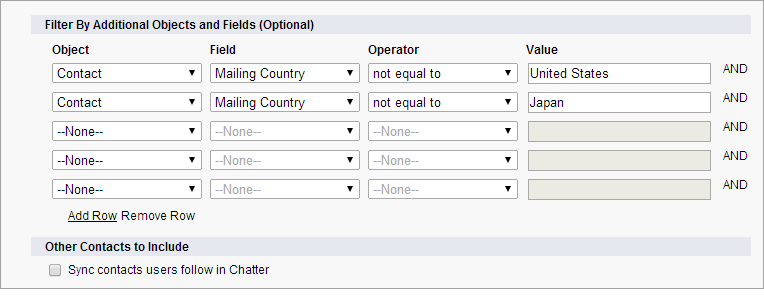
-
Specify the specific events users can sync from Exchange to Salesforce.
Enter a filter in the Greater or equal to field.
Doing so limits the events users can sync to these time frames.
- TODAY—Syncs events that end on or after today. The start time is 12:00 a.m. Learn more about why this selection is recommended in certain scenarios.
- LAST MONTH—Syncs events that ended on or after the first day of last month.
- LAST N DAYS—Syncs events that ended on or after a specified number of days ago, such as LAST 30 DAYS. You can sync events that ended up to 180 days ago.
- Select Sync private events to sync events your users have marked private either in Salesforce or their calendars.
- Select Delete synced events to let reps delete Exchange events and Salesforce events in one action.
- Select Automatically relate Exchange events to Salesforce records to let Lightning Sync review reps’ calendars and intelligently relate important events to the appropriate Salesforce contacts or leads automatically.
- Select Sync event series to let reps sync repeating events (Lightning Experience, Salesforce mobile app). Event series created in Salesforce Classic (also known as recurring events) don’t sync with Microsoft Outlook.
- Click Save.
Syncing has begun for users in this Lightning Sync configuration.
