With the site case feed, agents and Experience Cloud site members see the lifecycle of
a case from start to finish. All case interactions appear in a unified, chronological Chatter
case feed. Site members benefit from the added functionalities of Chatter, while service
features help agents provide efficient, personalized support. To use Site Case Feed, Chatter
must be turned on in your org.
Required Editions
Available in: Salesforce Classic and
Lightning Experience
Available in: Enterprise, Performance, Unlimited, and
Developer Editions
Note Beginning in Summer ’26, Chatter is turned off by default in
all new orgs. For any features in these orgs that require access to Chatter functionality or
the Chatter APIs, turn on Chatter by going to Setup | Chatter Settings and selecting Enable. For details, see Chatter Is Turned Off by Default in New
Orgs Beginning in Summer ’26.
The site case feed gives Experience Cloud site users an intuitive environment where they can
manage their cases. Internal and external users see the following interactions in the site case
feed:
Chatter text, file, and link posts
Questions in Chatter that are associated with the case
Case emails
In sites built on Aura, emails in the site case feed don’t display inline images or
clickable links.
Read-only social posts on cases if your Salesforce admin enables them
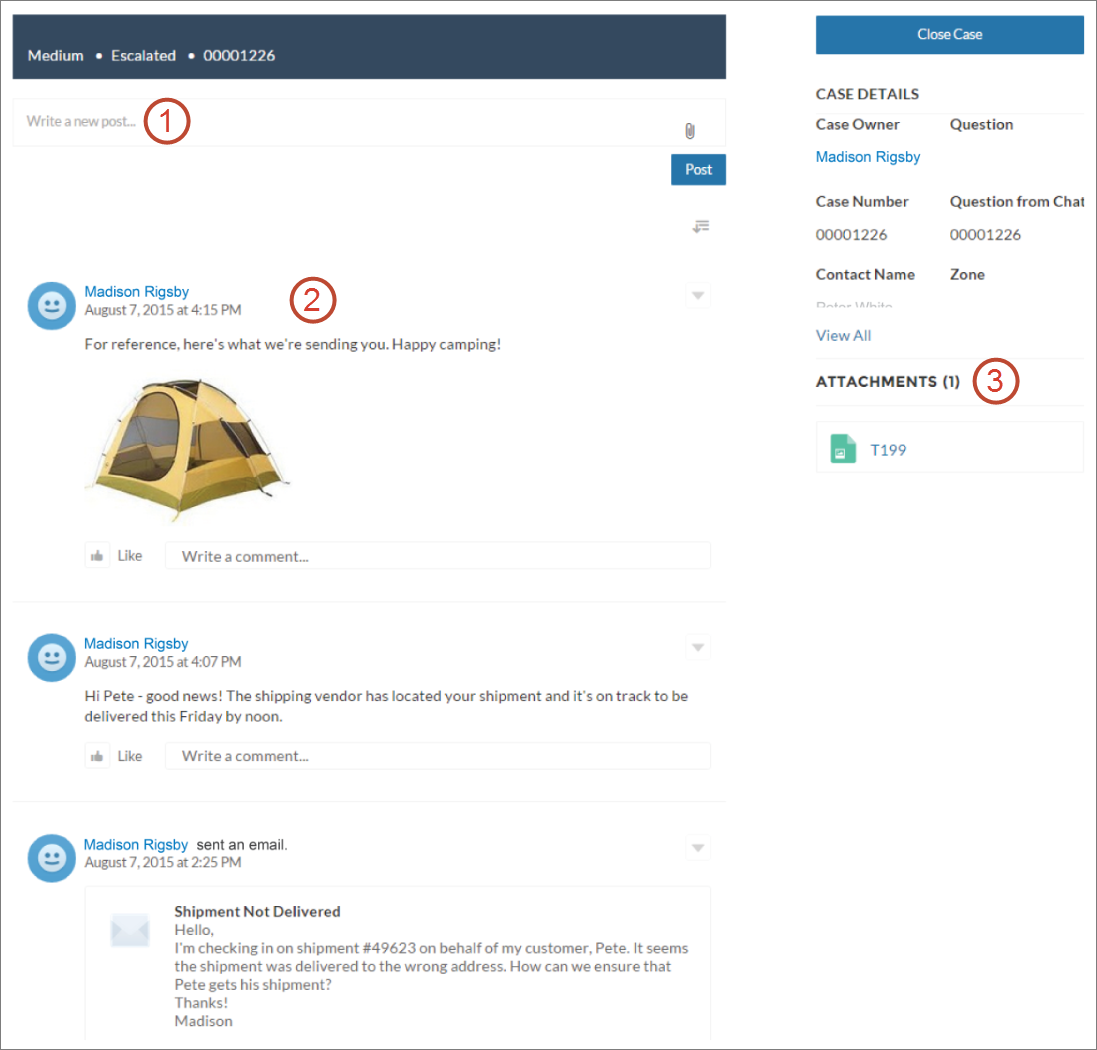
Site case feed in an Experience Cloud site built on the Customer Service template:
Using the publisher (1), users create posts and attach files to the case. The feed (2) comes
fully equipped with Chatter’s collaboration tools: users can bookmark, like, and comment on
posts, and mention other users. Images and comments appear inline, making it easy to scan the
feed for details. The Attachments component (3) displays all case attachments.
When the site case feed is enabled, support agents can:
Use the action in the console case feed to answer questions and create private and public
Chatter posts on cases
Expose or hide a published post or email in the site case feed of external users
Set Up the Site Case Feed The site case feed lets Aura and Salesforce Tabs + Visualforce site users and support agents see all case interactions in a unified feed. Also, agents can take more actions directly from the console. To set up the site case feed, make sure that Chatter is turned on in your org. Then enable site case feed and make sure that the case page in your site is properly configured.
Emails in the Site Case Feed When you enable the site case feed for Aura and Salesforce Tabs + Visualforce, external users with access to a case see case emails in their feed. Emails in the site case feed include the email’s author, recipients, text, and time sent.
We use three kinds of cookies on our websites: required, functional, and advertising. You can choose whether functional and advertising cookies apply. Click on the different cookie categories to find out more about each category and to change the default settings.
Privacy Statement
Required Cookies
Always Active
Required cookies are necessary for basic website functionality. Some examples include: session cookies needed to transmit the website, authentication cookies, and security cookies.
Functional Cookies
Functional cookies enhance functions, performance, and services on the website. Some examples include: cookies used to analyze site traffic, cookies used for market research, and cookies used to display advertising that is not directed to a particular individual.
Advertising Cookies
Advertising cookies track activity across websites in order to understand a viewer’s interests, and direct them specific marketing. Some examples include: cookies used for remarketing, or interest-based advertising.