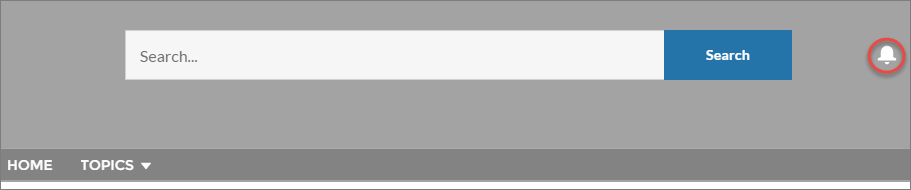
With Global Notifications, your members receive messages wherever they’re working,
whether in their sites or in their apps. Members receive notifications on any
screen—mobile, tablet, and desktop. This functionality is available in Experience Builder
sites based on Customer Service (Napili), Partner Central, and any Lightning Bolt
solutions.
Required Editions
Available in: Lightning Experience
Available in: Enterprise, Performance, Unlimited, and
Developer Editions
User Permissions Needed
To create permission sets:
Manage Profiles and Permission Sets
To assign a permission set to a user:
Assign Permission Sets
To create, customize, or publish a site:
Create and Set Up Experiences AND View Setup and Configuration
All events that trigger notifications are supported. Members can even trigger notifications on
record feeds. For example, an internal member can trigger a notification from the Salesforce org
by @mentioning an external member on a lead or opportunity. When a member clicks a notification,
the originating detail page or other appropriate location is displayed for easy collaboration
across sites and apps.
Note
If you use the Build Your Own (Aura) template, create the Feed Detail page so you can see
notifications.
Replies on threaded discussions only trigger notifications for the post owner.
By default, the Notifications icon is hidden in existing sites and displayed in new sites.
In Experience Builder, click on the left sidebar and then
click Theme.
For the default Customer Service theme layout, show or hide Notifications for your members
by selecting Hide Notifications icon in site header.
We use three kinds of cookies on our websites: required, functional, and advertising. You can choose whether functional and advertising cookies apply. Click on the different cookie categories to find out more about each category and to change the default settings.
Privacy Statement
Required Cookies
Always Active
Required cookies are necessary for basic website functionality. Some examples include: session cookies needed to transmit the website, authentication cookies, and security cookies.
Functional Cookies
Functional cookies enhance functions, performance, and services on the website. Some examples include: cookies used to analyze site traffic, cookies used for market research, and cookies used to display advertising that is not directed to a particular individual.
Advertising Cookies
Advertising cookies track activity across websites in order to understand a viewer’s interests, and direct them specific marketing. Some examples include: cookies used for remarketing, or interest-based advertising.