You are here:
Package and Distribute a Lightning Bolt Solution
After you create a Lightning Bolt Solution, package the solution to distribute it to other users or orgs. You can upload the package to AppExchange to share or sell your solution.
Required Editions
| Available in: both Salesforce Classic and Lightning Experience |
| Available in: Enterprise, Performance, Unlimited, and Developer Editions |
| User Permissions Needed | |
|---|---|
| To create an Experience Cloud site: | Create and Set Up Experiences AND View Setup and Configuration |
| To customize an Experience Cloud site: |
|
| To publish an Experience Cloud site: |
|
| To create and upload packages: | Create AppExchange Packages AND Upload AppExchange Packages |
A package is a container for something as small as an individual component or as large as a set of related apps. Packages come in two forms—managed and unmanaged. We recommend using only managed packages to avoid naming conflicts with other packages in your customer’s org or your own. To create a managed package, use a Developer Edition org.
- From Setup, enter Package in the Quick Find box, and then click Package Manager.
-
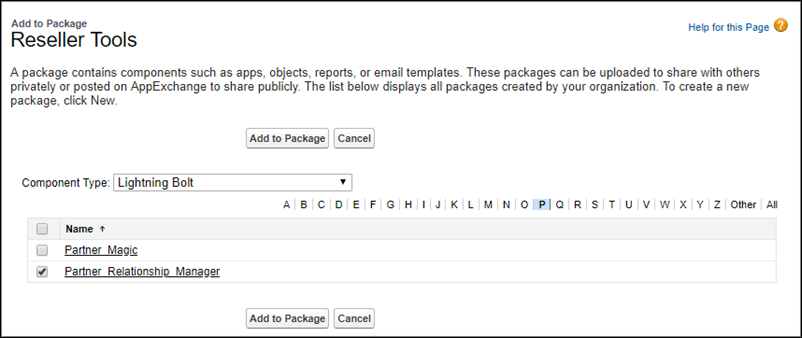
To package a Lightning Bolt Solution, select Lightning Bolt
Solution as the component type, and select your solution. To package a
standalone Experience Builder template, theme, or page, select Lightning
Community Template, Lightning Community Theme, or
Lightning Page, respectively, as the component type to add.
All supported dependencies are included.
- Upload the package. Then distribute it on AppExchange, or share the link privately with your clients, customers, or partners.
Did this article solve your issue?
Let us know so we can improve!
