You are here:
Export a Customized Experience Builder Page for a Lightning Bolt Solution
Export pages that you’ve customized in an Experience Builder site. Use them as a base for new pages, or package and distribute them for others to use in their sites.
Required Editions
| Available in: both Salesforce Classic and Lightning Experience |
| Available in: Enterprise, Performance, Unlimited, and Developer Editions |
| User Permissions Needed | |
|---|---|
| To create an Experience Cloud site: | Create and Set Up Experiences AND View Setup and Configuration |
| To customize or publish an Experience Cloud site: |
|
| To create a Lightning Experience Builder template, theme, or page: | Customize Application AND Create and Set Up Experiences AND View Setup and Configuration |
| To create a Lightning Bolt Solution: | Customize Application AND View Setup and Configuration |
-
In Experience Builder, select Settings | Developer, and click Export a Page.
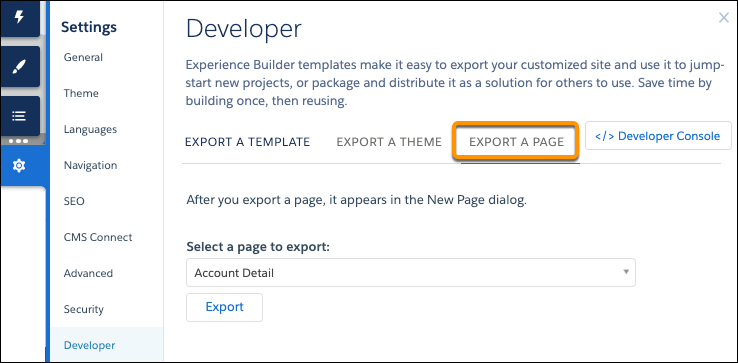
- Select the page to export.
-
Click Export.
After you export a page, it appears in the New Page dialog box in all the Experience Builder sites in your org. If you package the page and install it in another org, it appears in that org’s New Page dialog box. A newly installed page is highlighted as New for 30 days.
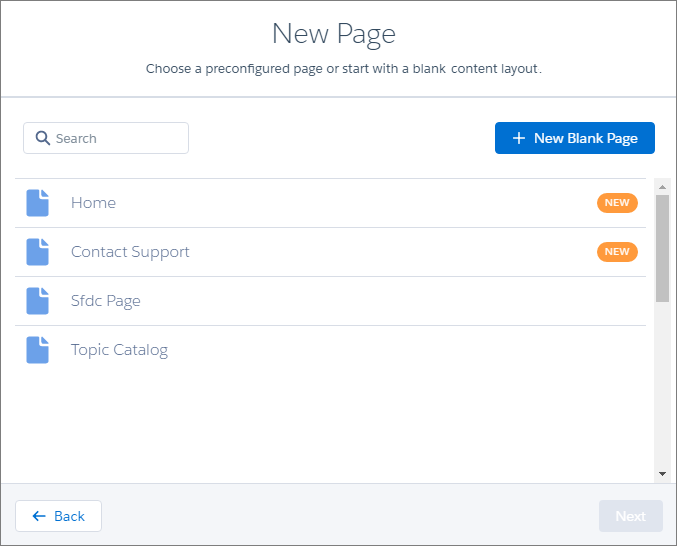
 Note If the site already has an object page for an object, the exported object page doesn’t appear as a page to export option in the New Page dialog. If the object page is deleted, it once again is available as an option. See Export and Packaging Considerations for Lightning Bolt Solutions.
 -
To distribute your page, create a managed
package that includes the page. Or add the page to a Lightning Bolt Solution, and
include it in the package.
Note You can quickly get to the Package page of Salesforce Setup by selecting Package the Experience Builder page in the export page success message.
To delete an exported or imported page, from Setup, in the Quick Find box, enter Digital Experiences, and click Pages.
Existing pages in Experience Builder that are based on the deleted page are unaffected. However, deleted pages no longer appear in the New Page dialog.
Did this article solve your issue?
Let us know so we can improve!
