You are here:
Add Markup to the Page <head> to Customize Your
Experience Builder Site
Add custom analytics, improve your SEO results, and more by adding custom markup to the
page <head> in Experience Builder. For example, you can
include SEO meta tags that are visible only to search engines, add a favicon, or
add custom code for Adobe Analytics and Google Tag Manager.
Required Editions
| Available in: both Salesforce Classic and Lightning Experience |
| Available in: Enterprise, Performance, Unlimited, and Developer Editions |
| User Permissions Needed | |
|---|---|
| To customize or publish an Experience Cloud site: |
|

For security
purposes, we restrict the tags, attributes, and values allowed in the head markup of your pages.
| Allowed Tags | Allowed Attributes |
|---|---|
| <base> | href, target |
| <link> | as, charset, crossorigin, disabled, href, hreflang, id, import, integrity, media, rel,1 relList, rev, sheet, sizes, target, title, type 1 For rel, allowed values are alternate, apple-touch-icon, apple-touch-icon-precomposed, apple-touch-startup-image, author, bookmark, canonical, external, help, icon, license, manifest, mask-icon, next, nofollow, noopener, noreferrer, pingback, prefetch, preload, prev, search, shortcut icon, stylesheet, and tag. |
| <meta> | charset, content, http-equiv,2 name, property, scheme 2 For http-equiv, allowed values are cleartype, content-type, content-language, and default-style. The attribute |
| <noscript> | Within <noscript> only the following elements are supported: <a>, <iframe>, <img>, and <meta>3 3For <meta>, allowed attributes are http-equiv and content. Both attributes are required. refresh is the only allowed value for the attribute http-equiv. |
| <script> | Use for custom content |
| <style> | type, media, nonce, title |
| <title> | None allowed |
If the content in your <head> tag is
invalid, you can’t save your work. If you entered unsupported code, hover over  to see details on the issues.
Existing head
elements that contain invalid markup are stripped from the page before it’s rendered. To get
the head working again, use Experience Builder to remove
the unsupported tags.
-
In Experience Builder, click
 | Advanced.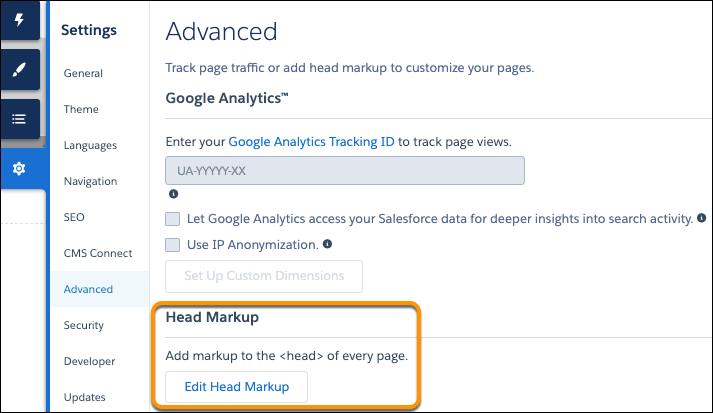
- Click Edit Head Markup.
-
Enter the markup and save your changes.
When you add custom markup, the code is added to the
headof every page in your site, including login pages. -
Before deploying the site to your production org, test the
headmarkup in your sandbox or DE orgs.Depending on the CSP security level of your site, head markup sometimes doesn’t work as expected. See Select the Relaxed CSP security level.Alternatively, conflicts can arise with Lightning Locker. See Resolve Lightning Locker Conflicts in Experience Builder in the Experience Cloud Developer Guide.

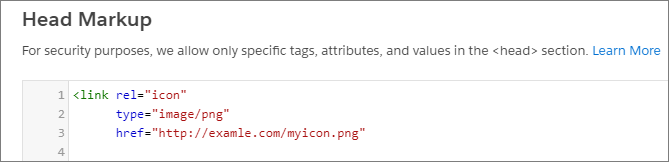
Here we added HTML to include a favicon on our site’s pages.