You are here:
Rich Content Editor
The Rich Content Editor component lets you add formatted custom text to your Aura site pages, along with images and videos.
Required Editions
| Available in: Salesforce Classic and Lightning Experience |
| Available in: Enterprise, Performance, Unlimited, and Developer Editions |
| Applies to: Aura sites |
| User Permissions Needed | |
|---|---|
| To customize or publish an Experience Cloud site: |
|

Tip If you prefer to create and edit content in HTML, use the HTML Editor
component instead.
-
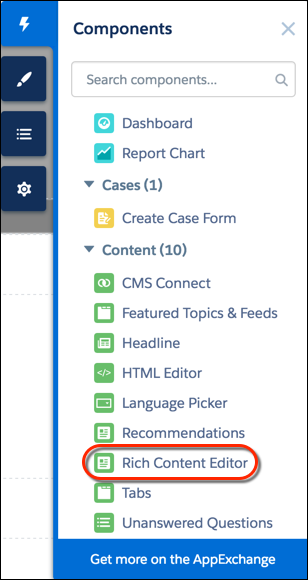
In Experience Builder, drag the Rich Content Editor component from the Components panel
onto the page.
-
Add and format text (1), and add links (2), images (3), or YouTube or Vimeo videos (4)
directly in the editor.

When you add an image to your site for the first time, an asset file is automatically created and stored in the Org Asset Library.
 Note If public access is enabled in Experience Builder at the page or site level, the Let guest users view asset files and CMS content available to the site preference is enabled in Administration | Preferences. This preference remains enabled as long as any page has public access enabled. If you upload images for use on site login pages, be sure that this preference is enabled.
 - Optionally, to add alt text to an image in the Rich Content Editor component, right-click the image when the component is in edit mode. Select Add Alt Text, enter your text, and click Add.
Did this article solve your issue?
Let us know so we can improve!
