You are here:
Adjust the Style and Layout of Your Site Theme
Experience Builder sites include several pre-built themes that you can modify easily. In addition to customizing the layouts, you can configure colors, fonts, images, sizes, and actions with a ton of choices and levers.
Required Editions
| Available in: both Salesforce Classic and Lightning Experience |
| Available in: Enterprise, Performance, Unlimited, and Developer Editions |
| User Permissions Needed | |
|---|---|
| To customize or publish an Experience Cloud site: |
|
You may be asking yourself: All those controls, where do I start?
Start with the broadest settings. The Theme Settings section of the Theme panel contains general settings that affect your entire theme. These settings vary depending on your site’s active theme.
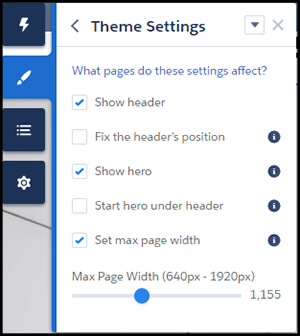
| Setting | Description |
|---|---|
| Show header | Shows or hides the header. |
| Fix the header’s position | Pins the header to the top of the scrolling area so that it remains visible while a customer is scrolling a long page. To see this working, publish and preview your site. The change doesn’t appear in Experience Builder. |
| Show hero | Shows or hides the theme’s hero image. |
| Start hero under header | Positions the hero image at the top of page, under the header, to provide a seamless look. |
| Set max page width | Sets the maximum width of the content across the page. Similar settings are in several component panels. The maximum width can be narrower than the overall display size of the header or hero. |
To create different layouts for different pages, in Experience Builder, go to Settings | Theme | Configure.
Each component type has different attributes that you can adjust in their property panels. Select a component to open its property panel and configure its options. Play with the settings to see what effects you can achieve. Changing your layouts doesn’t affect your content directly, only how it’s displayed. If you end up with something you don’t like or can’t use, and forget how to undo it, you can start over.
- In Experience Builder Settings (1), select Theme.
- Click Reset (2) for your current theme.
- Read the warning and then click Reset to confirm.
- Alternatively, you can reset a theme back to its defaults the next time you reactivate it in the Change Theme panel by selecting Replace and start fresh.

- Branding sets
- Theme regions (settings for common elements across pages like headers)
- Theme settings
- Custom theme layouts
- Custom theme layout assignments for pages
- Custom CSS overrides
