Prebuilt themes come with every template. They let you style your site with clicks, not
code. Apply color, fonts, and images to your site to match your design or brand. Match your
colors precisely by uploading your own logo to generate a custom color scheme. Create branding
sets to change colors, fonts, and logos quickly for different audiences and needs.
Required Editions
Available in: Salesforce Classic
and Lightning Experience
Available in: Enterprise, Performance, Unlimited, and
Developer Editions
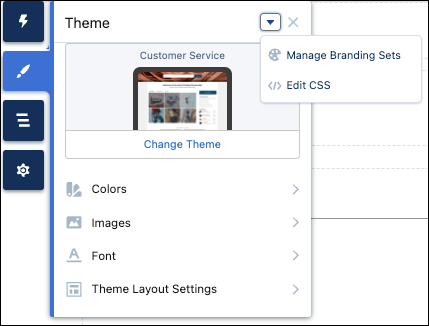
Prebuilt themes give you a head start with your site that you can customize further. After
you create a site and select your theme, use Experience Builder’s Theme panel to adjust the
experience.
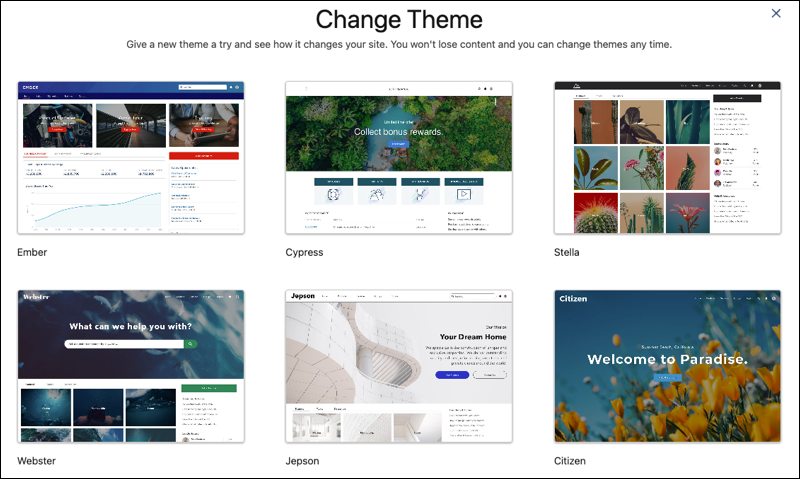
To select a theme, click Change Theme.
Depending on the theme that you select, you can use Experience Builder for various tasks.
Choose colors for text, actions, links, navigation, and borders.
Specify font family, style, weight, and case, and add a custom font.
Change header and page background color.
Choose a custom Search component.
Choose a custom User Profile component.
Use custom CSS to apply your own styles.
Generate a custom color scheme from an image of your logo or company pallet.
Use a branding set to quickly target different audiences and needs.
Note You can apply
branding sets on an audience basis to change colors, images, and fonts. For information on
how to target content or specific layouts to a specific group, see Personalization with Audience Targeting in Aura Sites.
We use three kinds of cookies on our websites: required, functional, and advertising. You can choose whether functional and advertising cookies apply. Click on the different cookie categories to find out more about each category and to change the default settings.
Privacy Statement
Required Cookies
Always Active
Required cookies are necessary for basic website functionality. Some examples include: session cookies needed to transmit the website, authentication cookies, and security cookies.
Functional Cookies
Functional cookies enhance functions, performance, and services on the website. Some examples include: cookies used to analyze site traffic, cookies used for market research, and cookies used to display advertising that is not directed to a particular individual.
Advertising Cookies
Advertising cookies track activity across websites in order to understand a viewer’s interests, and direct them specific marketing. Some examples include: cookies used for remarketing, or interest-based advertising.