You are here:
Show Record Lists in Your Aura or LWR Site Using Navigation Menus
Create record list views for objects such as accounts, cases, contacts, and custom objects, and link to them from your site’s Navigation Menu or Tile Menu components.
Required Editions
| Available in: Salesforce Classic and Lightning Experience |
| Available in: Enterprise, Performance, Unlimited, and Developer Editions |
| Applies to: LWR and Aura sites |
| User Permissions Needed | |
|---|---|
| To customize or publish an Experience Cloud site: |
|
-
In Experience Builder, add a Tile Menu or Navigation Menu component to the
appropriate site page.
Alternatively, if you’re using the Customer Service, Partner Central, or Customer Account Portal Templates, you can click the default Navigation Menu component, which is in the page header.
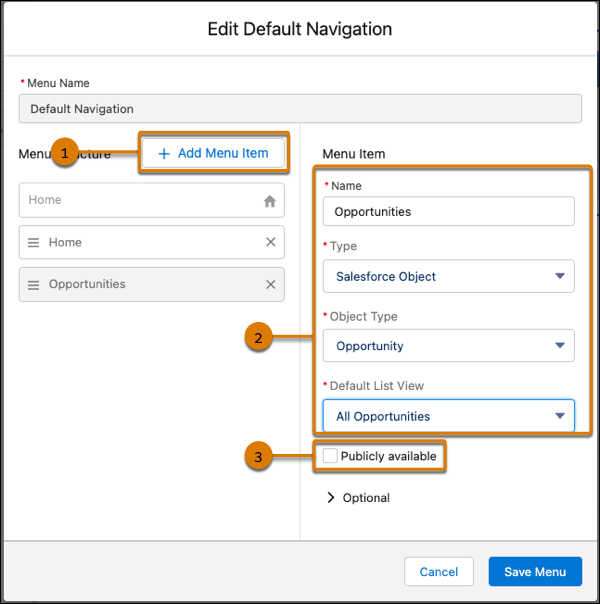
- Go to Settings | Navigation. Or in the property panel, click Edit Default Navigation.
- Click Add Menu Item (1).
- Give your new menu item a name, and from the Type dropdown, select Salesforce Object. Then select the Object Type and your desired List View (2).
-
If you want guest users to access your new record list view page, enable
Publicly available (3).
- Save your changes.
If your site is active, users see the changes to your navigation menu immediately. Under the hood, your data is retrieved from Salesforce and displayed using the generic record list page. The generic Record List page provides the default list view layout for objects without a predefined or custom list view page assigned. For example, if you create a navigation menu item for another Salesforce object, it uses this same generic page. If you modify the record list page, be sure to account for all the affected objects that rely on the page.


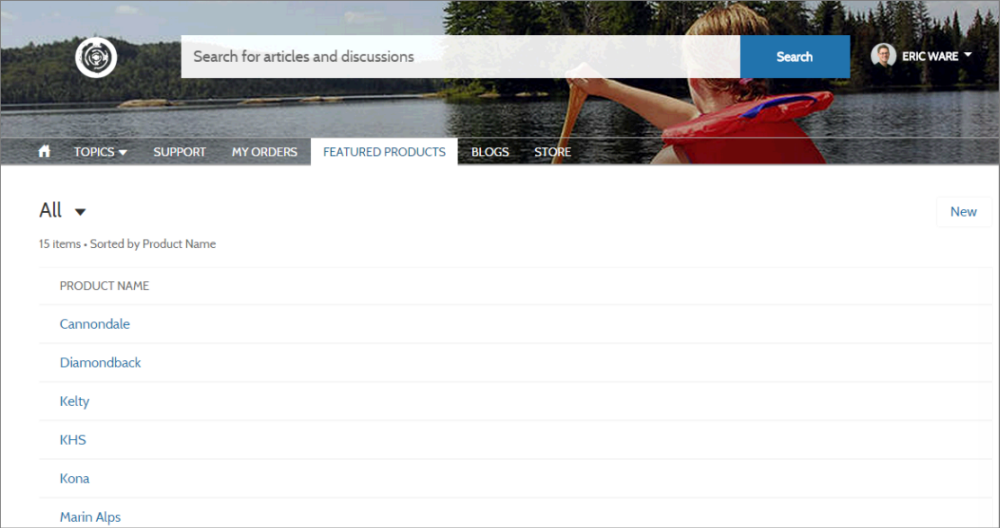
- Users can access only records they have access to via licenses, profiles, permissions, and sharing rules, same as in Salesforce. Users with the "Create" permission for the object can create records from the list view page. The ability to create records from this page isn’t supported on mobile devices.
- When users click a record on this page, the record details are displayed using the layout from the generic Record Detail page. If you create a custom record detail page and assign it to the object, we use that page instead.
- When creating record list views in Experience Cloud sites using Experience Builder, picking a default list view value other than Default overrides the user’s pinned list. If you want users to access their own pinned lists, leave the list view as Default. Otherwise, users see whatever list view was set as the default, even if they have a pinned list.
