You are here:
Find Your Way Around Experience Builder
Experience Builder lets you quickly create and style your Aura or LWR site to match your organization’s branding.
Required Editions
| Available in: both Salesforce Classic and Lightning Experience |
| Available in: Enterprise, Performance, Unlimited, and Developer Editions |
| User Permissions Needed | |
|---|---|
| To create an Experience Cloud site: | Create and Set Up Experiences AND View Setup and Configuration |
| To customize or publish an Experience Cloud site: |
|
To access Experience Builder:
- From the All Sites page in Setup, click Builder next to the site name.
- From the Digital Experiences app, click Builder next to the site name.
- From a site, click Experience Builder in the profile menu.
Experience Builder is available in all fully supported languages that Salesforce offers. If you change the language in your Salesforce user profile settings to one of these languages, the labels in Experience Builder appear in that language.
Use the Experiences menu (1) to:
- Access various workspaces to manage site analytics, login, registration, reputation, topics, and other settings.
- Navigate to Salesforce Setup.
- View the site after it’s published. If your site is unauthenticated, we recommend that you open the site in an incognito or private browser tab. That way, you see exactly what your site visitors see.
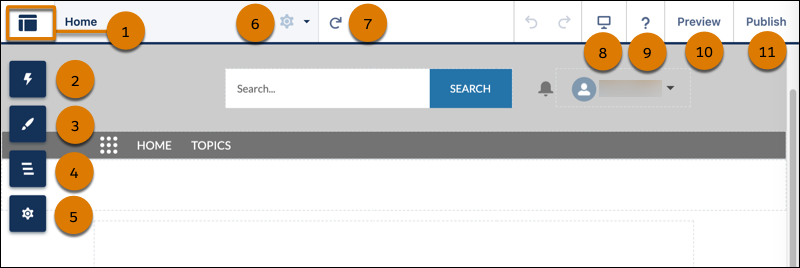
In Experience Builder you can also:
-
Drag a component from the Components panel onto your page (2). The panel includes standard components and custom ones from AppExchange.
-
Theme the site to match your organization’s brand and style (3).
-
View the page structure and the components on the current page (4). To edit a component’s properties, select the component.
-
Edit site settings and accept updates to your site’s template (5).
-
Navigate to the site page that you want to edit on the Pages menu (6). You can also open the Page Settings for any page in this menu to manage, create, delete, or set the visibility of that page.
-
Refresh the current page (7).
-
Find help and tips (9).
-
Preview the site as an authenticated or guest user (10).

