Loading
The online Trailblazer Community becomes read-only Oct 30, 2026Read More
Experience Cloud
Enable Upvotes and Downvotes

Enable Upvotes and Downvotes

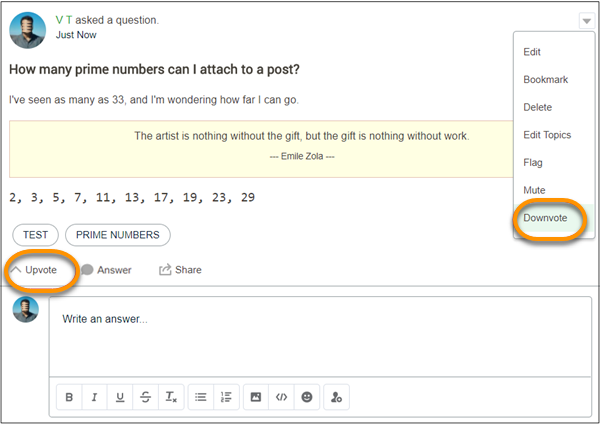
Enable upvoting and downvoting in lieu of liking questions and answers in your Experience Cloud site. When you enable upvoting and downvoting, members see an Upvote option under a question or answer and a Downvote option on the question or answer’s overflow menu. The Like option goes away. Upvoting and downvoting are disabled by default in Experience Cloud sites created in Spring ’19 and later.
Required Editions

Available in: Salesforce Classic and Lightning Experience
Available in: Enterprise, Performance, Unlimited, and Developer Editions
Applies to: Aura and Visualforce sites
User Permissions Needed
To enable up and down voting: Create and Set Up Experiences

For sites created before the Winter ’18 release, it’s an easy task to enable up and down voting.

Upvote and Downvote options on questions and answers

When you change to upvotes, pre-existing likes are included in the upvote count. Click the count to see a list of the people who have upvoted.

Note
Note
  • No one is listed more than once, even if a person both liked and upvoted a question or answer. But each like and upvote is counted. For example, if someone both liked and upvoted a question, the count is 2, although their name is listed only once. If you prefer not to merge your like and upvote counts, contact Salesforce support.
  • On influence cards, upvotes count as likes received. Your own upvotes on your own posts or comments aren’t counted towards influence. Downvoting a post or comment doesn’t reduce the like count, unless a user is changing their own upvote to a downvote.
  • Members must be logged in to a site to use the upvote and downvote feature.
  1. Go to Experience Workspaces and click Administration | Preferences.
  2. Under Experience Management, select Allow members to upvote and downvote.
  3. Click Save.
 
Loading
Salesforce Help | Article
